What a Wi-Fi QR code does—and does not do
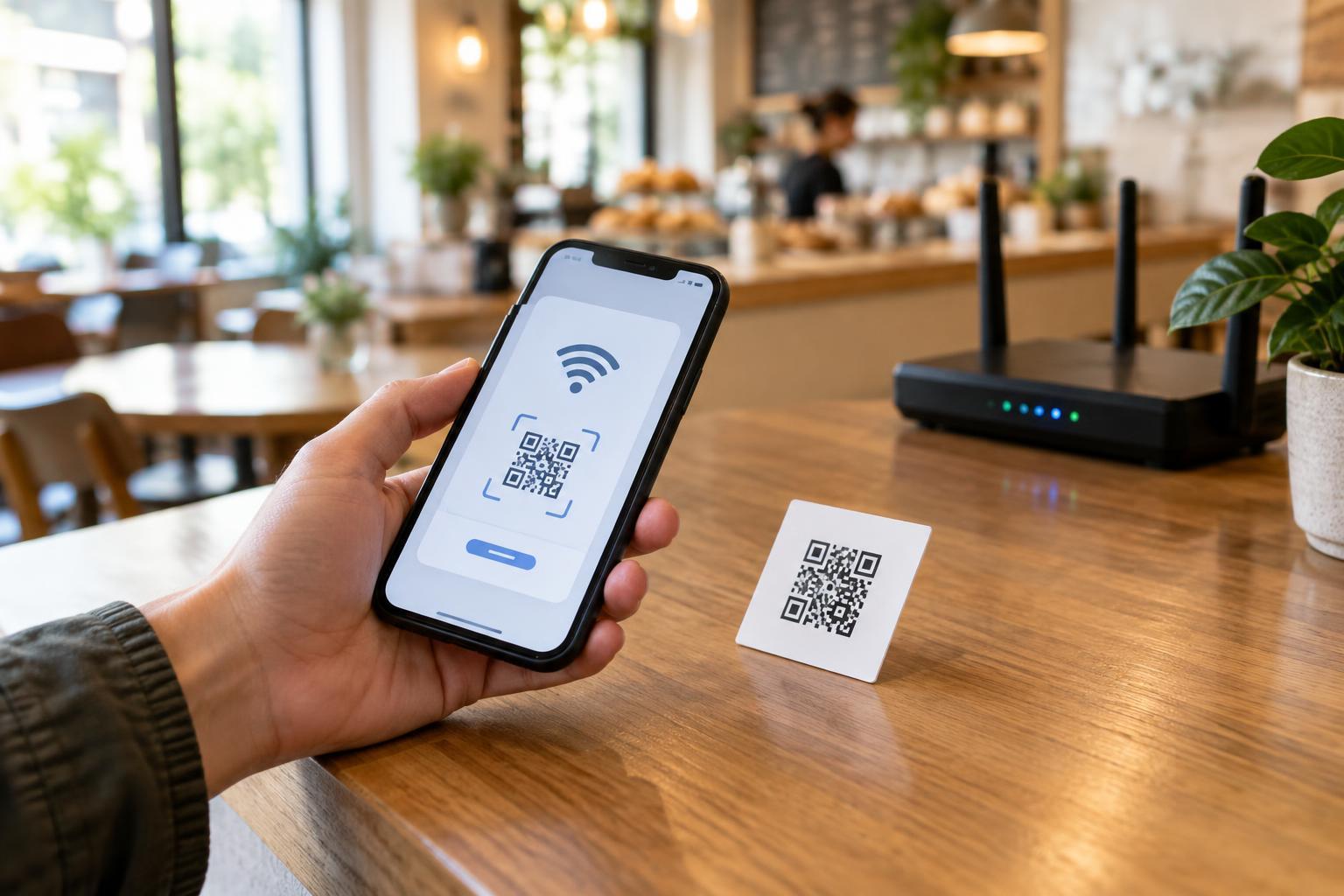
A Wi-Fi QR code can hold the details a device needs to join a wireless network, such as its name, security type and password. Scanning it may offer a convenient connection prompt instead of requiring someone to type those details. The exact prompt depends on the device and scanning app, so pause to read what appears before accepting.
The code is a shortcut for entering information, not a security check. It cannot tell you whether the network belongs to the café, hotel, office or household that appears to offer it. A convincing printed sign could point to an unexpected network, and a network name that looks familiar is not proof of ownership. Treat the scan as an invitation to verify the connection, not as confirmation that it is safe.
Check the network before you connect
Start with the setting. Is the QR code on an official guest-information card, at a staffed counter or in another place where you would expect Wi-Fi instructions? A loose sticker covering an older sign, an unfamiliar code on a table or a message sent by a stranger deserves more scrutiny. If something seems out of place, ask the host or staff which network name guests should use rather than trusting the code alone.
When your device shows the proposed network, compare its name with information provided through a separate, trusted channel, such as instructions from the host. Watch for small differences in spelling or extra words. If your device does not clearly show what it will join, you can open Wi-Fi settings to review the available networks and confirm the name before connecting. If you cannot verify it, it is reasonable not to join.
A sign-in page may appear after connection, especially on shared networks. Check that its request fits the setting. A page asking for an unrelated account password, payment details or device configuration is a reason to stop and confirm the process with the network operator. Do not assume a page is legitimate simply because it appeared after scanning a code.
Remember that the code may reveal the password
A Wi-Fi QR code that includes a password is not a way to keep that password secret. Someone may be able to decode, photograph or share the code and recover the connection details. This matters even if the printed sign does not display the password in ordinary text. Avoid placing a code for a private home or staff network where anyone can copy it.
If you offer Wi-Fi to visitors, consider a separate guest network rather than sharing the credentials for devices you rely on. Place its code where intended guests can find it, and remove or replace outdated signs when you change the guest password. A guest network can help separate visitor access from your main network when configured appropriately, but it does not remove the need to manage who receives its credentials.
Use shared Wi-Fi with ordinary caution
Even a genuine guest network is shared access. Keep your device updated, use secure websites and apps, and avoid approving unexpected certificate warnings or requests to install software just to get online. If you have a more trusted connection available, consider using it for especially sensitive tasks. These habits matter whether you joined by scanning a code or typing a password.
After a one-time visit, check whether your device has saved the network for future use. You can remove it or turn off automatic joining if you do not expect to return. That reduces the chance of reconnecting later without noticing which network your device selected. A quick review of saved networks is also useful after travel or events where you joined several guest networks.
Make QR-based Wi-Fi instructions easy to verify
For hosts, a clear sign helps guests make a careful choice without making the process difficult. Put the official network name beside the QR code in readable text, identify the location or organization offering it, and give guests a way to ask for help. Keep the sign in a sensible, maintained location and check periodically that the printed code still matches the intended guest network.
Offer a text alternative for people who cannot or do not want to scan. Providing the network name and a way to obtain the guest password helps visitors use their device’s Wi-Fi settings directly. The goal is not to make every guest distrust a convenient code; it is to give them enough context to recognize the right network before they join.