A scan and a website permission are separate steps
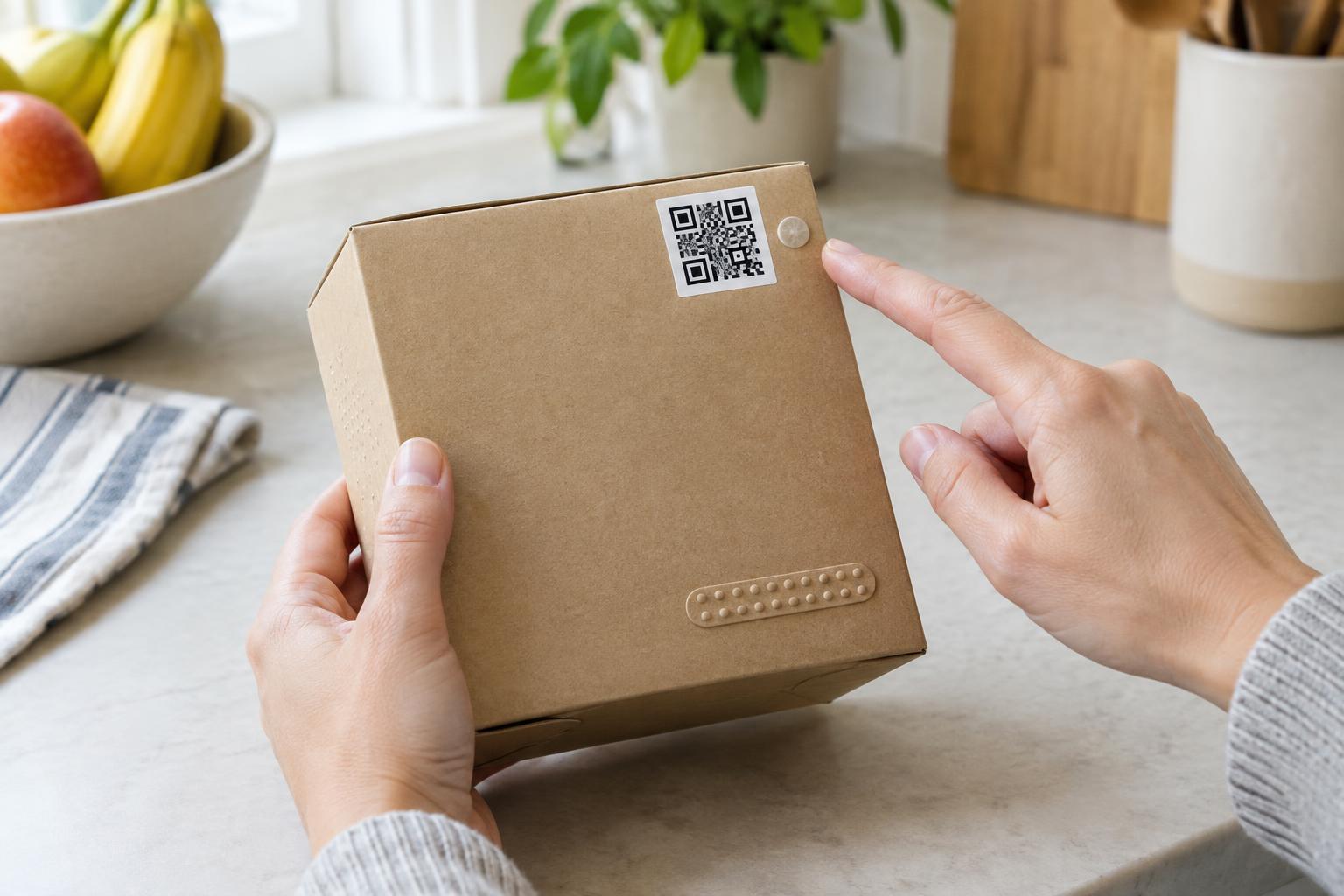
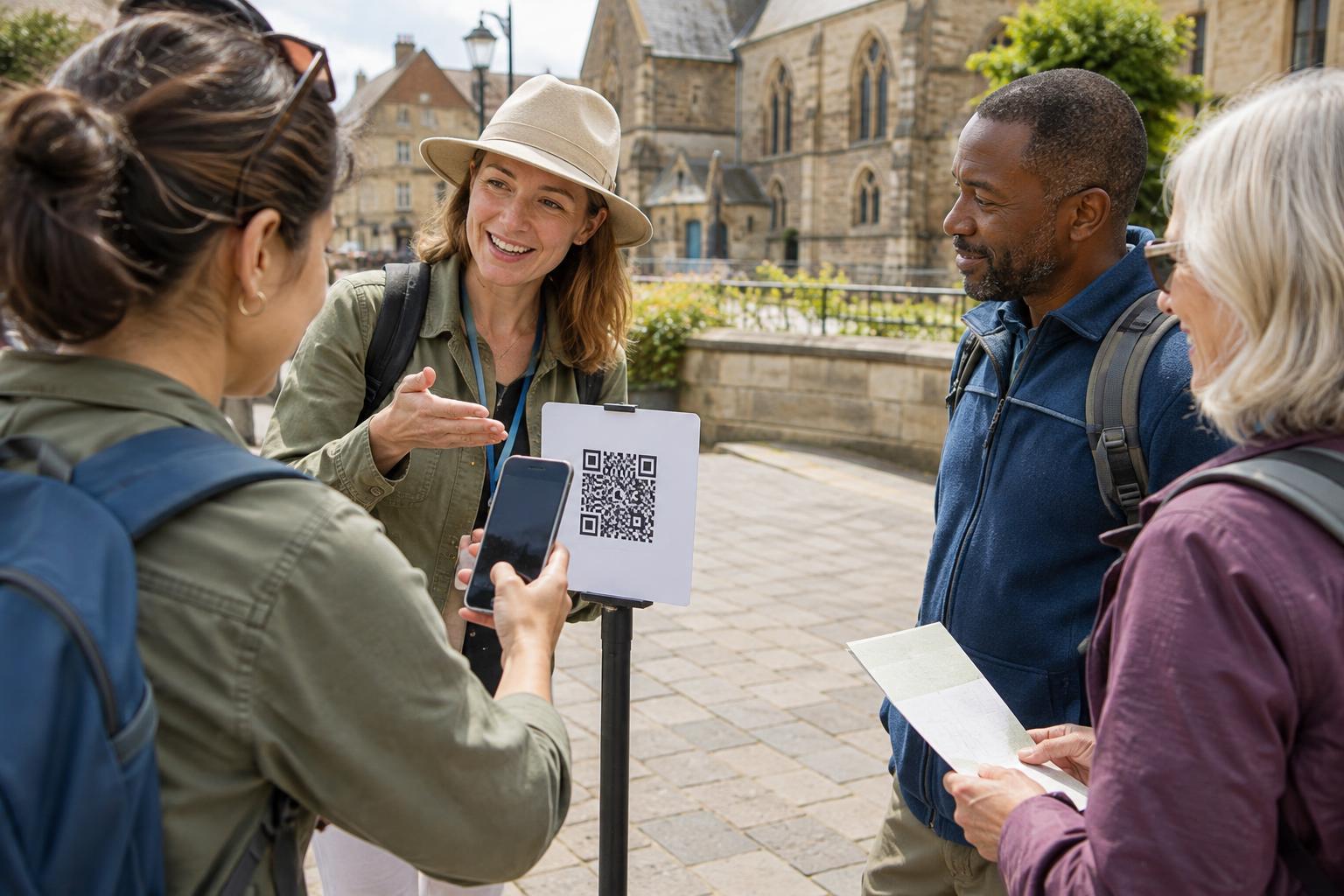
Imagine scanning a QR code on a shop sign to read opening hours. The page loads, then asks to use your location. Or a code on a product leaflet opens a support page that asks to use your camera. The request may have a useful purpose, but the QR code itself does not explain why the website wants that access.
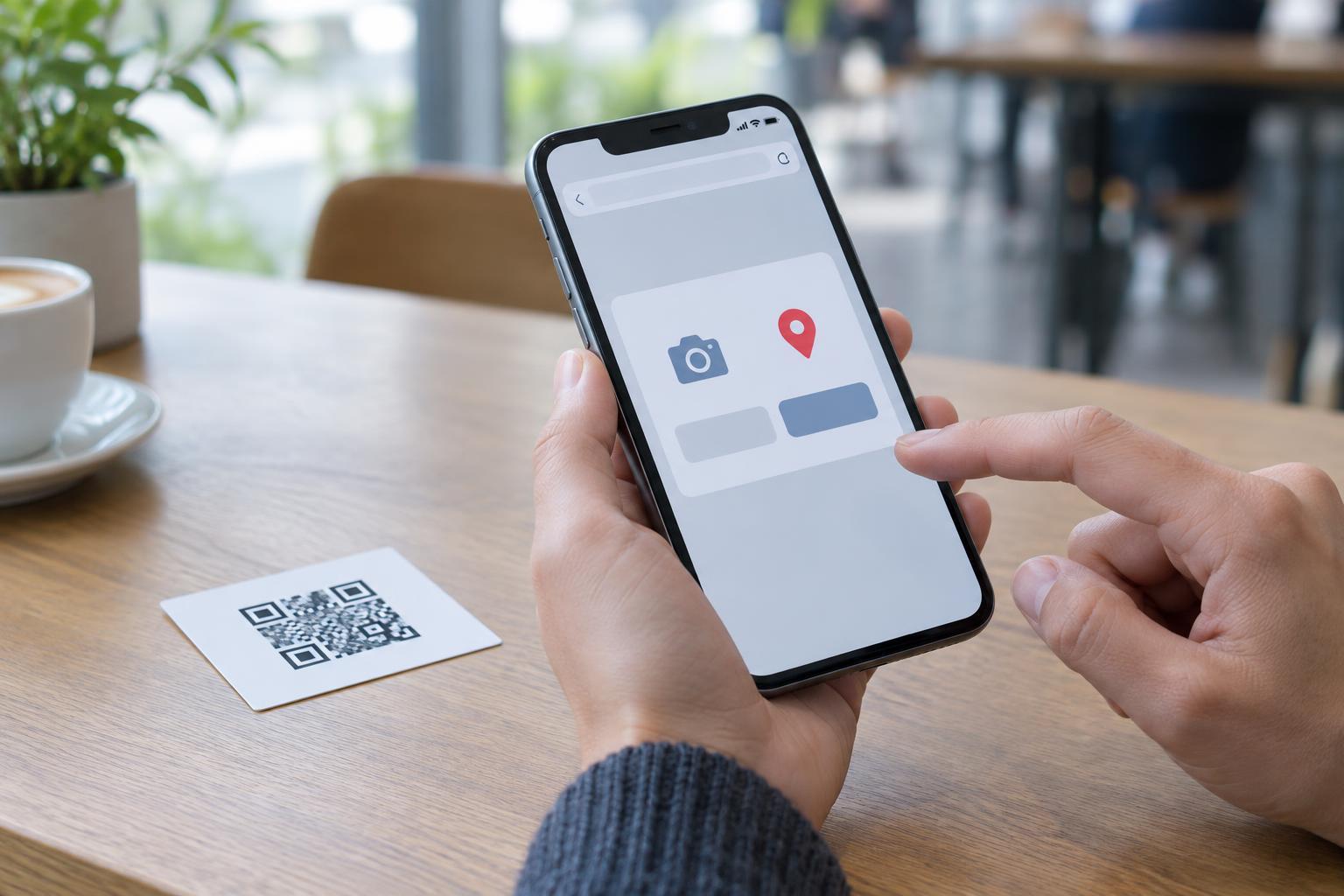
Scanning a code with your phone’s camera does not automatically give the destination website permission to use the camera. Likewise, opening a QR-linked page does not automatically share your precise location with that page. These are separate actions. Browsers generally ask before a website can use a device feature such as the camera or location, although the details depend on your browser, device settings and any permissions you previously granted.
Ask whether the feature fits what you came to do
A permission request is easier to assess when you start with your original goal. If you scanned a code to read a menu, view instructions or check store hours, you may not need to share your location or camera at all. Try declining the request and see whether the information you wanted remains available. A site that cannot provide a simple page without unrelated device access deserves a closer look.
Sometimes the request does fit the task. A page offering directions to the nearest branch might use your location to suggest a starting point. A support page that lets you photograph a damaged item might need camera access when you choose to take the picture. In both cases, the timing matters: a request made after you select a relevant feature is easier to understand than one that appears immediately on arrival.
Permission to use a device feature is not the same as permission to do anything with the information it provides. Before continuing, consider what you might reveal. A location can identify where you are at that moment; a camera view can include documents, faces or other details in the background. If the task allows it, typing a town or uploading a carefully chosen photo may give you more control.
Check the page before deciding
A printed QR code can look official even when it has been covered by another sticker or placed beside a legitimate notice. Before granting a request, check the address shown in your browser and whether the page’s branding and purpose match the physical item you scanned. A familiar logo alone is not enough to establish who operates a page.
Pay attention to the request’s wording and context. Does the page explain why it needs access and what will happen next? Can you use the service without granting it? If a code advertised as a receipt, menu or information page suddenly demands camera access to proceed, pause rather than approving it out of habit. You can ask staff for the intended address or find the organization’s page through a route you already trust.
A browser permission prompt tells you that a website is asking for access; it does not certify that the website is trustworthy. Treat the prompt as a decision point, not as a recommendation to tap “Allow.”
Choose the narrowest useful option
If you decide the request is appropriate, look at the options your browser provides. Some browsers and devices offer a one-time or limited permission alongside a more lasting choice. Choosing the narrowest option that completes your task can reduce access you did not intend to leave in place. If the page asks for a camera, check that the intended camera is selected and look at what is visible before taking or submitting a picture.
For location, consider whether an approximate area is enough. Your device may let you limit precision, or the page may accept a manually entered place instead. These choices vary, so do not assume every website or phone offers the same controls. Declining is also a valid choice when the benefit is unclear.
Revisit permissions you have already granted
If you tapped “Allow” too quickly, you can usually review website permissions in your browser settings. Look for site settings or permissions, find the website, and change its camera or location access. You can also check your device’s privacy settings for broader browser access. The exact menu names vary by device and browser.
Changing a permission affects future access; it may not undo information you already submitted or shared while using the page. That distinction is why it helps to pause before approving a request. For QR-linked pages, a simple habit works well: confirm you reached the page you expected, decide whether the requested feature serves your task, and grant access only if you are comfortable with what it may reveal.