What changes between vector and raster files?
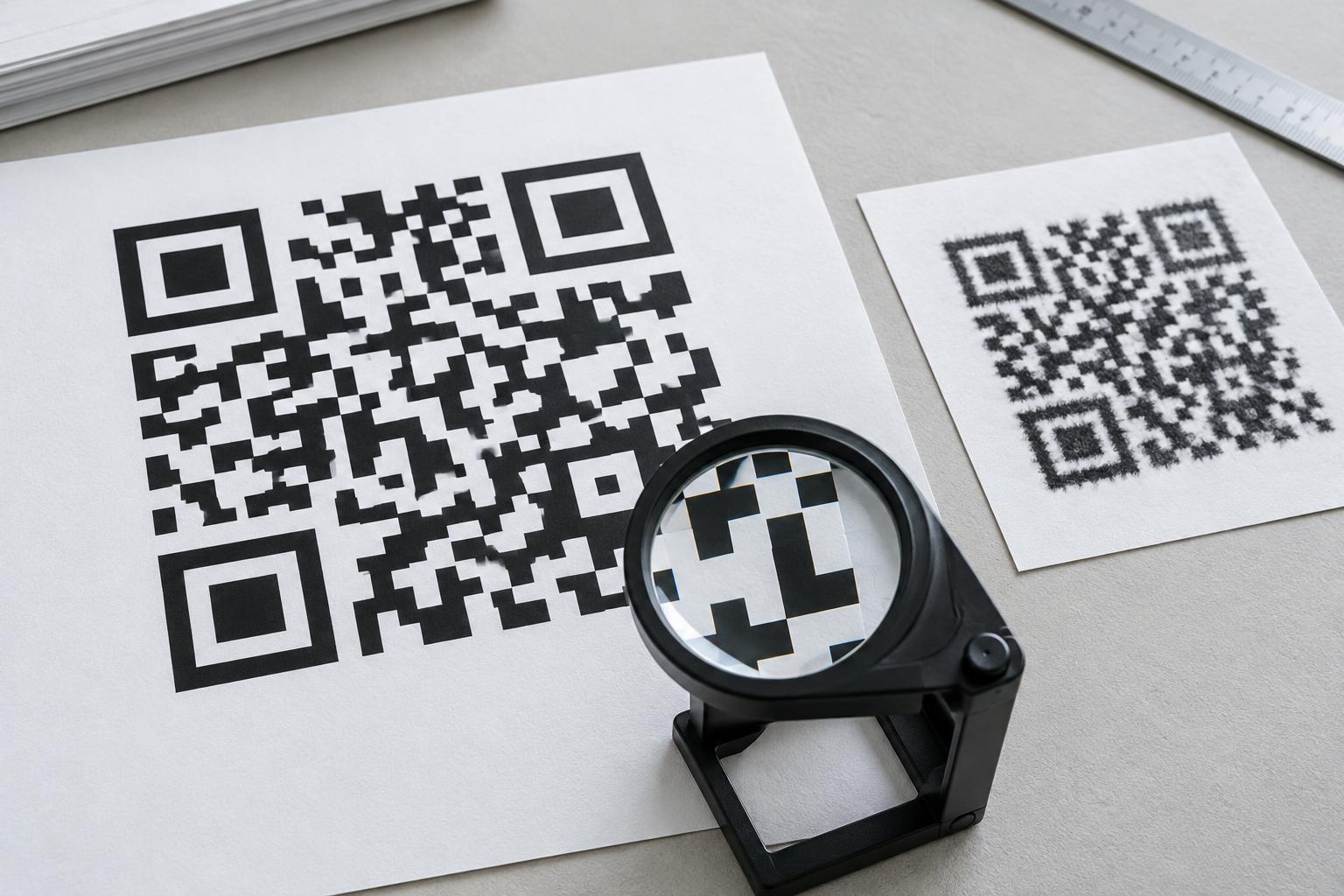
A QR code is a grid of dark and light squares, often called modules. For a scanner to read it, those squares need to remain distinct. A vector file describes their shapes as paths, so its edges can stay crisp when the artwork is resized. A raster file stores the image as pixels. It can print cleanly at an appropriate size, but enlarging it beyond its available pixels may make edges look soft or uneven.
Common vector delivery formats include SVG, EPS and PDF. PNG and TIFF are common raster formats; JPEG is usually a poor choice for QR artwork because compression can introduce marks around high-contrast edges. File extensions alone do not tell the whole story: a PDF can contain a low-resolution image rather than vector shapes. If the distinction matters, ask the designer or printer whether the QR code inside the file is actually vector artwork.
When to send a vector QR code
Vector is usually the most flexible choice when the final print size might change. A printer can place the same artwork on a small product label, a menu or a large sign without needing a new pixel-based export for each size. It is also convenient when a layout may be revised late in production.
Ask the printer which vector formats their workflow accepts. A print-ready PDF may be easier for them to place than an SVG, while another printer may request an EPS. Confirm that the exported file contains the intended code, not merely a linked image that could go missing. When reviewing a proof, check the code itself rather than assuming that a vector format guarantees a good scan: a code can still be printed too small, distorted or placed on a difficult surface.
When a raster image is enough
A PNG or TIFF can be suitable when its pixel dimensions are adequate for the exact printed size and it is placed without excessive enlargement. For example, an image intended for a small card should be evaluated at the size it will occupy on that card, not just at a zoomed-in view on a monitor. A “300 dpi” label in a file does not create detail; the number of pixels and the intended physical size determine how much detail is available.
If you must supply raster artwork, export it at the final dimensions or larger, keep the module edges clean, and avoid repeatedly resizing or resaving it. Do not use a screenshot when a proper export is available. Give the printer the original file rather than a version copied from a document or messaging app, where it may have been scaled or compressed. If the printer flags the image as too small, provide a larger export or a vector version instead of simply changing its resolution setting.
Print design matters as much as file format
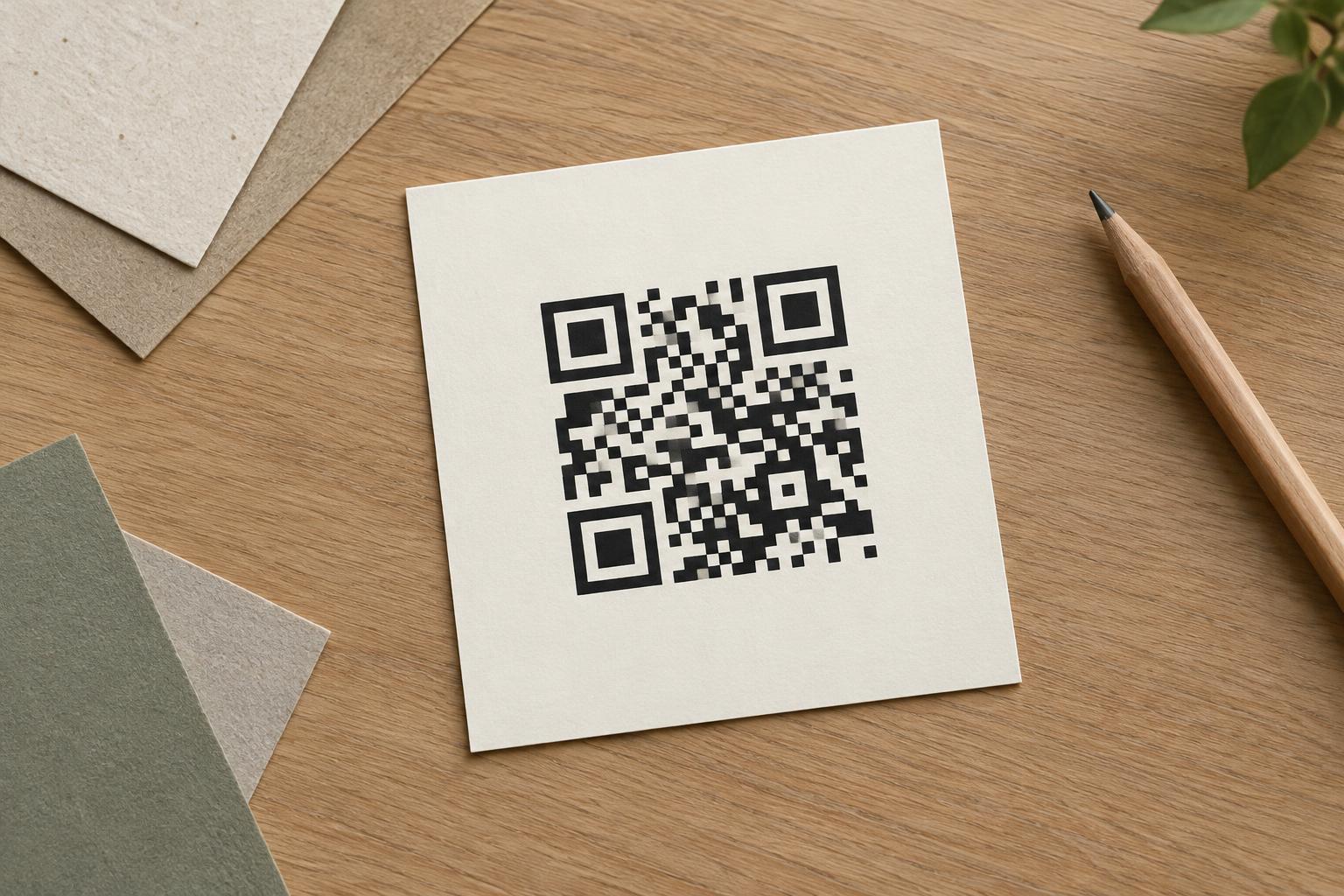
Leave an empty margin around the code, known as the quiet zone. A useful baseline is at least four module widths on every side. Do not let text, borders, photographs or nearby design elements enter that space. Keep a strong contrast between the dark modules and the light background, and avoid patterns or gradients that make their boundaries harder to distinguish.
Print conditions also affect the result. Ink can spread slightly on absorbent paper, and a glossy, curved or creased surface can be harder to scan than a flat matte one. Make the code large enough for its viewing distance and the detail it contains; a dense code with many small modules may need more space. Preserve its square proportions when placing it in the layout. If space is tight, reducing unnecessary content encoded in the QR code may help more than shrinking the artwork.
A simple handoff and proofing checklist
Send the printer the preferred vector file if you have one, along with a PNG or TIFF preview if that helps identify the correct artwork. State the intended printed dimensions and show where the quiet zone ends. If the code leads to a webpage, confirm the destination before printing, and avoid putting sensitive information directly into a code intended for public display.
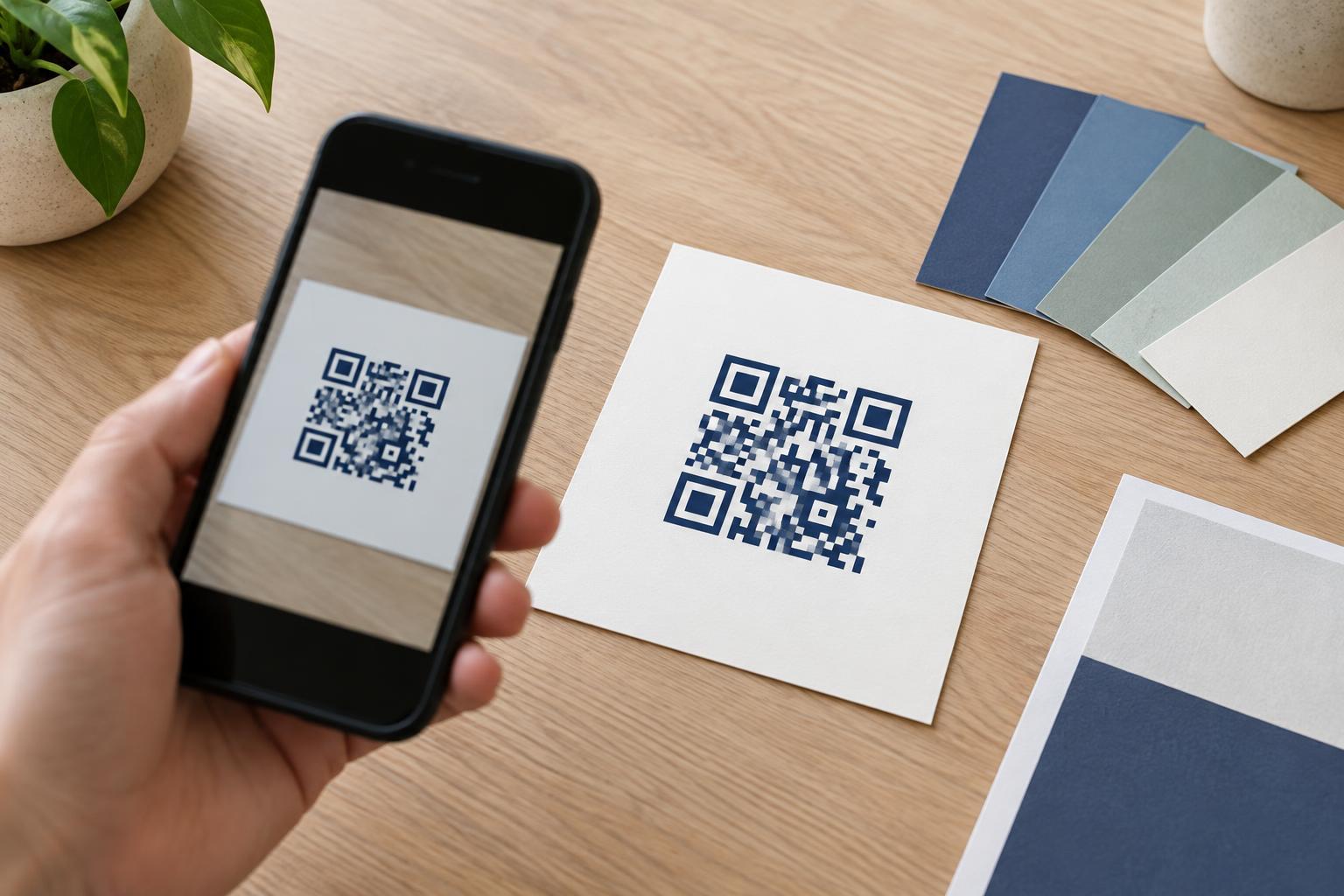
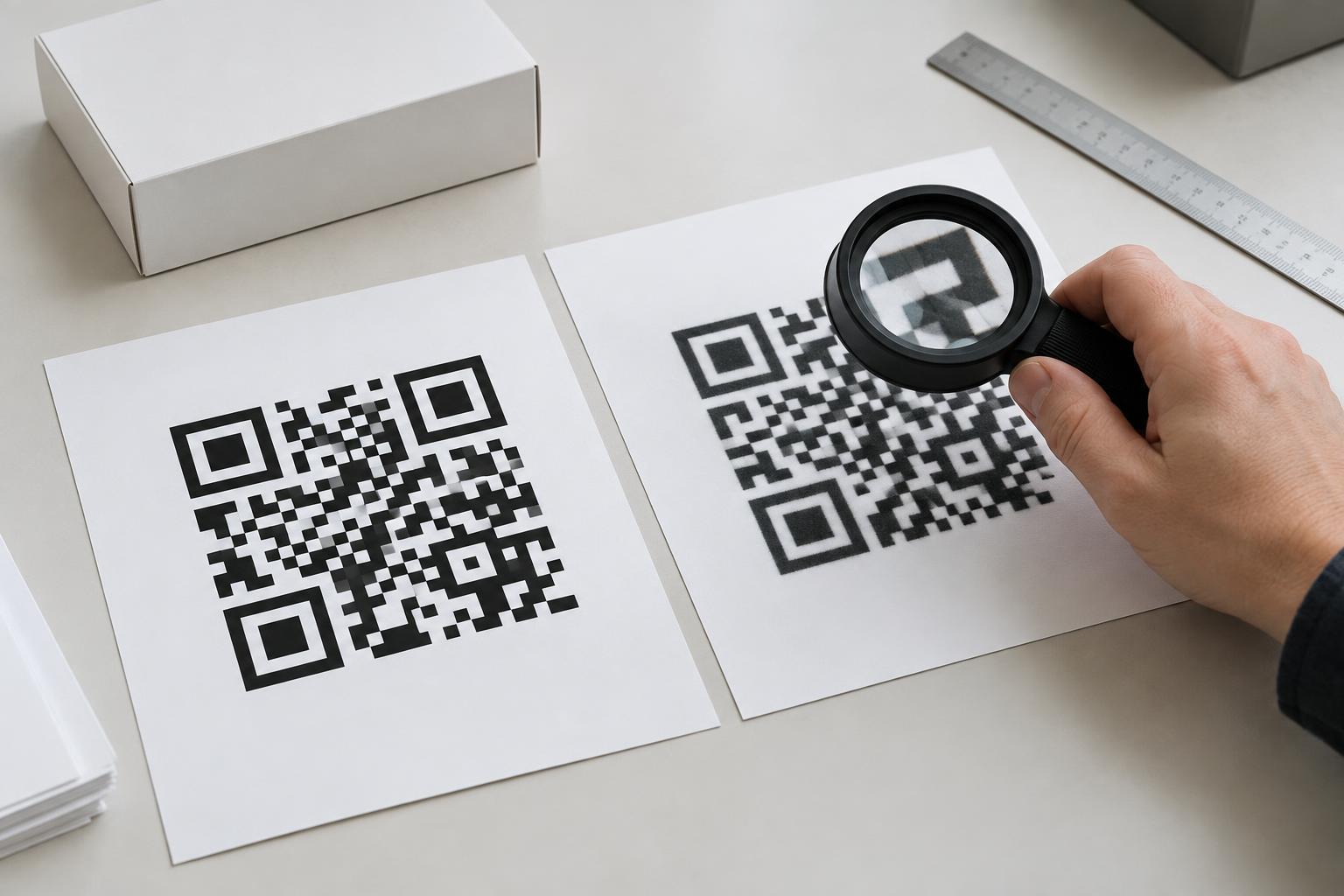
Before approving a full run, inspect a proof at its actual size. Check that the squares and quiet zone are clear, then scan the printed code with more than one phone if possible, under ordinary lighting and from a realistic distance. Test the code on the final material or finish when you can. A successful scan on a screen is useful, but the printed proof is the better test of the file, layout and production choices together.