What is a quiet zone?
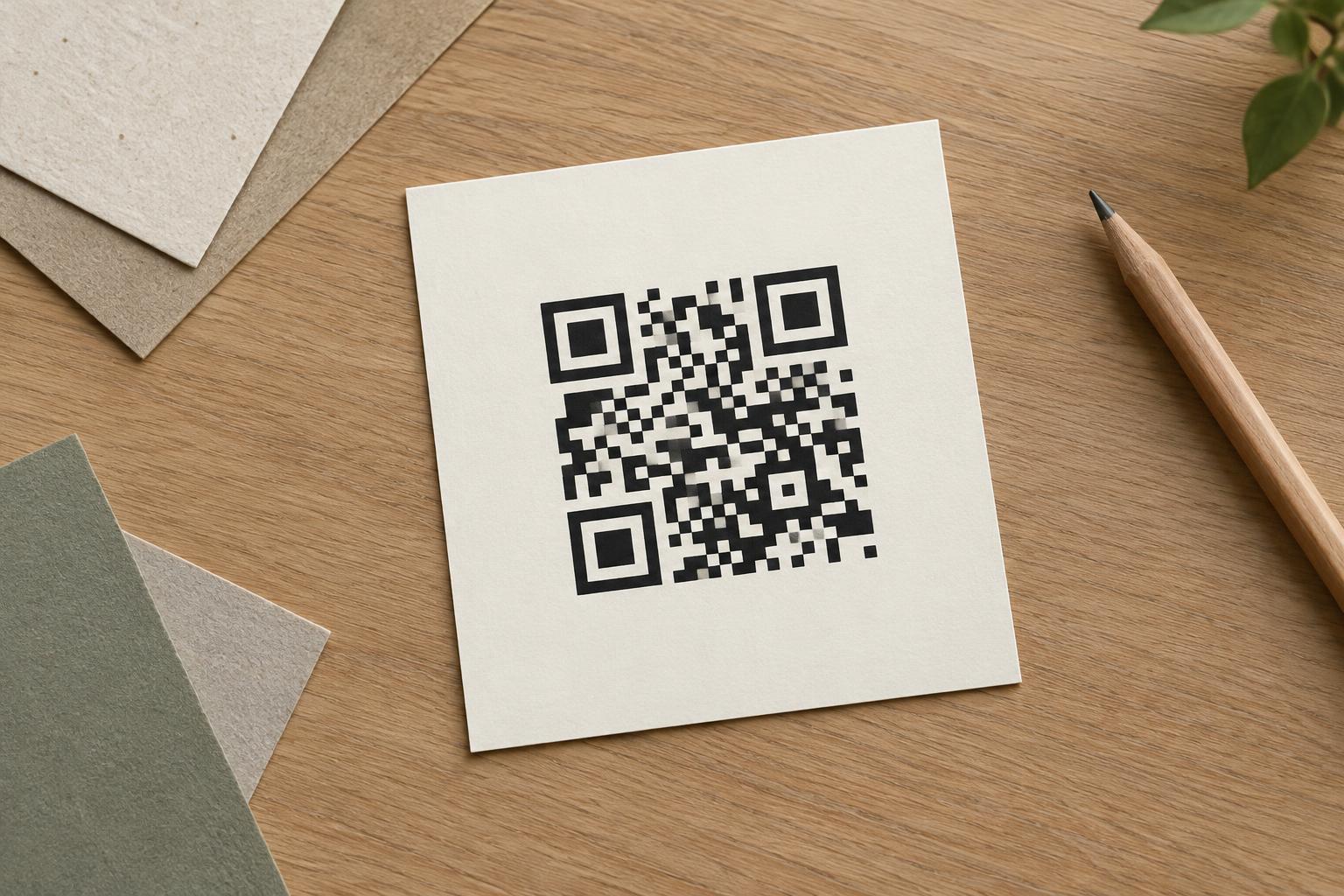
The quiet zone is the clear margin surrounding all four sides of a QR code’s patterned square. It is part of the code’s usable design, even though it contains no dark modules. That blank space separates the code from nearby text, graphics and other marks, giving a scanner a clearer boundary to detect.
Think of a QR code on a crowded restaurant menu. A phone camera sees the code alongside prices, rules, illustrations and perhaps a decorative border. If those elements run right up to the pattern, the scanner may have a harder time deciding which marks belong to the code. A clear margin reduces that ambiguity. It does not guarantee a scan, but removing it creates an avoidable obstacle.
How much blank space should you leave?
A common QR code specification calls for a quiet zone at least four modules wide on every side. A module is one of the small squares that make up the pattern. Measure the margin from the outer edge of the pattern, not from the edge of a larger image file or its drop shadow. Because module size changes when a code is resized, using modules as the reference keeps the margin proportional.
The margin should look like a continuous, plain extension of the code’s light background. White is a straightforward choice, but another light color can work if it maintains strong contrast with the dark pattern. Avoid putting a frame, caption, logo, texture or crop mark inside the quiet zone. If your design includes a decorative border, place it outside the blank margin rather than against the pattern itself.
Treat four modules as a minimum, not a target to shave down when space gets tight. Extra breathing room is often helpful in busy layouts or when the code will be viewed from an angle. If there is not enough room, simplify the surrounding design or move the code instead of trimming its clear space.
Where quiet zones get lost in a design
The most obvious mistake is placing text directly beside the code. Less obvious problems arise when a patterned background shows through a transparent QR image, a colored box ends at the pattern’s edge, or an image-editing tool crops away the original margin. A code may appear to have space around it on screen while sitting too close to other marks in the final layout.
Check the finished composition, not just the QR image you imported. A product label may have a generous margin in its design file, then lose it when trimmed. A poster code may be clear until a callout arrow, price sticker or handwritten note overlaps one side. On packaging, folds and seams can also interrupt the space the scanner needs to see. Give the code a dedicated, uncluttered area that will remain intact after production and use.
Check the printed result, not only the screen preview
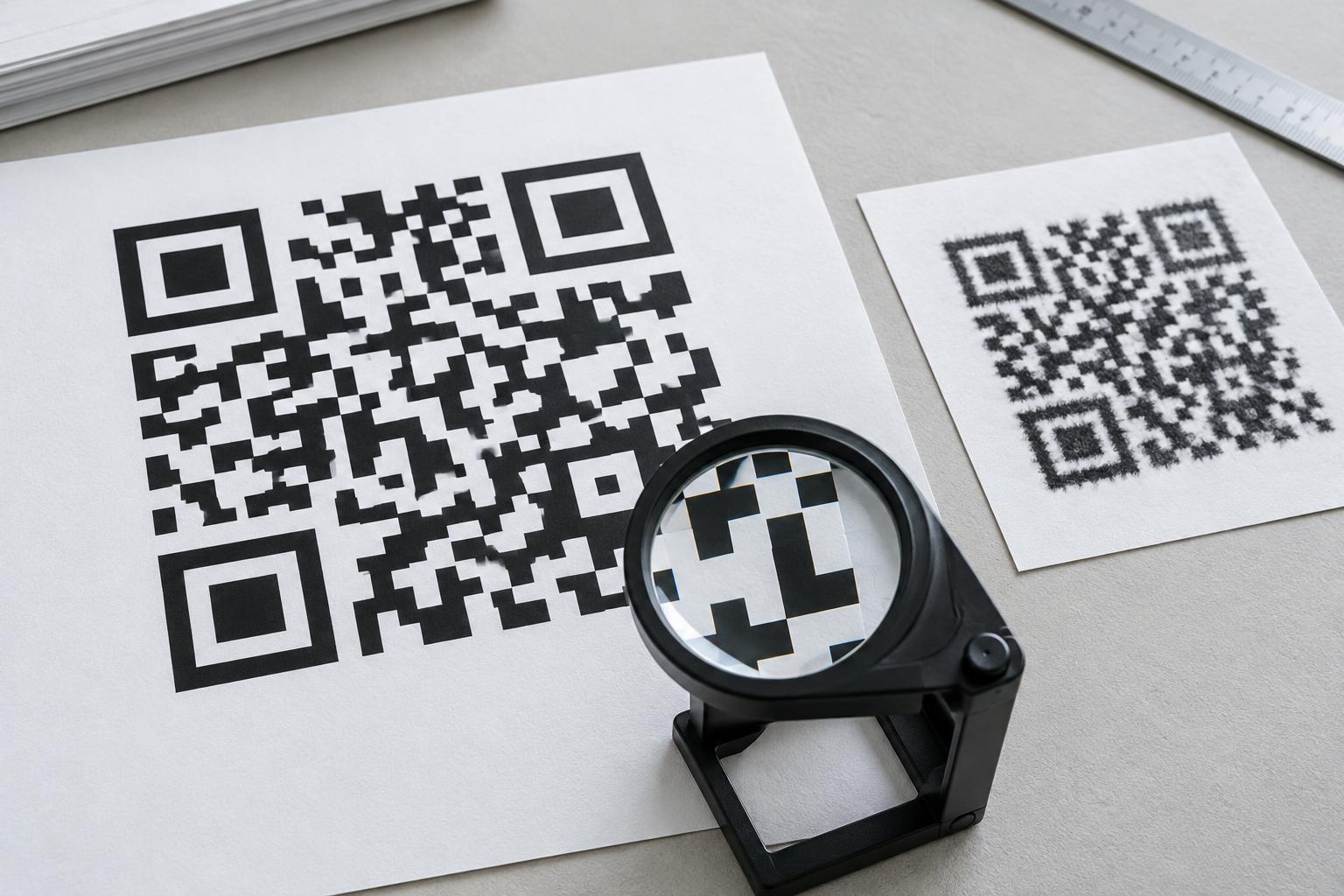
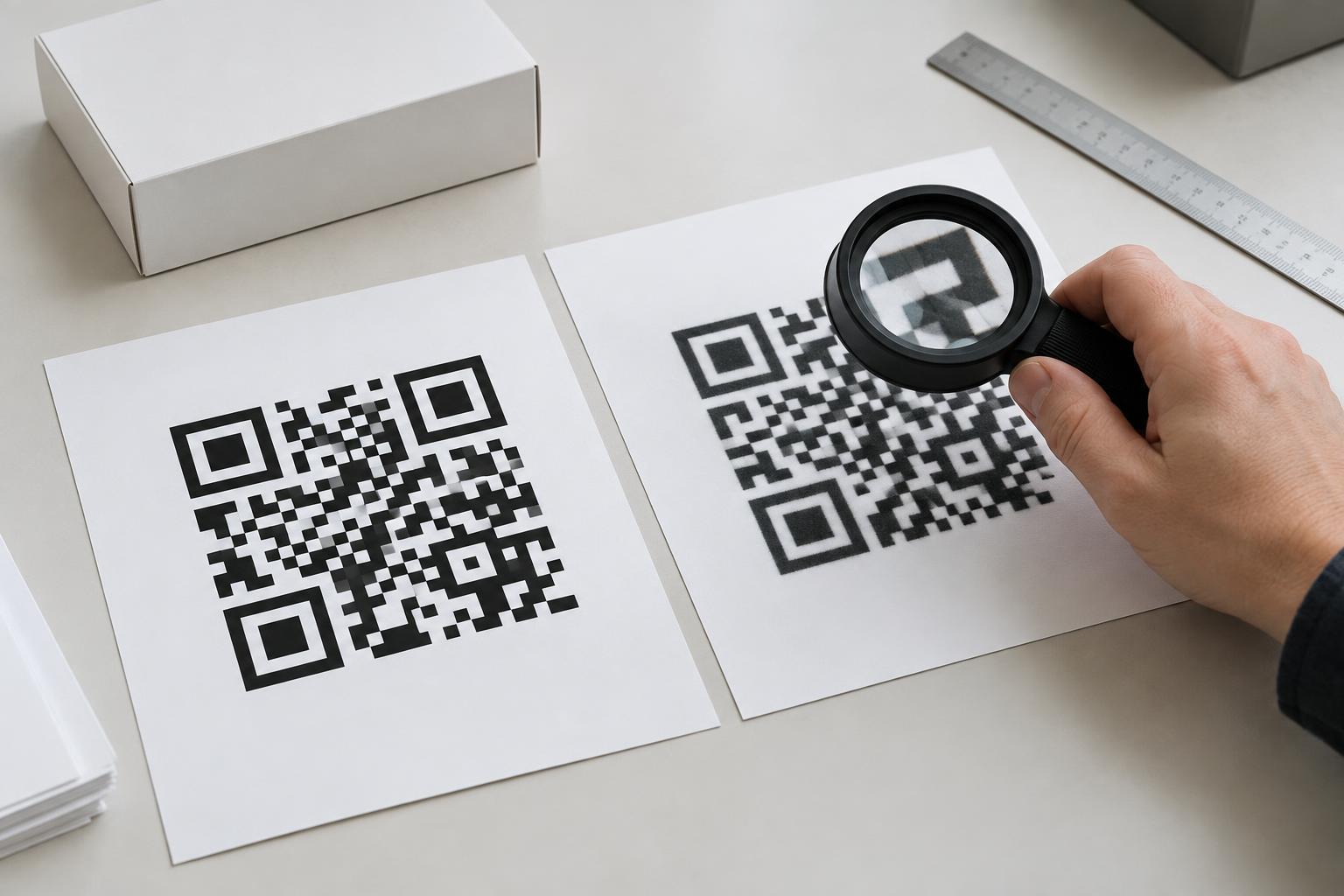
Quiet zone width is only one part of print readability. If a code is printed very small, its individual modules may become difficult for a camera to distinguish even when the margin is correct. Low contrast, glare, blurred printing and curved surfaces can cause trouble too. Keep the pattern sharp, choose a strong contrast between dark modules and a light background, and avoid stretching the code out of its square shape.
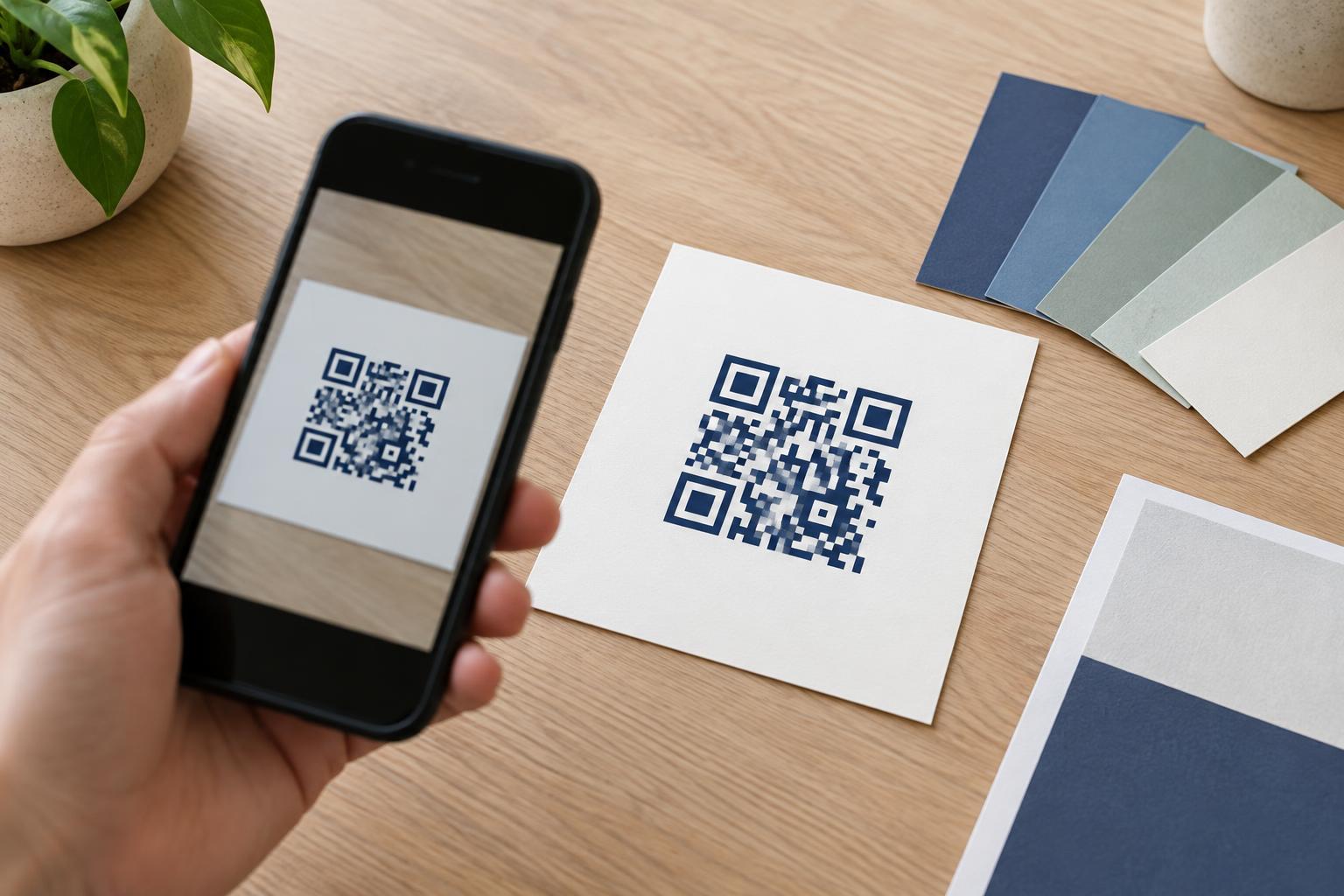
Before committing to a batch of menus, labels or signs, print a sample at the intended size on the intended material. Scan it with more than one phone if available, from the distance and angle people are likely to use. Check it under typical lighting, and confirm that it opens the intended destination. If scanning is unreliable, first inspect the clear margin, then look at size, contrast, print quality and placement.
A simple layout habit prevents many problems: treat the QR code and its quiet zone as one object. Reserve space for both from the start, keep other design elements outside that space, and verify the boundary again in the final printed piece. The blank area may seem expendable, but it helps the pattern do its job.