Start with the purpose, not the form fields
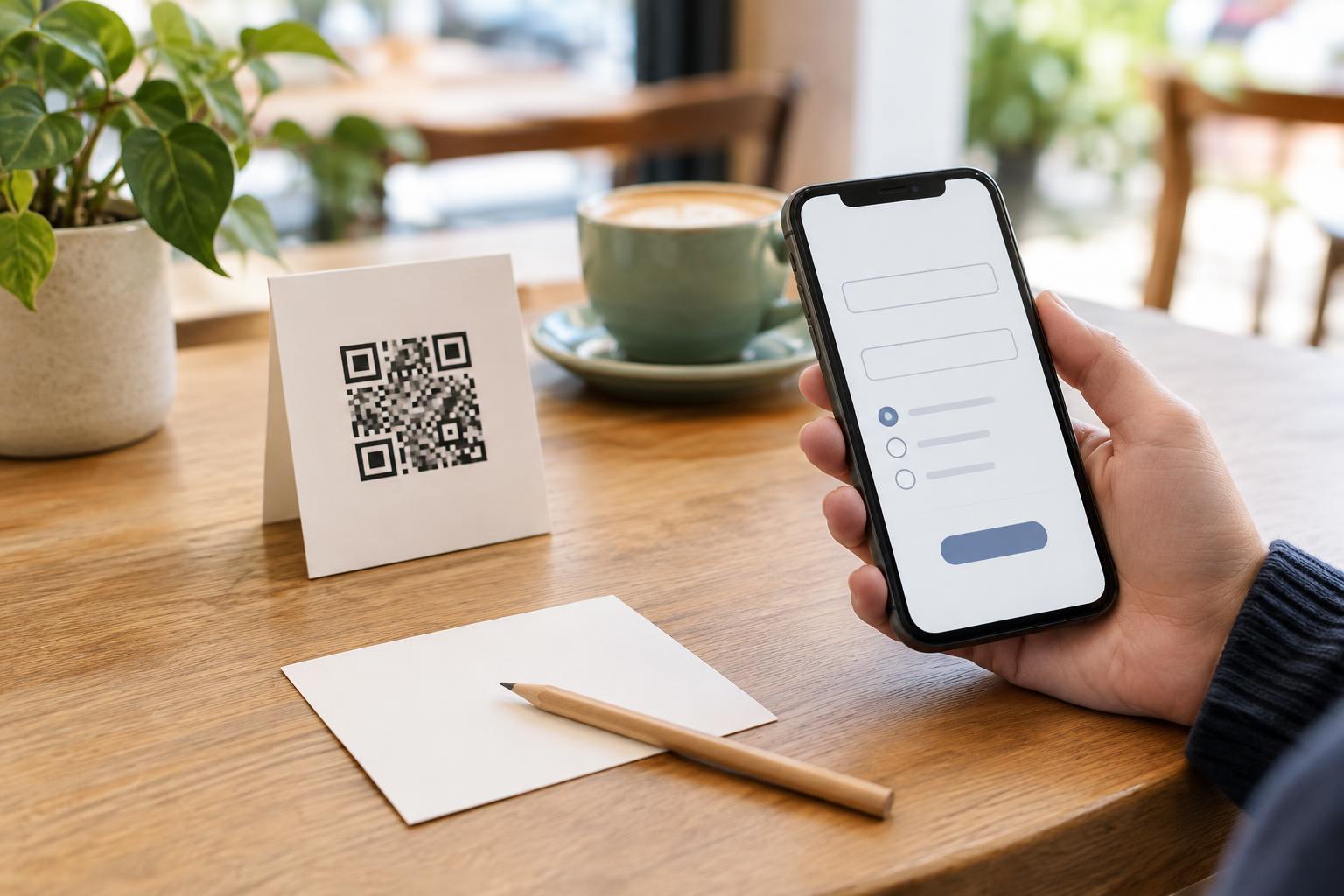
A QR code on a receipt, table sign, or product label can take a customer straight to a form. The code is a shortcut to a web address; it does not make every question on that page necessary. Before building the form, write down the single task it serves. Are you gathering comments about a visit, arranging a callback, or registering someone for a workshop? A form that tries to do all three may collect more information than any one task requires.
Work backward from what you need to do next. A general satisfaction survey may work without a name or email address. A callback request needs a way to contact the person and perhaps a preferred time, but may not need a postal address. If a detail is only “nice to have,” leave it out or make it optional and explain why you are asking. Fewer fields can also make a form quicker to complete on a phone.
Make each request clear and proportionate
Give the form a plain-language introduction: what it is for, who will receive the answers, and what will happen after submission. Label optional questions clearly. If you ask for contact details so you can reply to feedback, say so beside the field. Do not quietly use that address for marketing as well. If you want to offer a separate sign-up, present it as a distinct, optional choice rather than treating submission of the form as agreement.
Consider whether you need open-text boxes. They are useful for feedback, but customers may enter phone numbers, health details, payment information, or other sensitive information you did not intend to request. A short prompt such as “Please do not include payment details or other sensitive information” can help set expectations. Where a simple rating or a small set of choices will answer the question, it may be easier for customers and leave you with less personal information to manage.
Check the destination and the data path
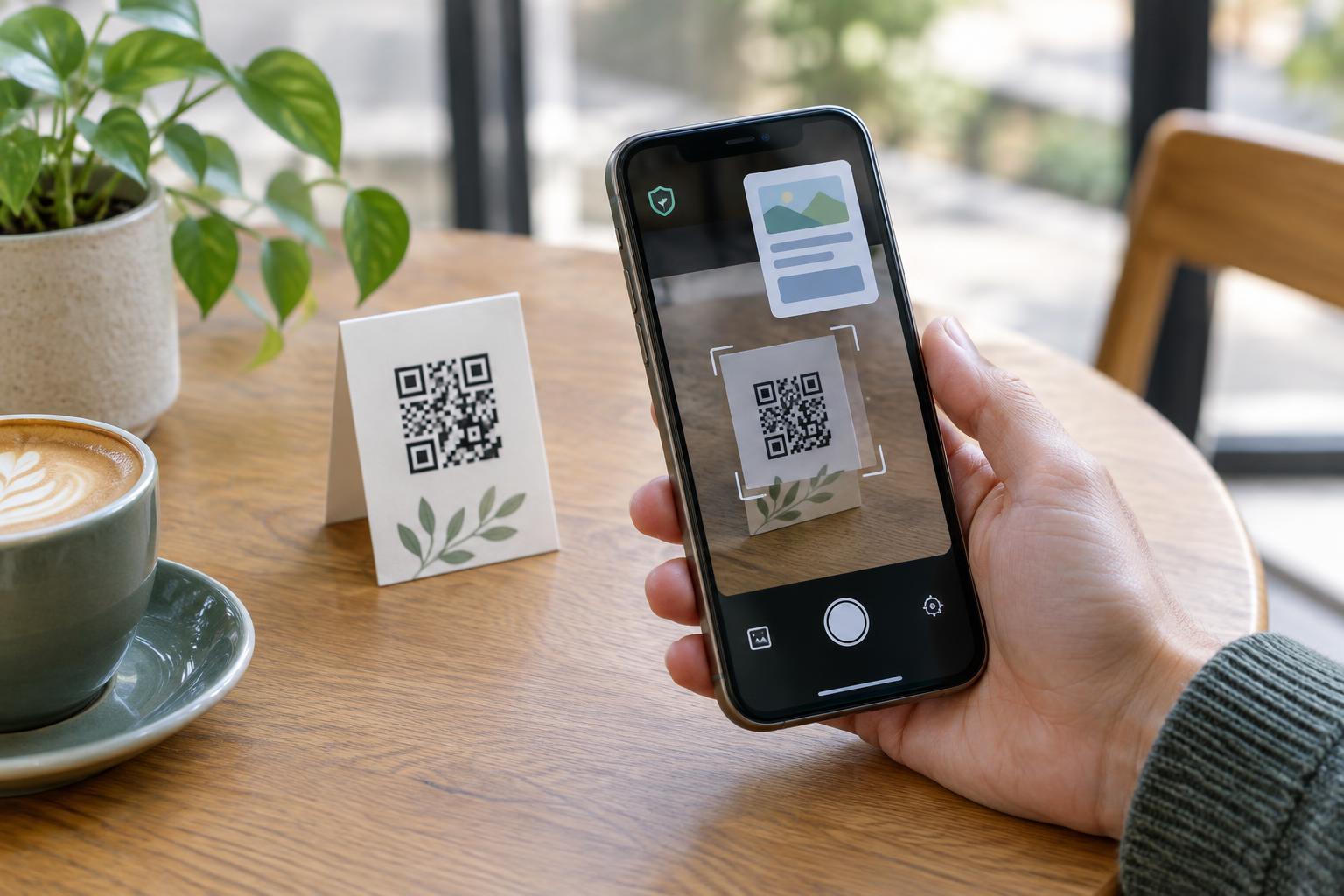
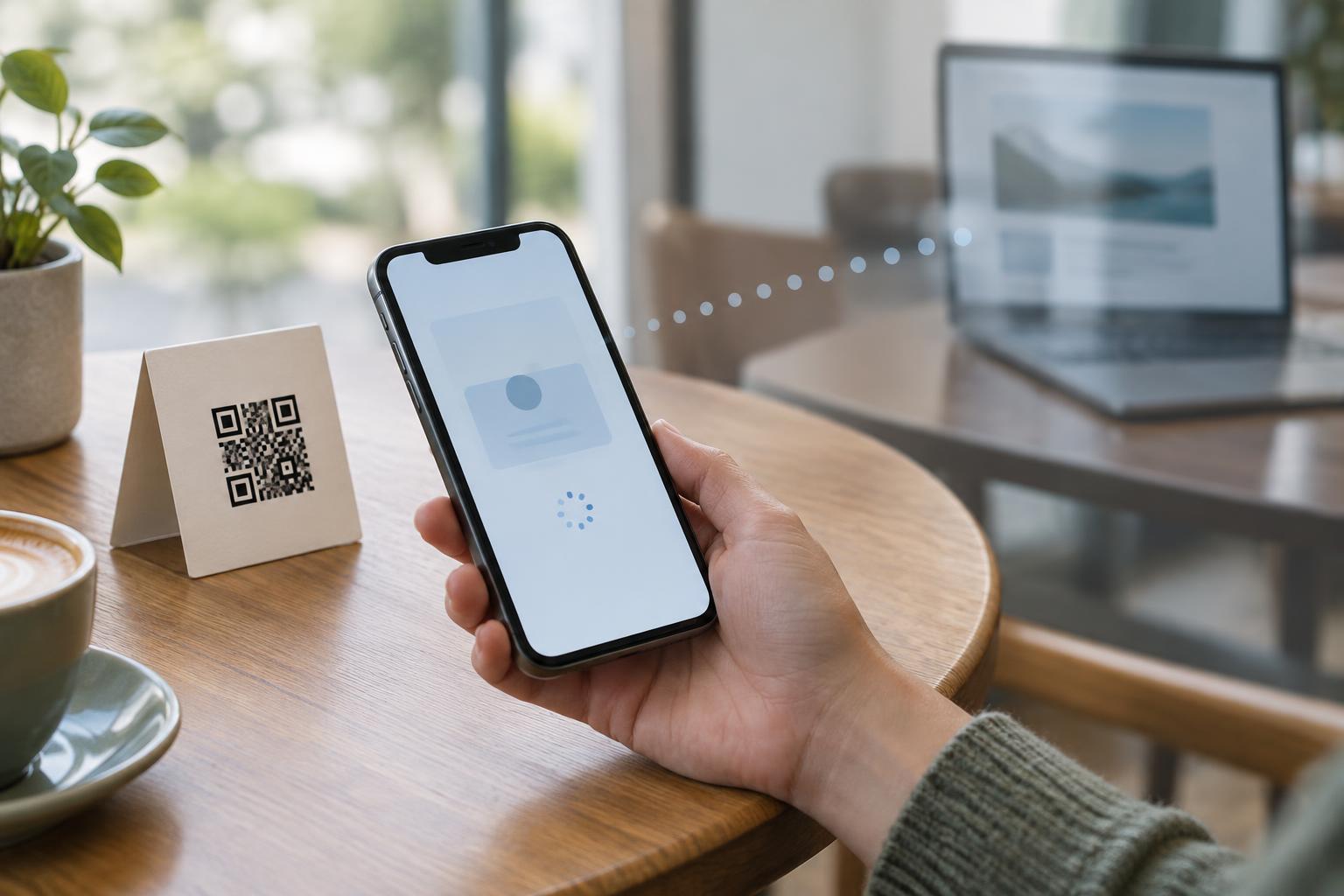
The printed QR code should lead to a page you control or have deliberately chosen. Test the code with more than one phone before printing, and check the destination shown after scanning. Use a secure web connection for the form, especially when it requests contact details. If the destination changes later, test the full route again. A working code is not enough if it opens an outdated page, a confusing redirect, or a form with different questions from those described on the sign.
Think beyond the visible answers. A form service may store submissions, send notification emails, or record technical information when someone visits the page. Review the settings and access available to staff, and avoid sending complete submissions to inboxes that do not need them. Decide who will read responses, how long they will be useful, and when they should be deleted. The exact choices depend on the form and the tools you use, but keeping data indefinitely by default is rarely necessary for a short customer survey.
Respect the scanning context
A customer standing beside a poster or holding a receipt has limited space and time to judge a form. Put a brief description near the code, such as “Scan to leave feedback; no contact details required.” This helps people decide whether to scan and makes an unexpected request for personal information easier to spot. If a code is displayed publicly, inspect the sign periodically for stickers or damage that could obscure or replace it.
Offer a readable web address or another practical way to respond when possible. Not everyone can or wants to scan a code, and some people may have difficulty using a phone form. On the page itself, use clear labels, readable text, and buttons that are easy to select. Keep the form short enough to use without losing track of the task. Accessibility and privacy reinforce each other when customers can understand what is being asked and choose how to respond.
Review the form after it goes live
A useful final check is to complete the form as a customer would. Scan the printed code, read the introduction, submit a test response, and confirm where that response appears. Ask whether every required field is still needed and whether the sign accurately describes the form. Repeat the check whenever the form, destination, or process for handling responses changes.
Customer needs may change, but a QR-linked form should remain focused. If you stop offering callbacks, remove the callback fields. If an event ends, take down its sign or update the destination rather than leaving visitors at an abandoned form. Collecting only what you can explain, use, and manage helps keep a convenient customer interaction from becoming an unnecessary privacy burden.