A QR code is a link, not a safety check
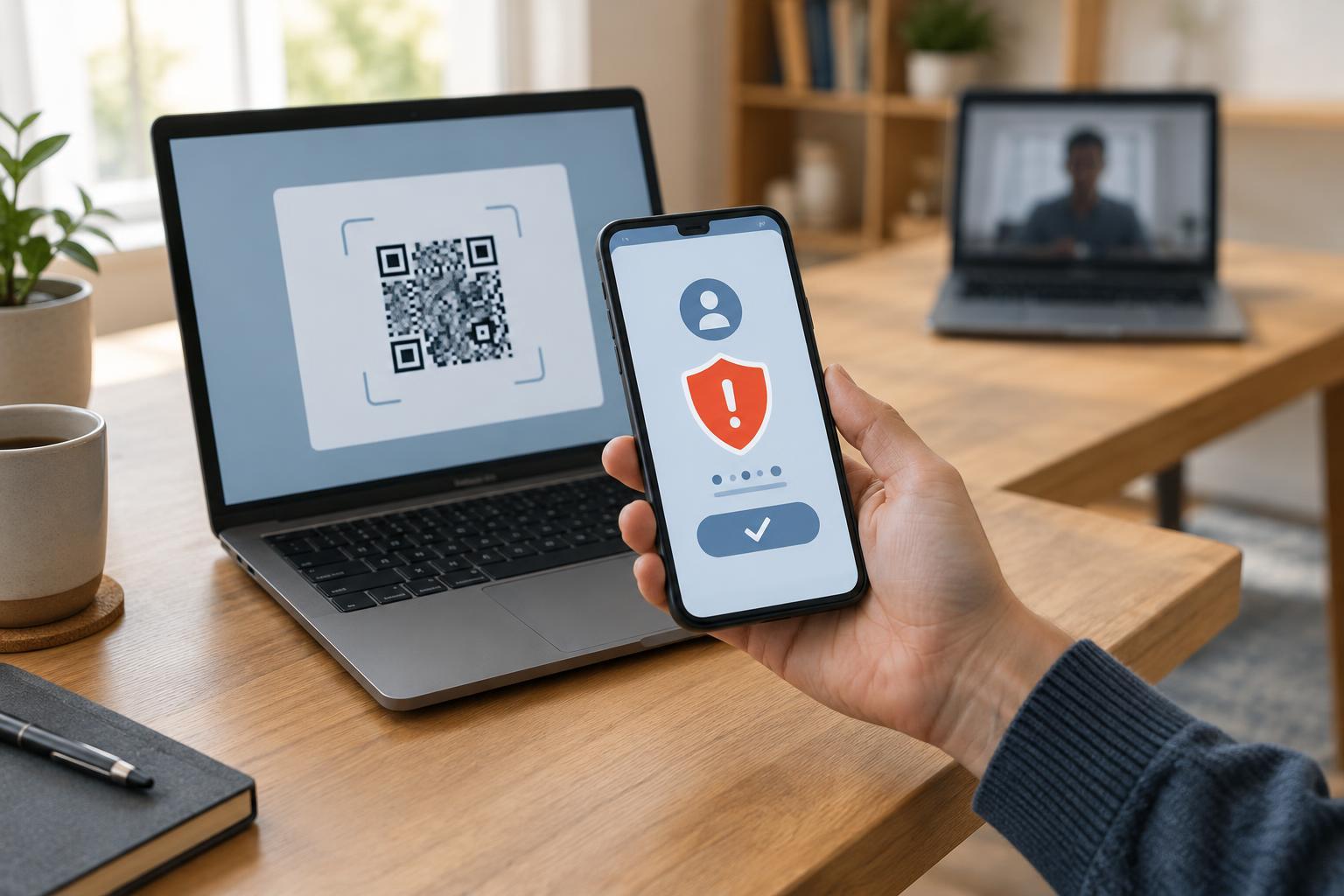
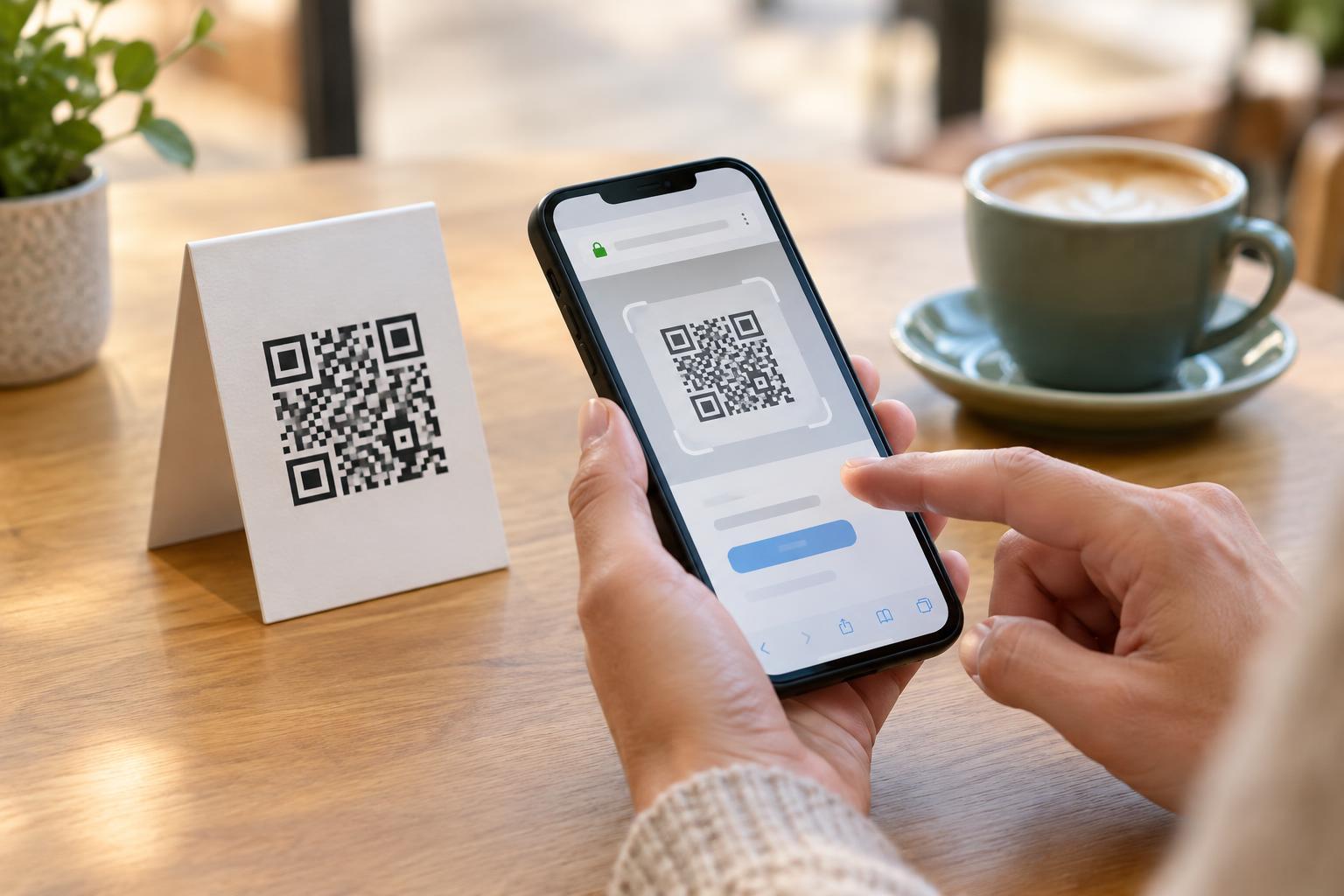
A QR code can make an app easy to find: scan a sign at a museum, for example, and open a page for its audio guide. But the code itself does not confirm that the destination is trustworthy. It may open a website, an app-store listing or a page that offers an installation file. The safety decision begins after the scan, when you can see where the code is trying to take you.
Treat an unexpected app prompt as a reason to pause, especially if you only wanted to read a menu, pay for parking or get basic information. A legitimate service may offer an app, but that does not necessarily mean an app is required. Look for another way to complete the task, such as using the service’s website or asking staff for guidance.
Check the destination before you open it
Use your phone’s camera or scanner preview to inspect the destination before tapping through. Look at the full address where possible, not just a familiar word in the link. A page can display a recognizable brand name while using an unrelated domain. Shortened links and redirects can make the final destination harder to judge; if you cannot tell where a code leads, you can choose not to follow it.
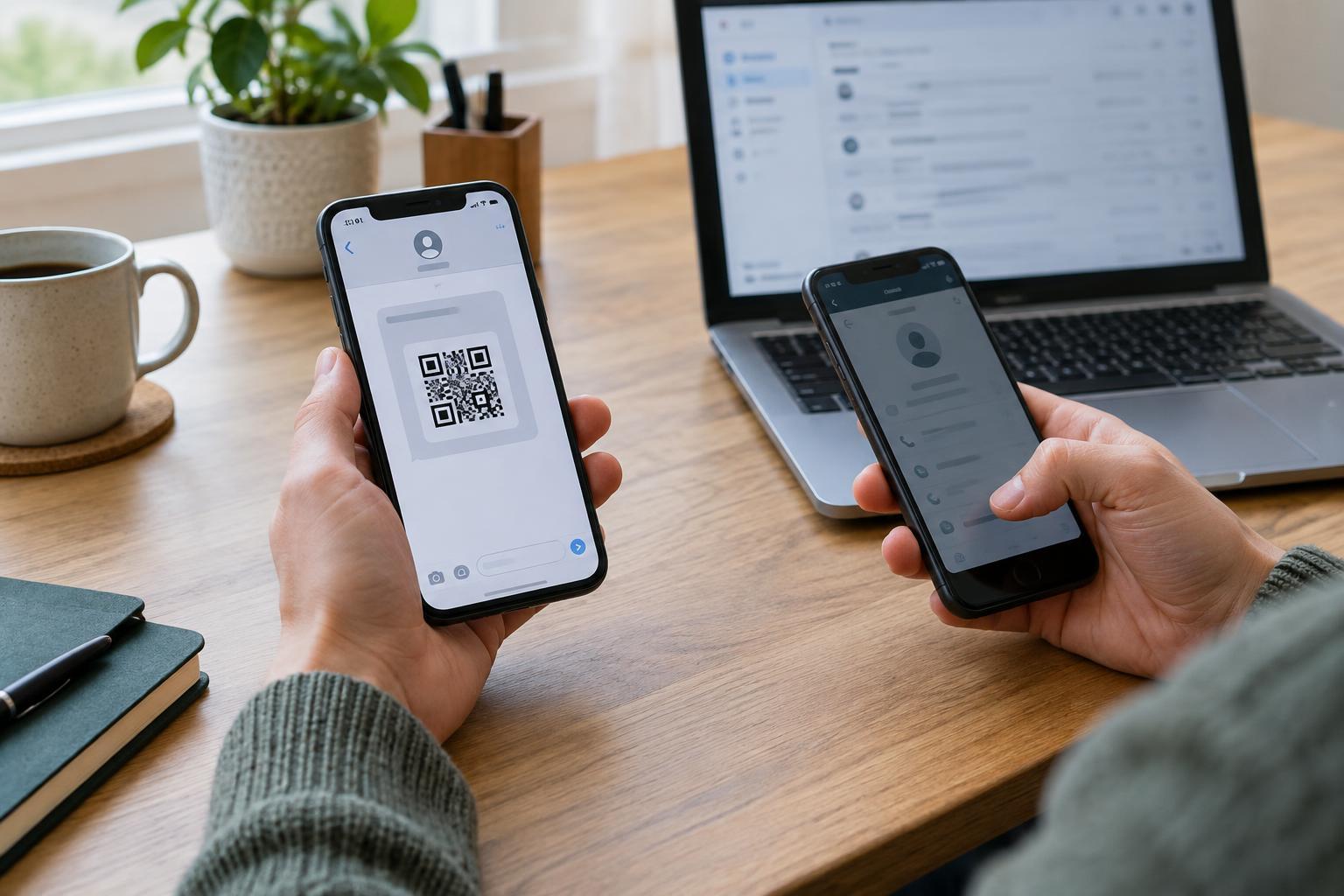
Consider where you found the code. A printed code on established packaging or an official notice may be easier to verify than a loose sticker placed over another code. Physical placement is not proof of authenticity, though: a code can be replaced or copied. If something looks altered, find the organization’s website through a route you already trust, or ask an employee rather than scanning the questionable code.
Verify the app independently
If a scan leads to an app-store listing, check the app name, publisher and description before installing. Compare them with information from the organization that claims to provide the app. Similar-looking names and icons are not enough on their own. If you are uncertain, leave the QR destination and search for the organization’s app through the store on your device or through its established website.
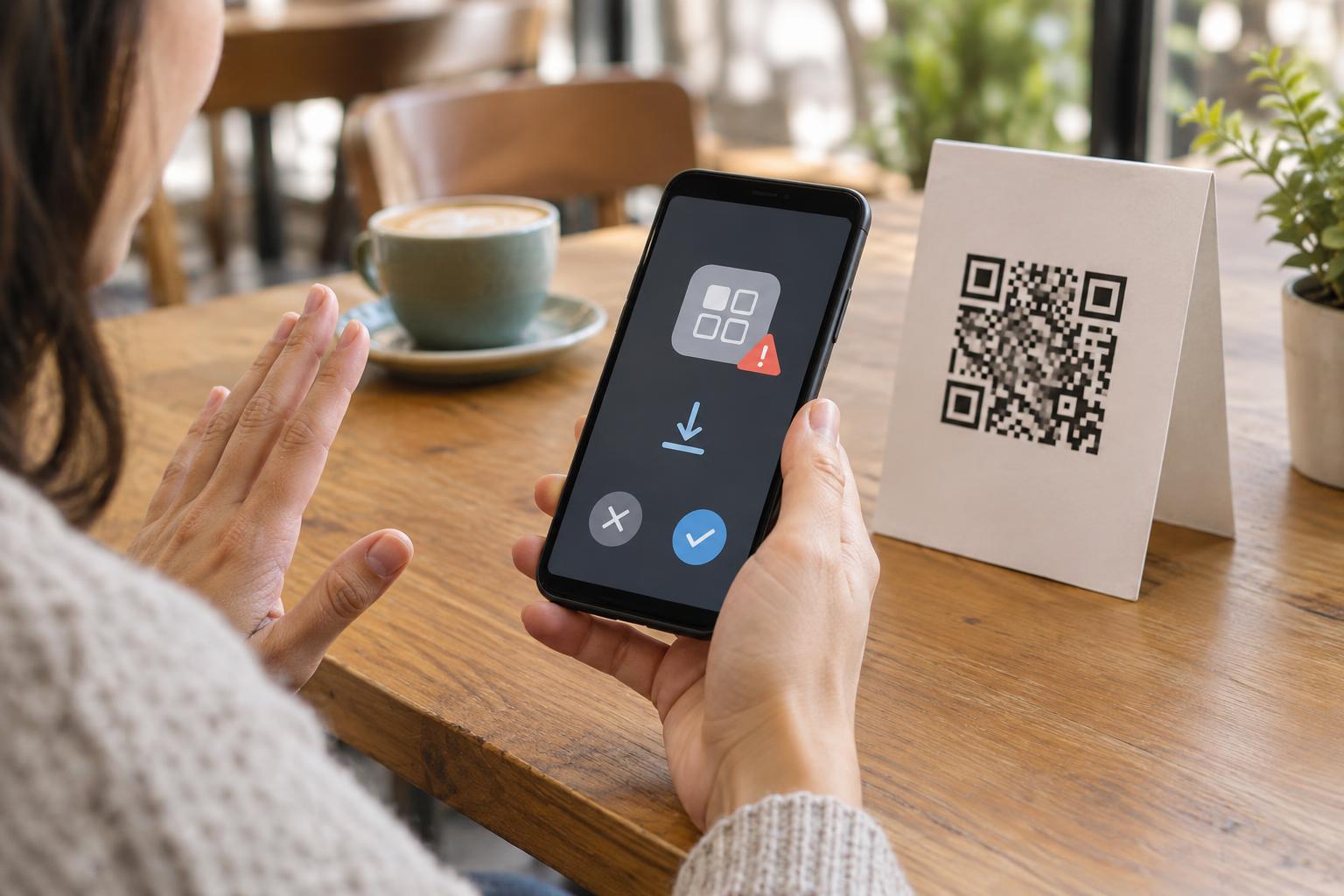
Be more cautious when a page asks you to download a file or change device settings to allow an installation. Installing outside your device’s usual app store may bypass some of the checks and warnings you would otherwise see. Do not change a security setting simply because a scanned page tells you to. If an organization genuinely requires a particular installation method, confirm that requirement through a separate, trusted contact channel before proceeding.
Watch for pressure and excessive requests
Unsafe download pages often try to move you past the point where you would normally stop and think. Be wary of messages that claim you must install immediately to avoid a penalty, receive a prize or continue a routine task. A page that imitates a system warning is not the same as a warning from your phone. Close the page if its instructions feel unrelated to what you expected from the code.
Before opening a newly installed app, consider what access it asks for and whether that access fits its purpose. A navigation app may need location to provide directions; a simple event schedule may not. Permission prompts vary by device and app, and some features will not work without certain permissions. You can still decline a request, look for a less intrusive option or decide not to use the app.
What to do if you already installed something suspicious
If you installed an app from a QR destination and then became concerned, stop using it while you review it. Check the app’s permissions and remove it if you cannot verify who provides it or why it needs the access it requested. Follow your device’s normal steps for reviewing security settings and available updates. Avoid following cleanup instructions from the same page that pushed the download.
If you entered a password or payment details, go directly to the relevant account or provider using a trusted route to review the account and change the password where appropriate. The useful habit is simple: scan, inspect, verify, then decide. A QR code can be a convenient doorway to an app, but you remain in control of whether to walk through it.