Start with one clear purpose
A receipt has limited space, so give its QR code one clear job. It might open care instructions, a digital manual, or a feedback page. Put a short label beside the code that tells customers what will happen, such as “Scan for care instructions.” A label is more useful than “Scan me” because it lets someone decide whether the destination is relevant before taking out a phone.
Keep the destination easy to use on a phone. If the page asks for a receipt number or purchase details, explain that near the code so the customer does not arrive unprepared. Avoid printing a QR code that contains personal or transaction-specific information unless that information is necessary for the intended task. A code can look identical to any other while carrying different content.
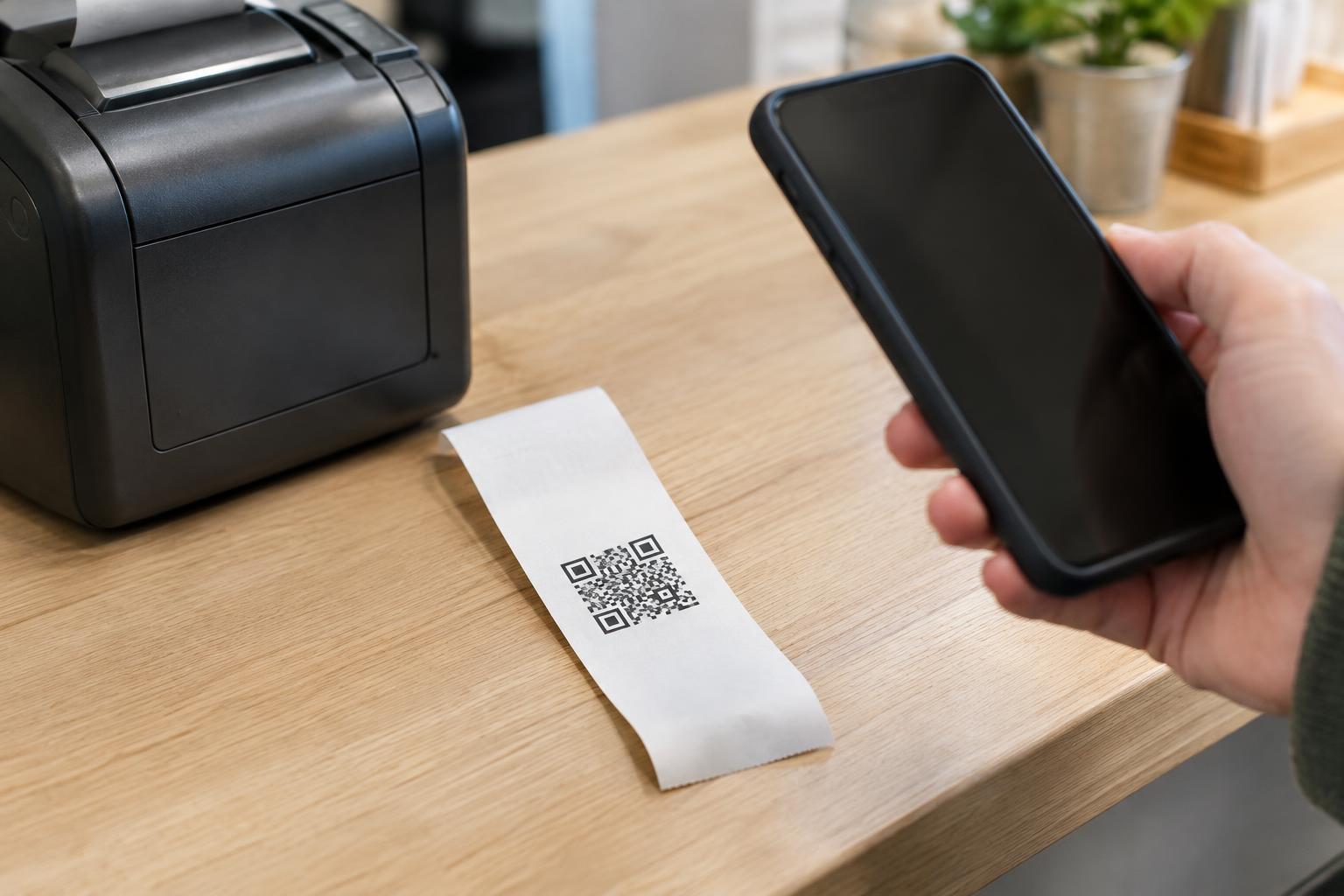
Design for the usable width of the roll
Receipt paper may be narrow, and the printer may not use its full width. Check the actual printable area rather than designing to the stated paper width. Leave room around all four sides of the QR pattern: nearby text, rules, and promotional graphics should not crowd its blank border. If the code only fits when that border is removed, simplify the surrounding layout instead of squeezing the pattern.
Keep the code square and avoid shrinking it until its smallest blocks become hard to distinguish. A long destination address can create a more detailed pattern that is less forgiving on a small print. If you control the destination, a short, stable address may make the receipt layout easier to print and maintain. Include a readable alternative, such as a brief page address or instructions for finding the same content on your website, for customers who cannot or prefer not to scan.
Place the code where it will stay legible
Position the code on a reasonably flat part of the receipt, with enough space between it and the cut edge. Avoid putting it where staff routinely fold the paper, attach a staple, or write a return note. A code at the very end may be easy to spot, but leave enough margin that an imperfect cut will not remove part of the pattern.
Consider what else prints on the receipt. Item lists and promotional messages can change length, while logos, barcodes, and return information may have fixed positions. Check that longer transactions do not push the QR code into another element or leave its label on a separate piece of paper. If a receipt already carries another scannable code, distinguish their purposes so customers and staff know which one to use.
Account for thermal-print wear
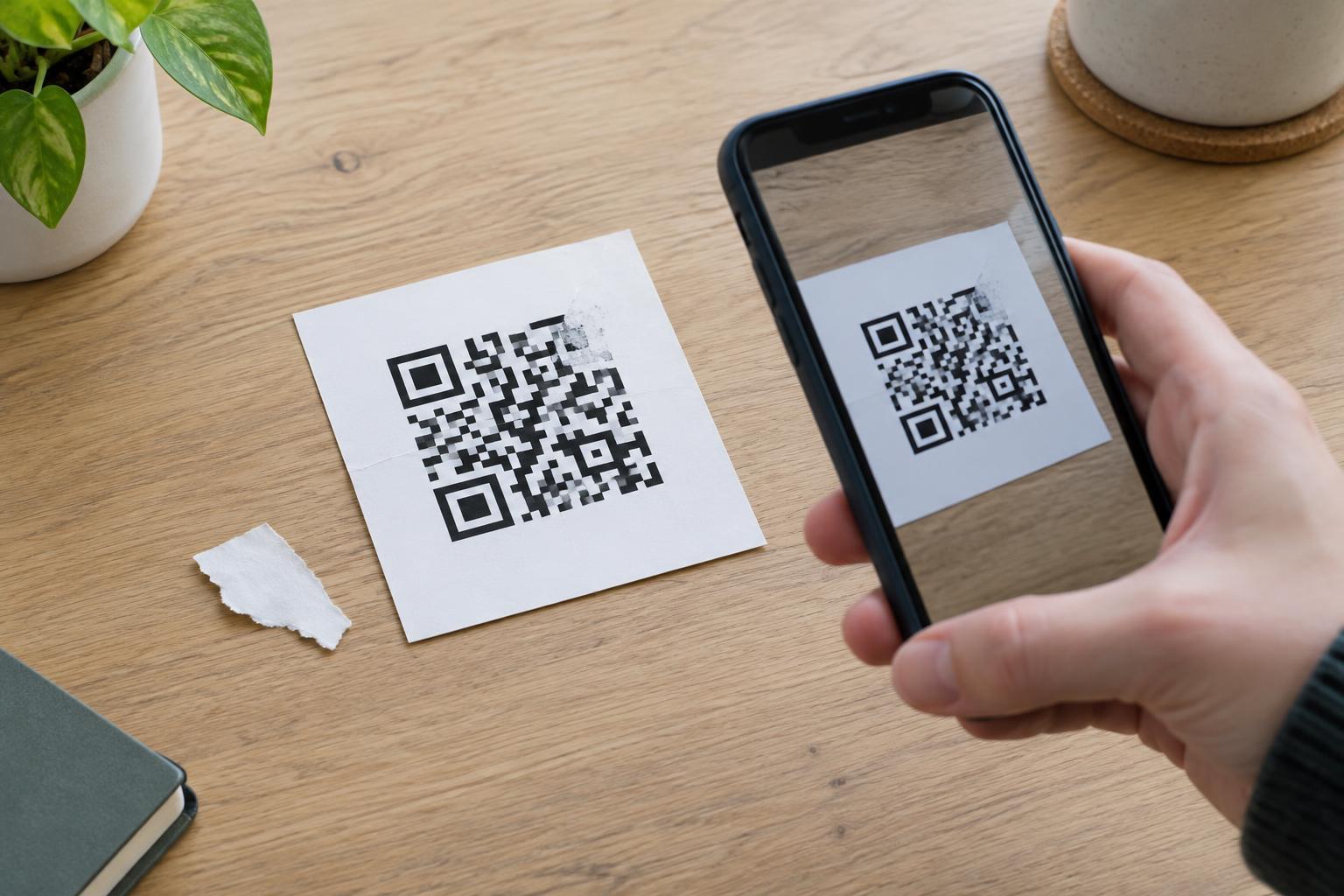
Many receipt printers create images using heat rather than ink. In everyday use, worn print heads, uneven contact, or the paper itself can leave pale lines through a printed code. Handle a test receipt as a customer would: let it curl, fold it once outside the code area, and try scanning it under ordinary indoor light. A design that works only when held perfectly flat deserves another look.
Receipts may also become harder to read after storage or exposure to heat. If the QR code is intended for information customers will need much later, do not make the receipt their only route to it. Put the destination somewhere else they can reasonably find it, such as a clearly named page on your website or documentation included with the product.
Test the checkout output, not just the artwork
A code that scans from a design file has not yet passed the receipt test. Print it through the actual checkout setup on the paper normally used, then try scanning copies from different points in a roll. Check the full receipt layout for both short and long transactions. If multiple stores or printer models will use the design, test a sample from each setup rather than assuming their output will match.
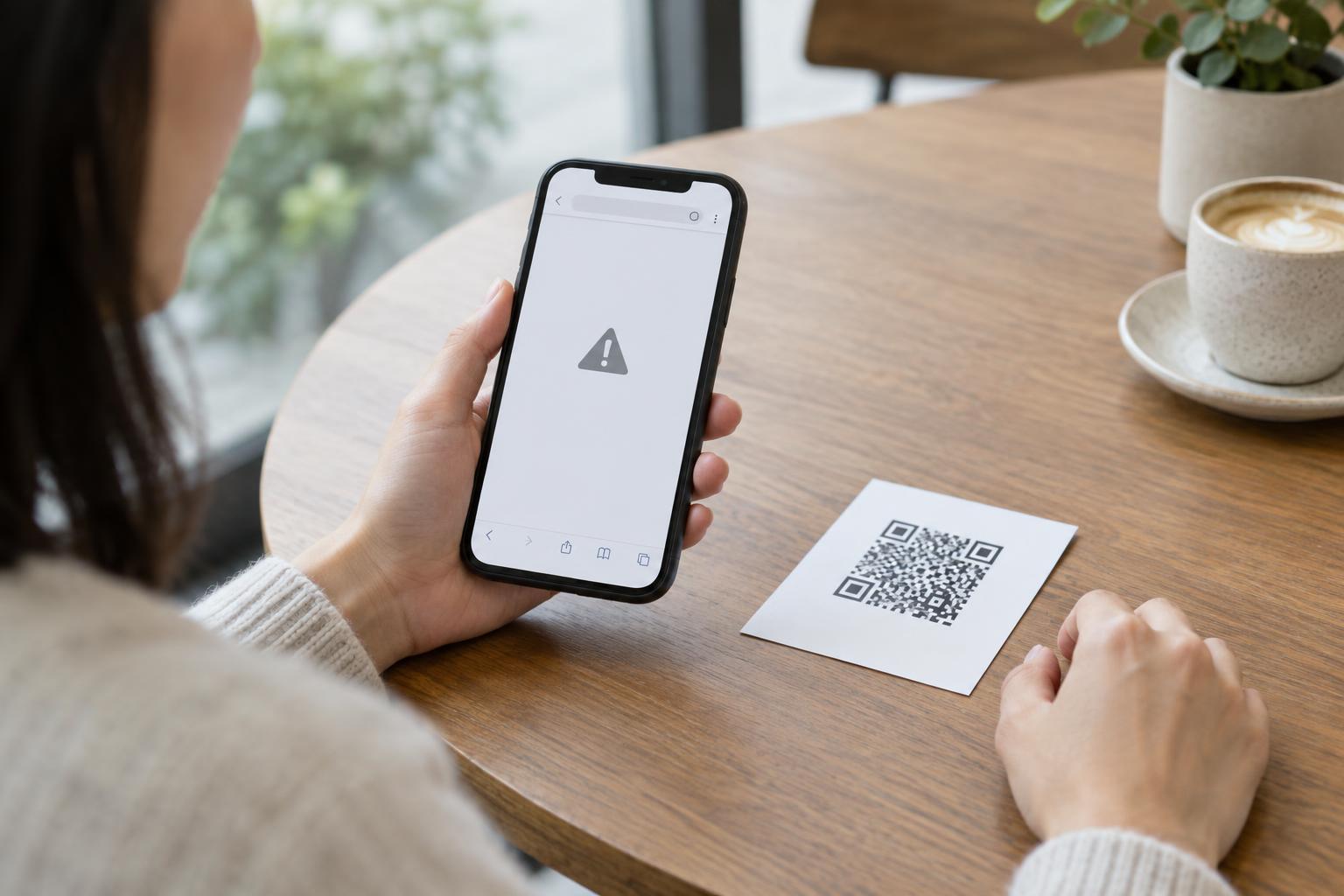
Ask someone unfamiliar with the layout to find the code and describe where they expect it to lead before they scan. Then confirm that the destination opens, matches the printed label, and remains usable on a small screen. If the print is unreliable, first look for practical changes—more space, a larger code, a simpler layout, or a better print setup—before treating the problem as a phone-camera issue.