Start with the camera and its permissions
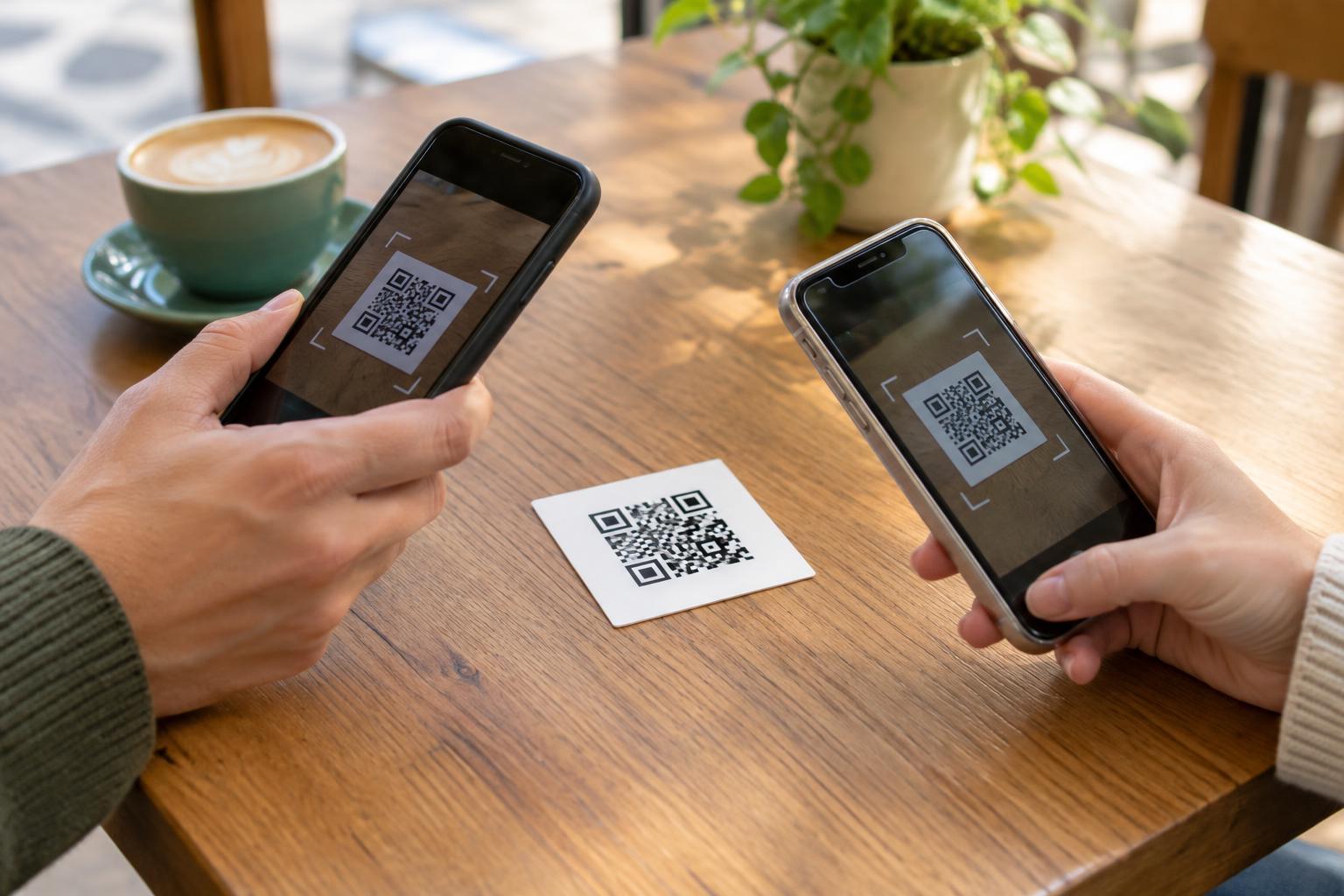
Open your phone’s regular camera app and point it steadily at the QR code. Keep the entire square visible on the screen for a moment. On many phones, a notification or link appears when the camera recognizes the code; you may need to tap it to continue. If nothing happens, try the phone’s built-in code scanner, if it has one. This may be a separate control in the camera app, quick settings, or control center.
If you are scanning inside another app, check whether that app has permission to use the camera. Phone settings usually list camera permissions by app. Allow access only for an app you trust, then reopen it and try again. If the camera view stays black or shows an error, test the regular camera app too. That can help you tell whether the problem is limited to the scanning app or affects the camera more generally.
Give the camera a clear image to read
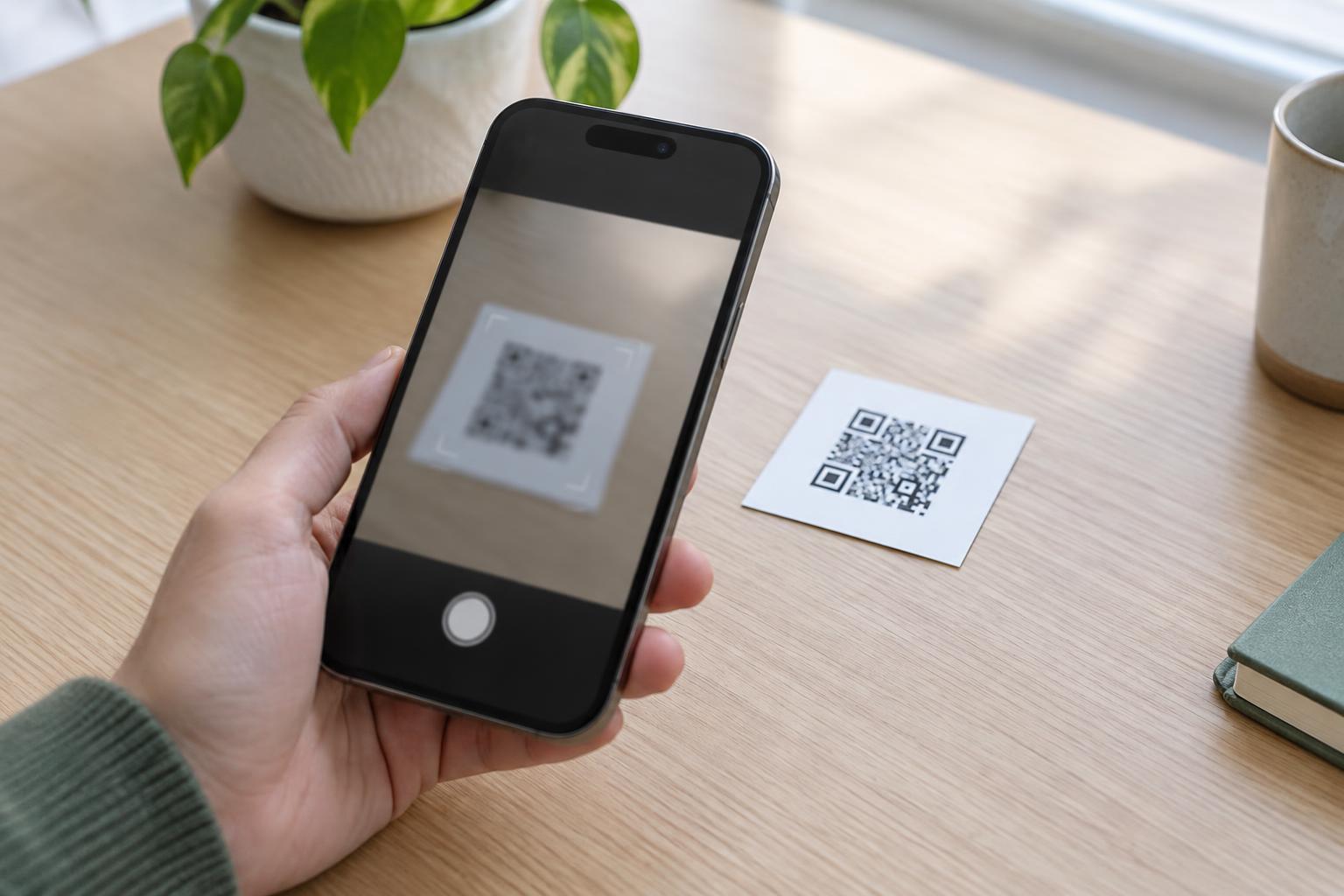
A QR code needs to appear sharp enough for the phone to distinguish its pattern. Move the phone a little farther away if the code fills the whole screen, or closer if it looks tiny. Tap the code on the screen to encourage the camera to focus, and hold the phone still while it adjusts. Wipe the camera lens if the preview looks hazy. Another quick test is to scan a different, clearly printed code; if that works, the original code may be the issue.
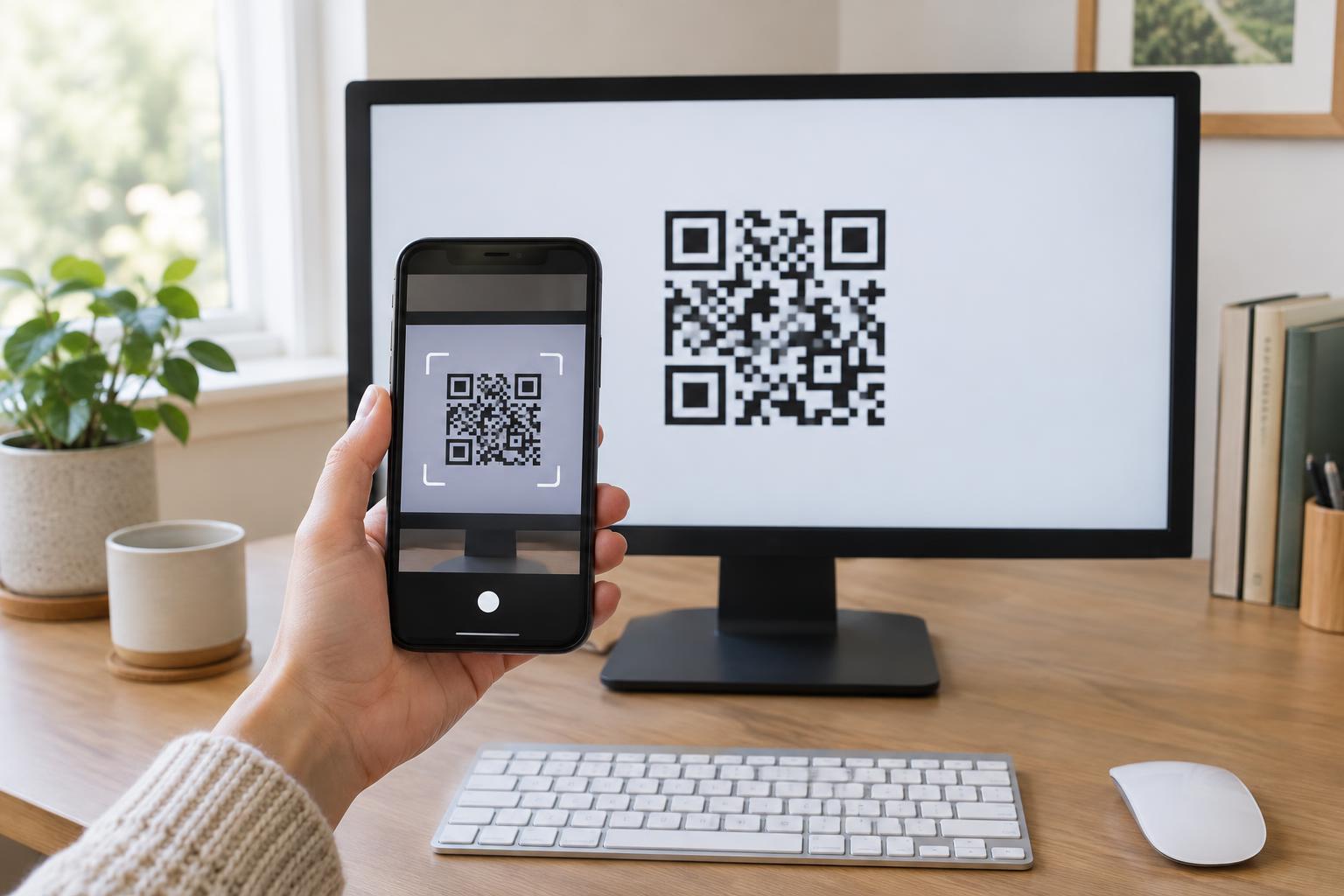
Lighting matters as much as distance. In dim conditions, move to a brighter spot or turn on a nearby light. If the code is on a glossy poster, package, or screen, tilt the phone or the surface slightly to reduce glare. For a code displayed on another screen, raising the screen brightness may help. Avoid placing a shadow across part of the code, and make sure no finger, sticker, or fold covers its edges.
Check whether the code itself is readable
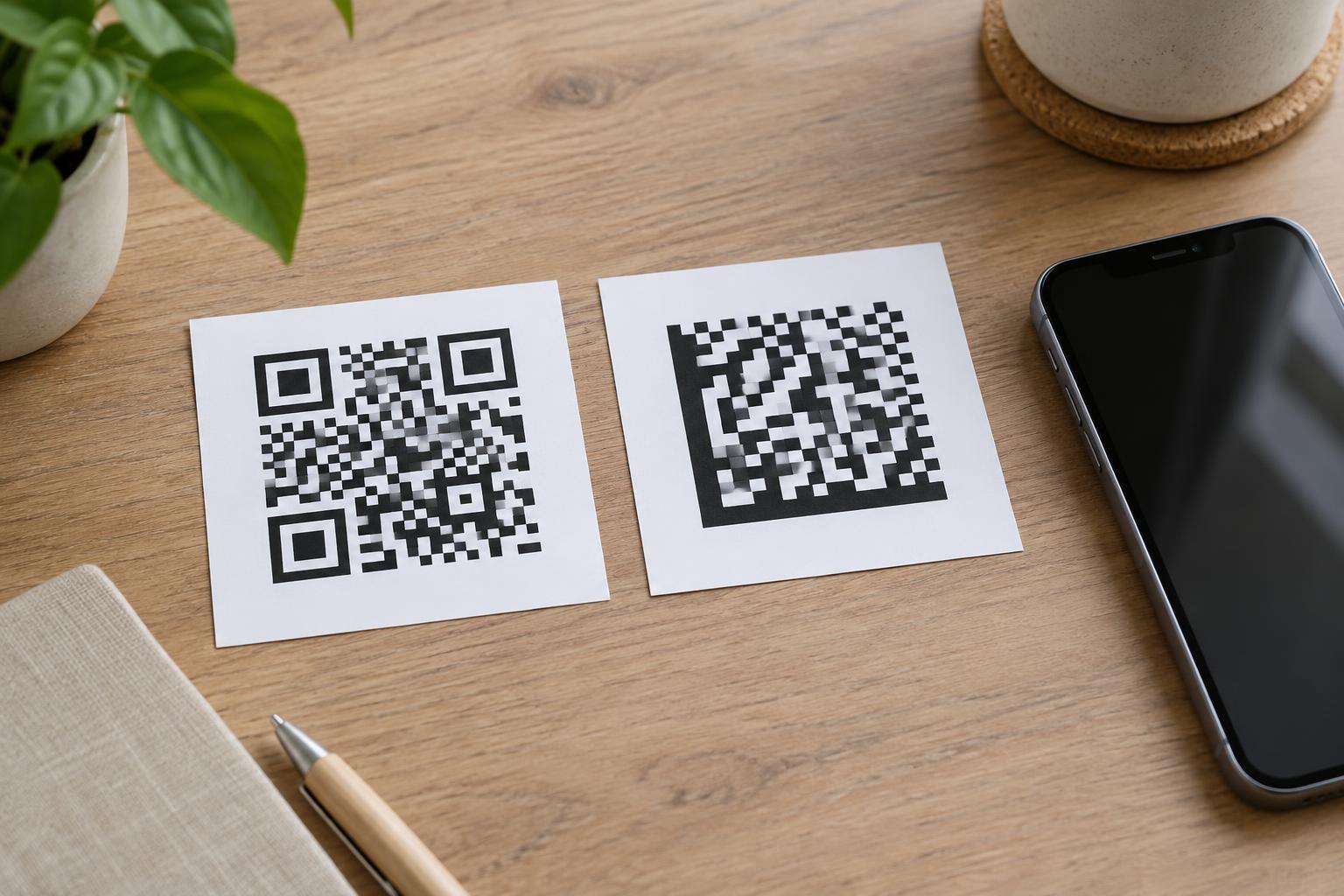
Look at the full code, not just its center. A torn corner, heavy crease, smudge, or low-resolution print can prevent a scan. The clear margin around a QR code also helps the scanner separate it from nearby text and graphics. If a design crowds that margin, try scanning from a different angle or find another copy of the code. When a code appears very small on a page, enlarging the page or viewing a larger version may make a difference.
Contrast is another common obstacle. Dark squares on a light background are usually easier to read than faint colors, busy textures, or a code printed over a photograph. If you control the code’s placement, test it at its actual printed size and under the lighting people will encounter. A successful scan on a large computer preview does not guarantee that a small label or distant sign will scan as easily.
Confirm that your phone can scan it
Not every camera app recognizes QR codes automatically, and a scanning feature may be disabled in its settings. Look for a QR scanning option in the camera settings or use a built-in scanner supplied with the phone. If you scan from within an app, make sure you have opened its scanning feature rather than simply taking a photo. Restarting the camera app can also help if it has stopped responding.
If you are trying to scan a code shown on the same phone, pointing that phone’s camera at its own screen will not work. Some phones offer a way to recognize codes in saved images or screenshots, but the steps vary. You can also display the code on another device and scan it normally. If one phone reads a code and another does not, differences in camera focus or scanner support may explain the result.
After it scans, check before you act
A successful scan only means the phone has read the code; it does not establish that the destination is trustworthy. Before opening a link, look at the address shown in the preview. Be especially cautious with a code placed over another code, an unexpected payment request, or a sign that appears to have been altered. When in doubt, find the organization’s website or app through a route you already trust instead of following the QR link.
If the code still will not scan after these checks, look for a printed web address, written instructions, or another way to get the same information. For a code you manage, offer that alternative alongside it. This helps people whose cameras cannot read the print, whose phones lack compatible scanning features, or who prefer not to scan at all.