Why a familiar-looking QR code can be risky
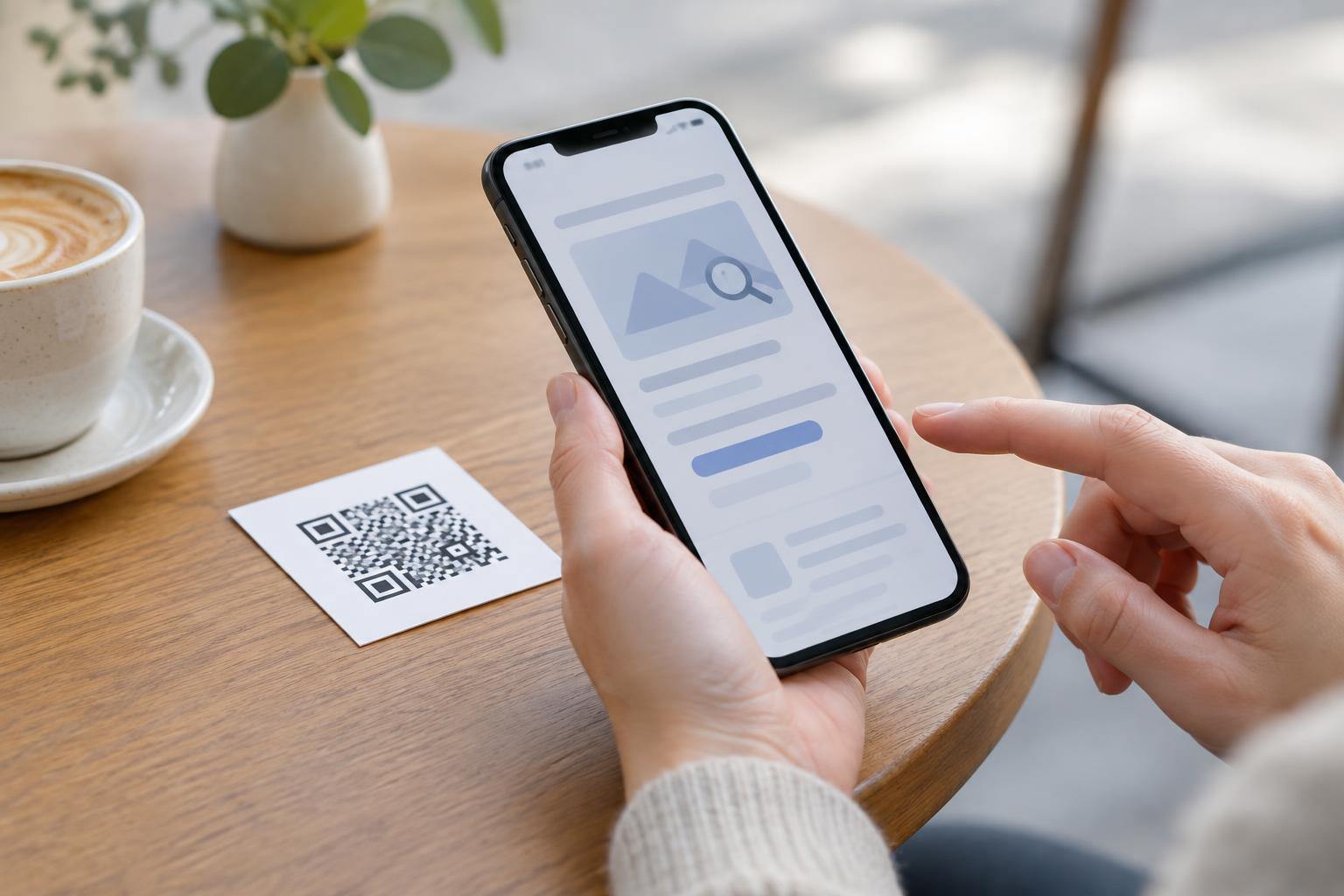
A QR code is a way to carry information, often a web address. Scanning one does not tell you who created it or whether its destination is trustworthy. A code on a printed notice, a restaurant table or a message can lead to a legitimate page—or to a page designed to collect usernames, passwords and verification codes.
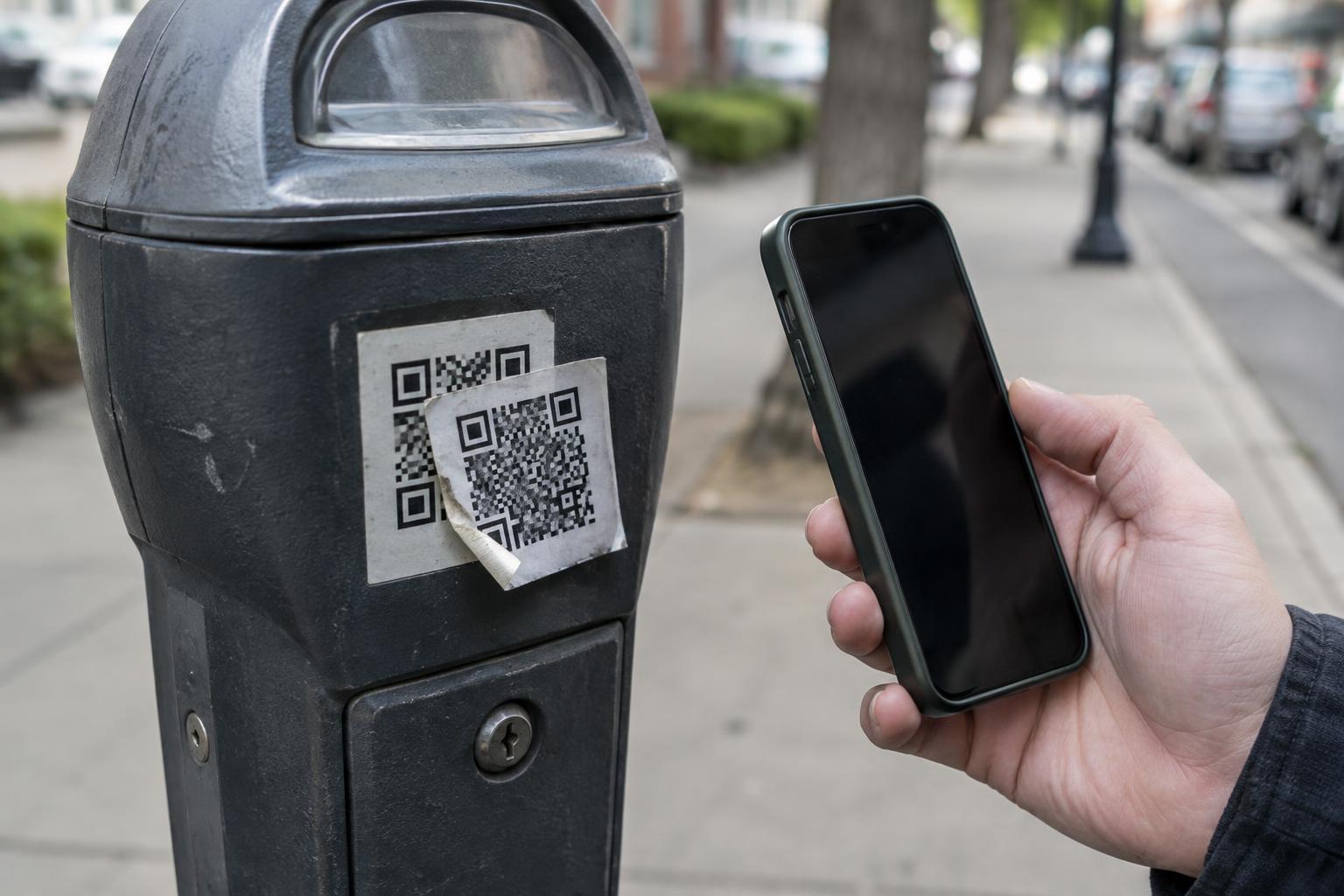
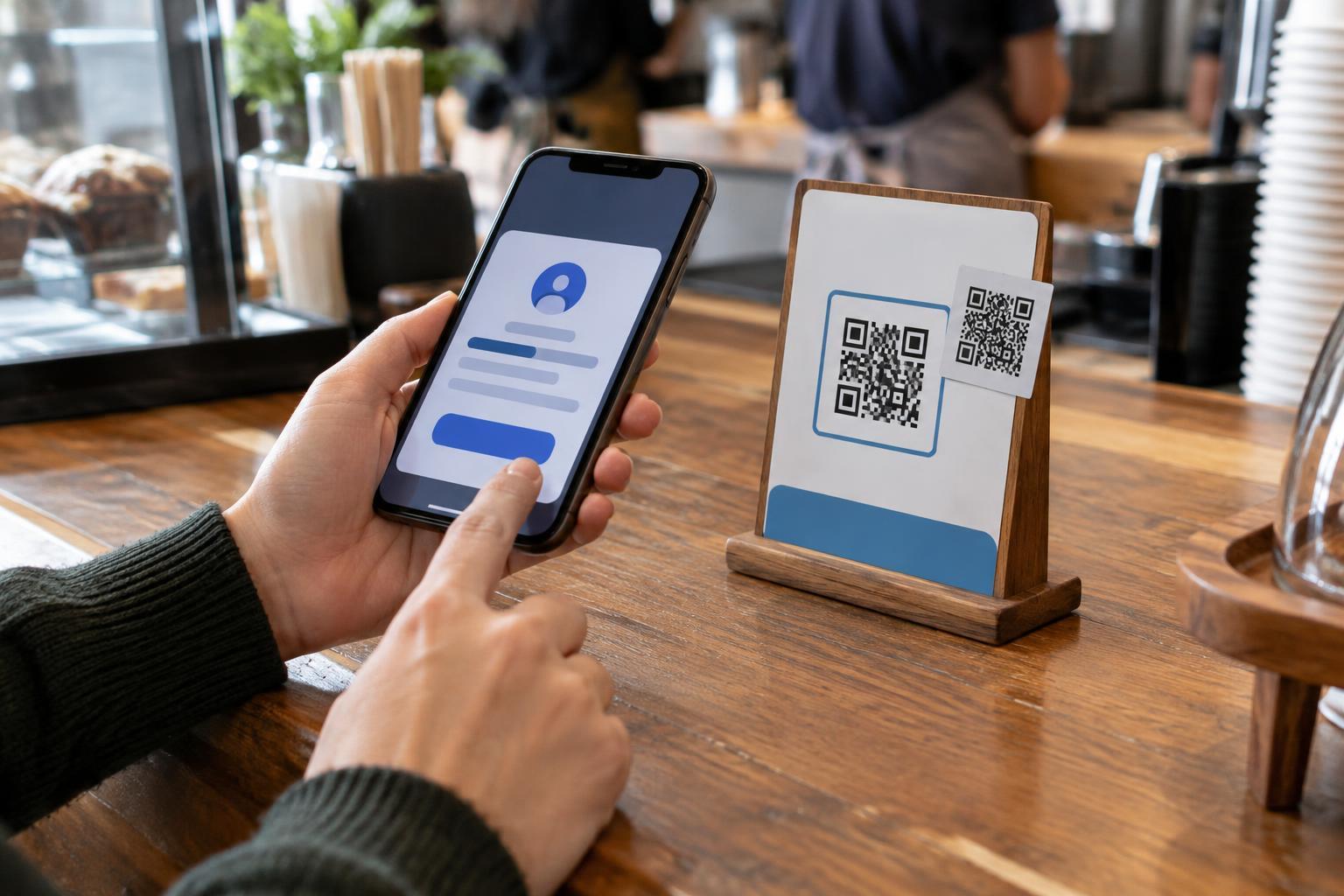
This type of phishing often relies on context. A sign beside a payment terminal might say you need to scan to confirm a purchase. A flyer at an event might offer a schedule but first ask you to sign in. A sticker could even be placed over a legitimate printed code. None of these settings proves that a link is malicious, but each is a reason to pause before entering account details.
Check the destination, not just the design
Before opening a scanned link, look at the address preview if your camera or scanning app provides one. Check the domain—the main site name in the address—rather than relying on a familiar logo or words such as “secure” or “account” elsewhere in the link. A lookalike domain may differ from the real one by a small spelling change or an extra word. If the address is shortened or otherwise obscured, you may not be able to judge its final destination from the preview alone.
After the page opens, check the address again before typing anything. Links can redirect, so the page you reach may not have the same address you first saw. A padlock symbol or an address beginning with “https” indicates an encrypted connection; it does not establish that the site belongs to the organization it claims to represent. Likewise, a polished page can copy familiar colors, logos and wording.
If you are unsure, leave the scanned page and reach the service another way. Open an app you already use, type a known address yourself or use a bookmark you previously saved. For a code posted at a venue, ask a staff member whether the code and the sign-in request are expected. Do not treat the person who posted an unfamiliar code as independent confirmation of where it leads.
Notice when a sign-in request does not fit
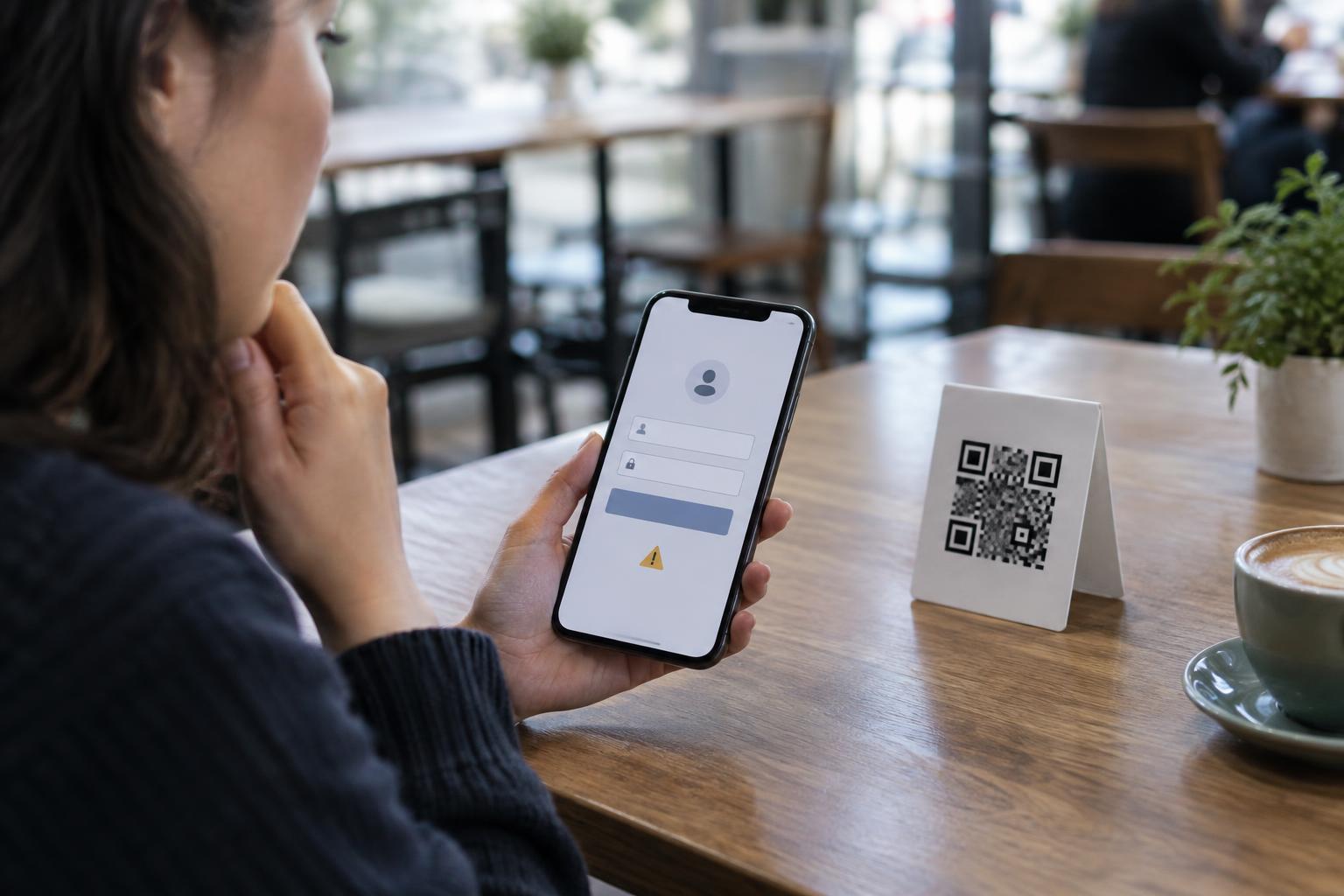
Consider what you were trying to do. Reading a public menu or viewing a poster should not normally require your email password. A sign-in step may be reasonable for a personal account, but an unexpected request deserves closer inspection. Be especially cautious if a page says your account will be locked immediately unless you act, asks for a one-time verification code without a sign-in you initiated, or requests more information than the task seems to need.
A password manager may help because it generally offers saved credentials for the addresses associated with them. If it does not offer your usual login on a page that looks familiar, stop and inspect the address. This is a clue, not a complete safety check: saved credentials can be incomplete, and an unfamiliar page might still be legitimate. Do not copy a password into a page merely to get around the warning.
Make scanning a deliberate step
You do not have to use a QR code simply because one is available. If you can reach the same service through a trusted app or an address you know, that route avoids relying on an unknown printed link. When a code appears on a public surface, look for signs of an added sticker or a notice that seems out of place. Physical appearance cannot verify a code, but visible tampering is a good reason not to scan it.
Be wary of instructions to enter a password, payment details or a verification code directly after scanning. Take a moment to identify the organization, the task and the exact page requesting the information. That pause is particularly useful when someone is waiting for you to act: urgency can make an unexpected sign-in feel routine.
What to do if you entered your details
If you submitted a password to a page you now suspect was fake, go to the real service through its app or a known address and change that password. If you used the same password elsewhere, change it on those accounts too, using a different password for each. Review recent account activity and available security settings, and contact the service through its official support channel if you see something you do not recognize.
If you also entered a one-time code or approved a sign-in prompt, act promptly: those steps may have allowed access even if you change the password afterward. Check for unfamiliar sessions or devices and sign them out where the service offers that option. If the page requested payment information, contact the relevant payment provider through a trusted channel. Keeping a record of the suspicious address and where you encountered the code may help you report it to the venue or service.