How a QR code login normally works
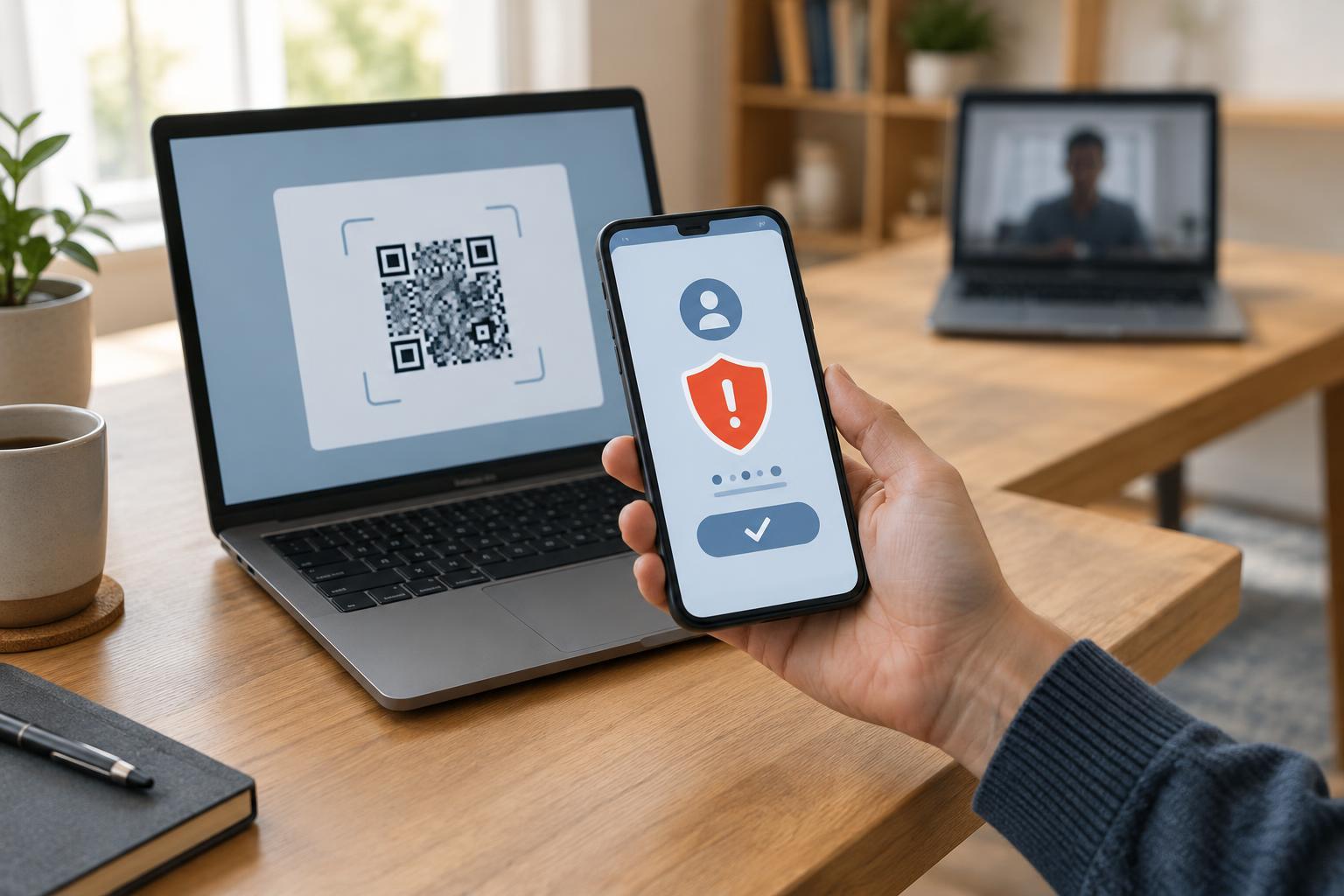
Some services let you sign in on a computer by displaying a QR code on its login page. You scan the code with an app on your phone, where you are already signed in. The app may then ask you to confirm that you want to sign in on the computer. This can be convenient because you do not have to type a password on the computer.
The important detail is what the confirmation does. Depending on the service, approving the request can authorize the browser session that displayed the code. Your phone and the computer do not have to belong to the same person. That is why a login code deserves more caution than a QR code on a menu or product label: scanning may lead to an account decision, not just a webpage.
How someone else’s login request can reach you
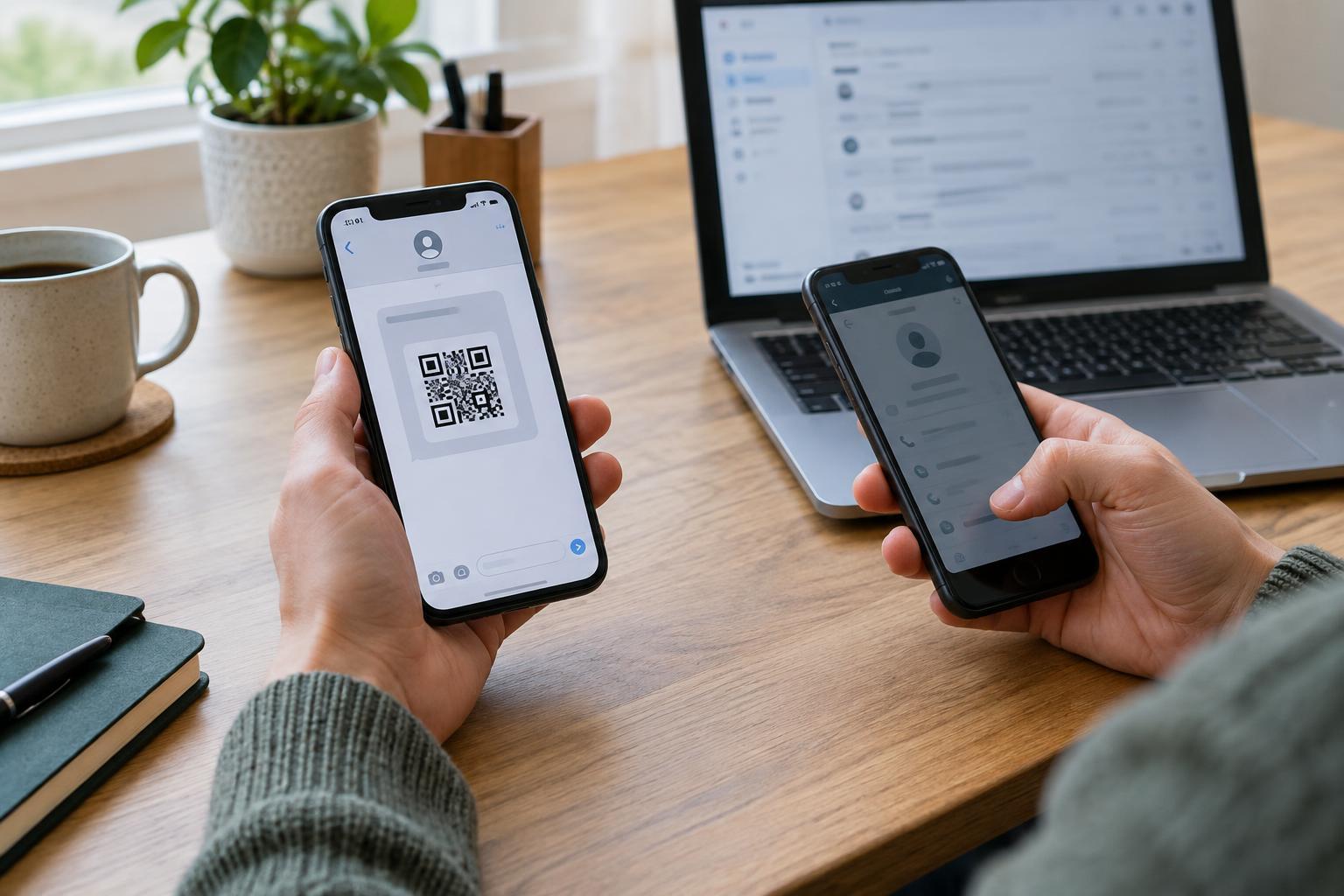
In a QR login scam, someone may start a login attempt for your account on a device they control, then try to get you to scan the resulting code. They might send an image of it in a message or display it during a video call. A story such as “scan this to verify your account” can make the request sound routine, even though you did not start the login.
If the service treats your phone’s approval as permission to sign in, the other person’s browser could gain access. The exact steps vary by service: some codes expire quickly, and some apps show device or location details before asking for confirmation. A scammer may also use a QR code to send you to a fake sign-in page instead. These are different risks, but both rely on getting you to act on a request you have not independently checked.
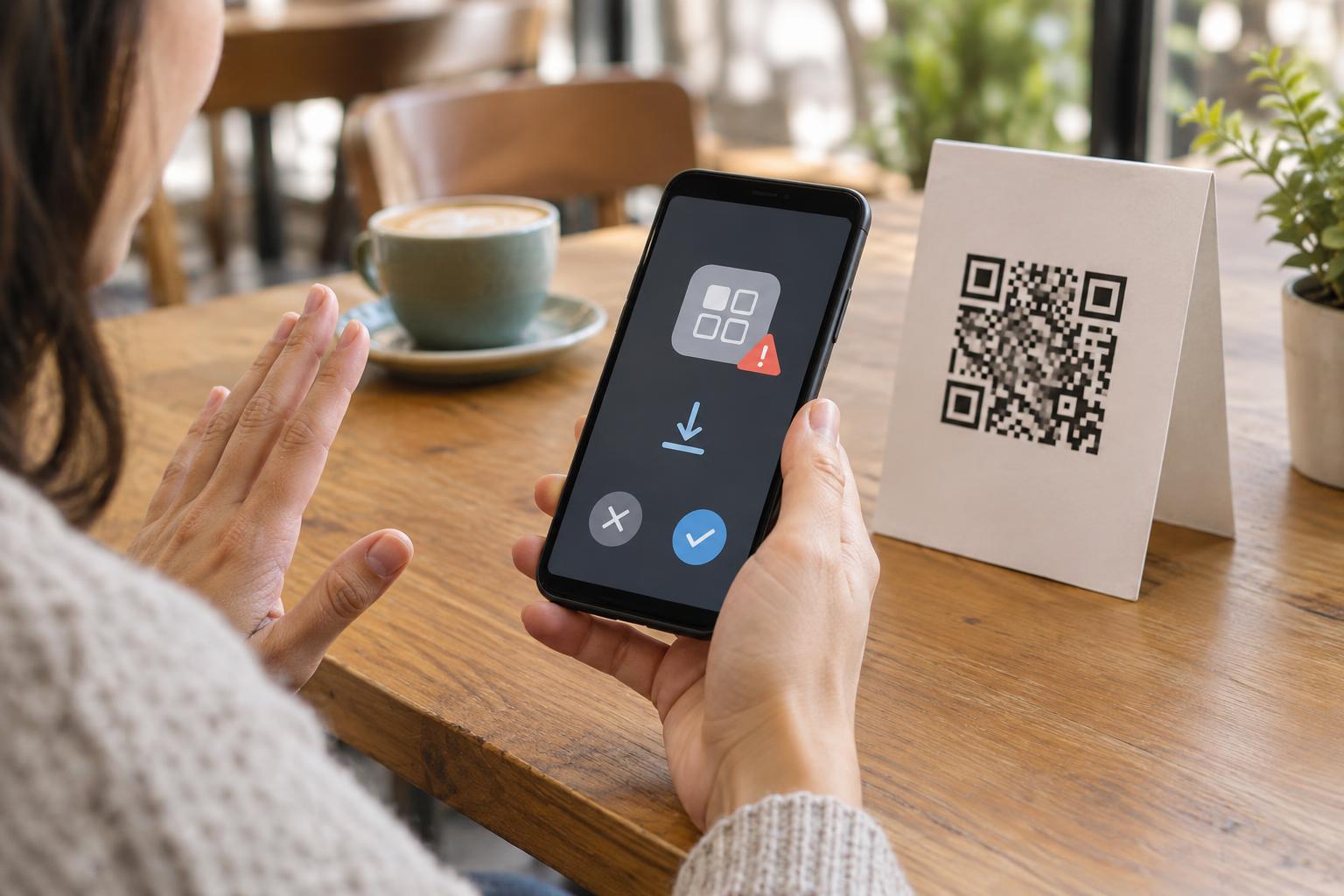
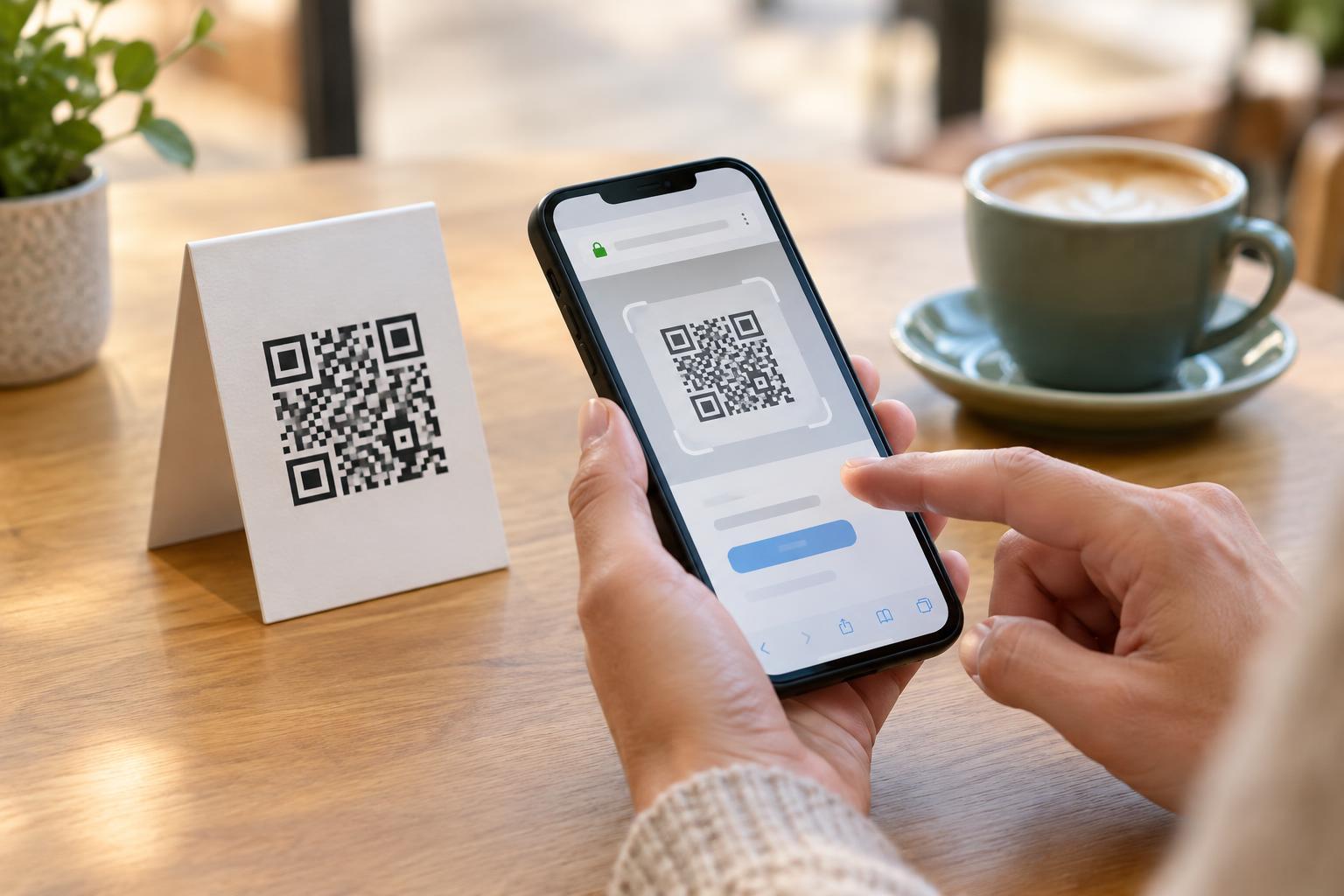
Merely pointing a camera at a QR code does not necessarily approve a login. The risk depends on what opens next and what you confirm. Do not rely on that distinction as a reason to continue through unfamiliar prompts; pause as soon as a code or approval request feels out of context.
A check to make before you scan
Ask yourself: “Am I looking at the login page I opened, on the device I intend to use?” If you are signing in on your own computer and it shows a QR code, follow the service’s instructions in its official app. Read any approval screen before accepting it. If the app identifies a device or browser, check that it fits the sign-in you just started.
Treat a code sent through a chat, email, social post or support conversation differently from one displayed on your own login screen. A message can present someone else’s session as if it were yours. Do not scan a login code simply because a person claims they need it to help, verify or protect your account. Instead, open the service yourself through your usual app or a known bookmark and check for any account notices there.
A camera’s link preview can help you avoid some suspicious destinations, but it cannot settle every QR login question. A code involved in a session-approval scam may lead to a legitimate service. The deciding question is whether you initiated the session you are being asked to approve.
If you scanned or approved an unfamiliar request
If you scanned but did not confirm anything, close the page or prompt and avoid entering credentials. If you entered a password on a page you do not trust, change it through the service’s official app or a known address. Use a unique password, and review any available sign-in alerts.
If you approved a login you did not start, act as though another session may be active. Go to the account’s security settings through a trusted route, review signed-in devices or sessions, and sign out any you do not recognize. Consider signing out of all sessions if the service offers that option. Change your password and check your multifactor authentication settings and recovery details for changes you did not make. If you cannot access the account or are unsure what was authorized, use the service’s official account-recovery or support process.
The safest habit is simple: approve a QR login only when it follows a sign-in you started on a device you intend to use. A familiar logo, an urgent message or a working QR code is not a substitute for that connection.