What a Wi-Fi QR code contains
A Wi-Fi QR code is a compact way to share the details a device needs to join a wireless network. Instead of typing a network name and password, a visitor scans the code and, on a compatible device, sees an option to connect. The code does not provide internet access by itself: it passes along the network details, and the device still has to be within range and able to connect.
Typically, the encoded text includes the network name, also called the SSID, the security type, and the password if one is required. Some formats can indicate that a network name is hidden. These details are stored in the QR code itself, not retrieved from a website when it is scanned. A standard Wi-Fi QR code therefore does not need an online code generator or a working internet connection to reveal its contents.
What happens when someone scans it
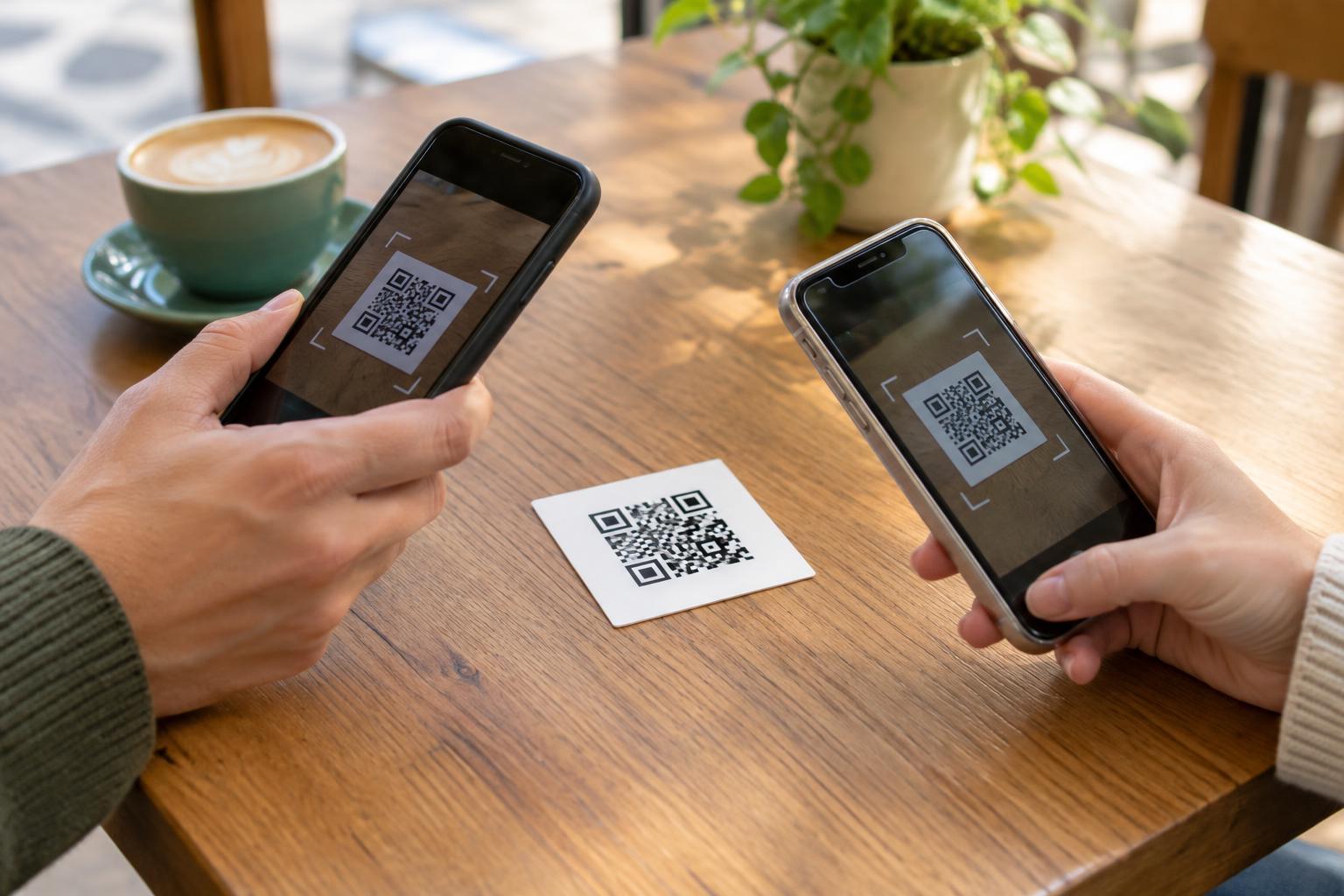
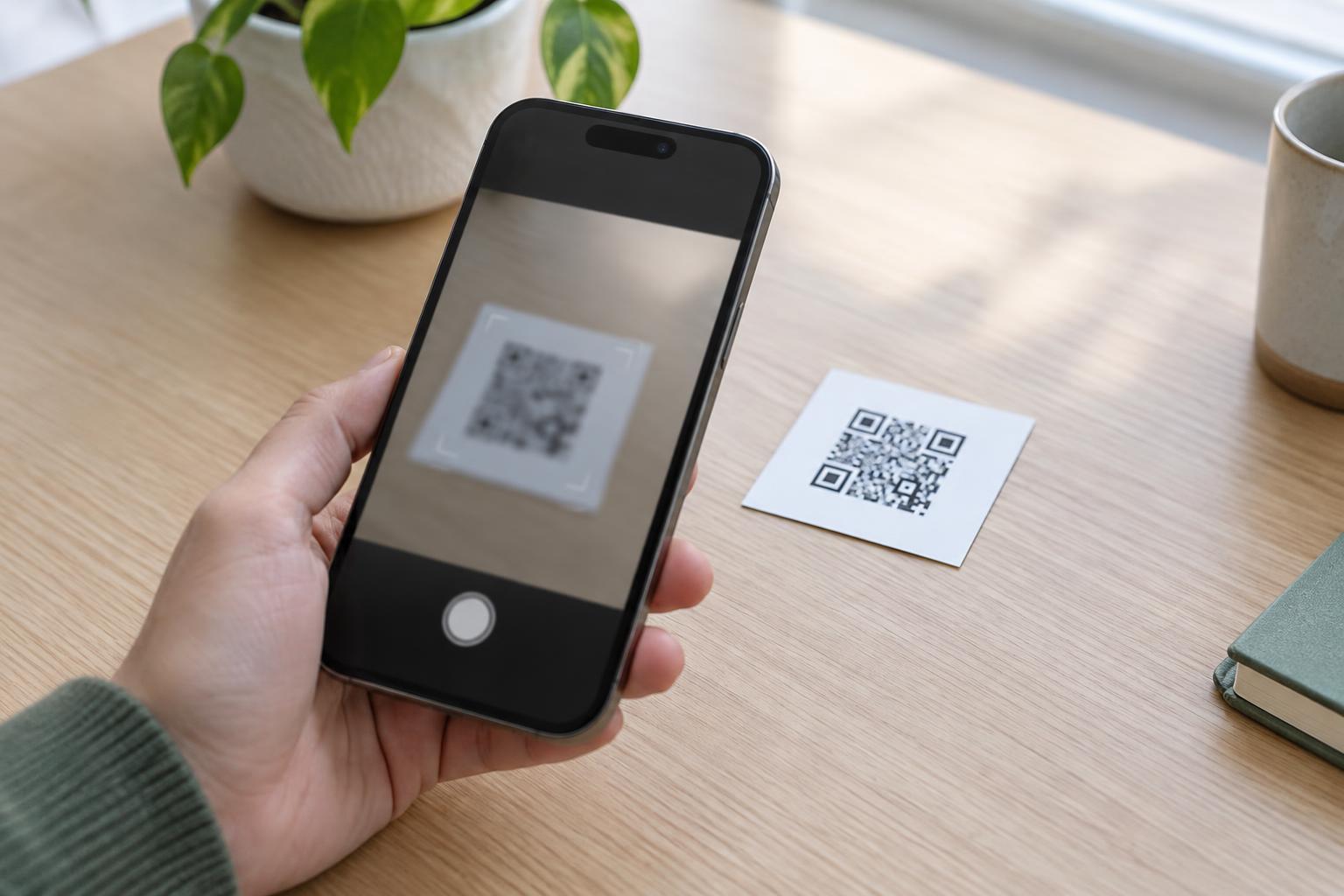
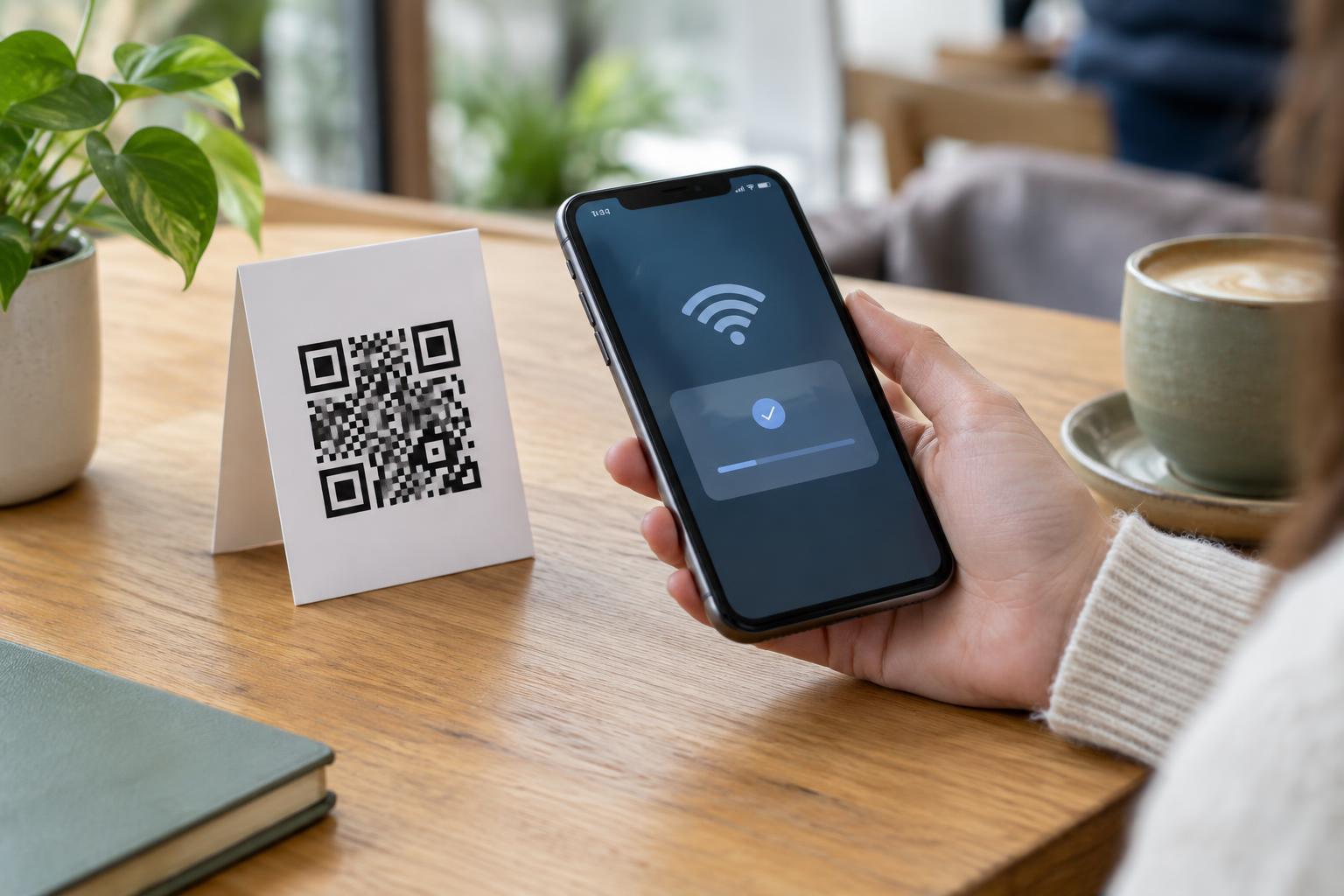
A person points a phone or tablet camera at the code, or uses a QR-scanning feature on the device. If that feature recognizes the Wi-Fi format, it presents the network and asks whether to join. The person can review the prompt before accepting. The device then uses the encoded details to attempt a connection, much as it would if the person had entered them in Wi-Fi settings.
Behavior varies by device, operating system, camera app, and network configuration. Some scanners may display the encoded text rather than offer a join button. Networks that require a separate sign-in page or organization-managed credentials may also need additional steps. Keep a written network name and a way to obtain the password available for people whose devices cannot use the code.
Choosing details to share
Before making a code, confirm the network name exactly as it appears in device settings, including spaces and capitalization, and check the password carefully. Select the security type that matches the network. A mismatch may produce a code that scans successfully but cannot connect. If you change the network name or password later, a printed code containing the old details will need to be replaced.
For a home gathering or customer area, consider whether a guest network is appropriate rather than sharing access to a primary network. A guest network can make it easier to manage visitor access separately, although its protections depend on how the router is configured. Ask someone who has not previously joined the network to test the code; a device that already remembers the password may conceal a mistake.
Making the code easy to scan
A Wi-Fi code is most useful when people can find and scan it without awkward positioning. Place it near where visitors are likely to need a connection, such as a reception desk or meeting table. Print it at a comfortable size with dark modules on a light background, a clear blank margin around the code, and no decorative elements covering its pattern. Test the actual printed version from the distance and angle at which people will use it.
Add a short label, such as “Scan to join the guest Wi-Fi,” along with the network name. The label tells people what the code does before they scan it and helps them recognize the network in the connection prompt. Do not rely on the code as the only way to connect. A readable alternative is helpful for people using devices with different capabilities or who prefer to enter details manually.
Treat the code like a shared password
Anyone who can scan a Wi-Fi QR code may be able to read the network details it contains, including the password. The square pattern may hide those details from casual view, but it does not encrypt them. Avoid placing a code for a private network in a public window, social media post, or other location where access is broader than intended. If a sign goes missing or the password is shared beyond the intended group, changing the network password will make copies of the old code unusable.
A code on a public sign can also be covered or replaced with a different one. Before joining, visitors should check that the prompt shows the expected network name and be wary of a code that unexpectedly opens a website or asks for unrelated personal information. For the host, occasional checks that the displayed code is intact and still connects to the intended network help keep a convenient shortcut dependable.