Start with the Camera app
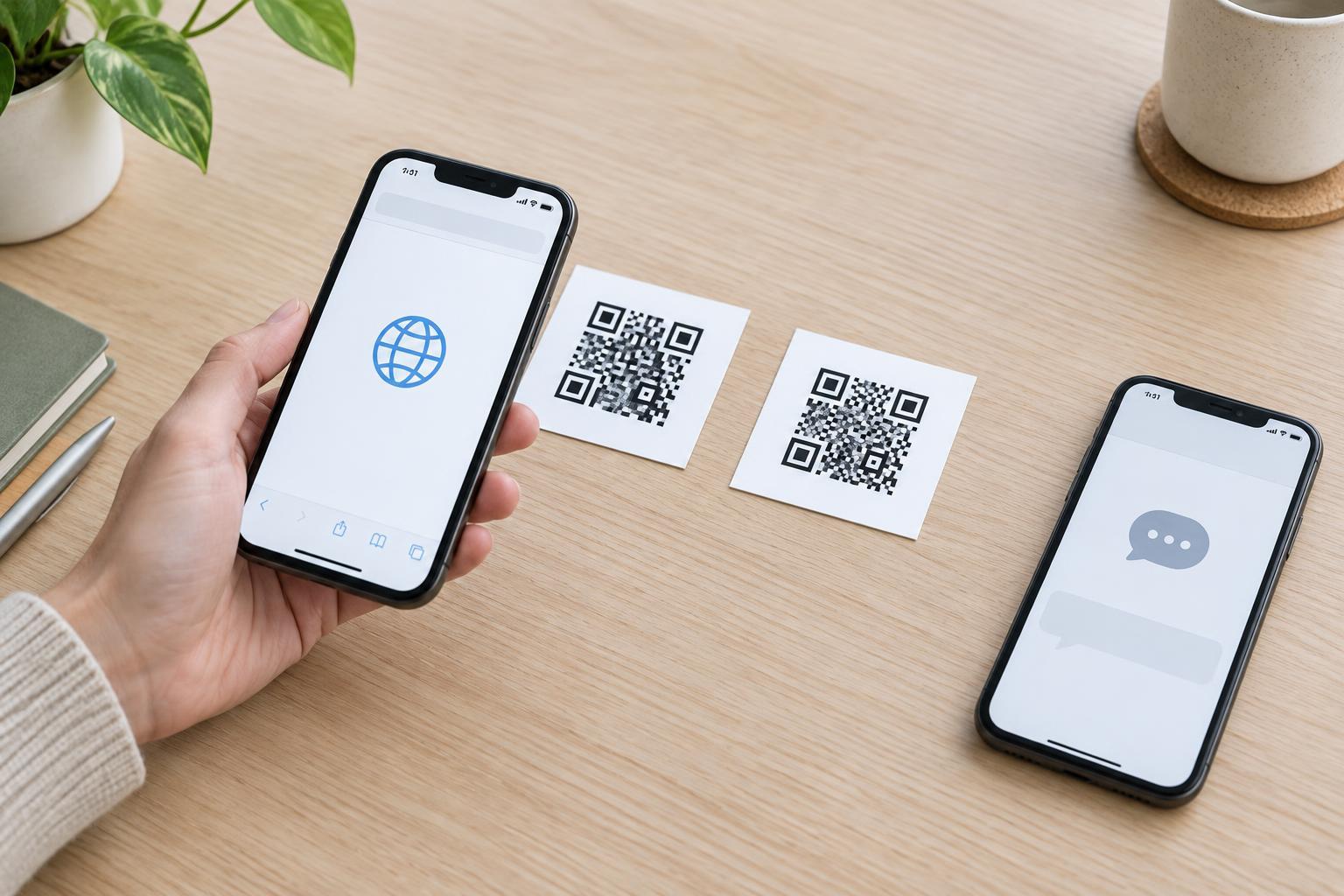
A QR code is a square pattern that can hold information such as a website address, contact details or Wi-Fi connection information. On many recent iPhones and Android phones, the built-in Camera app can recognize one without a separate scanning app. The exact controls vary by phone and software version, but the basic process is much the same.
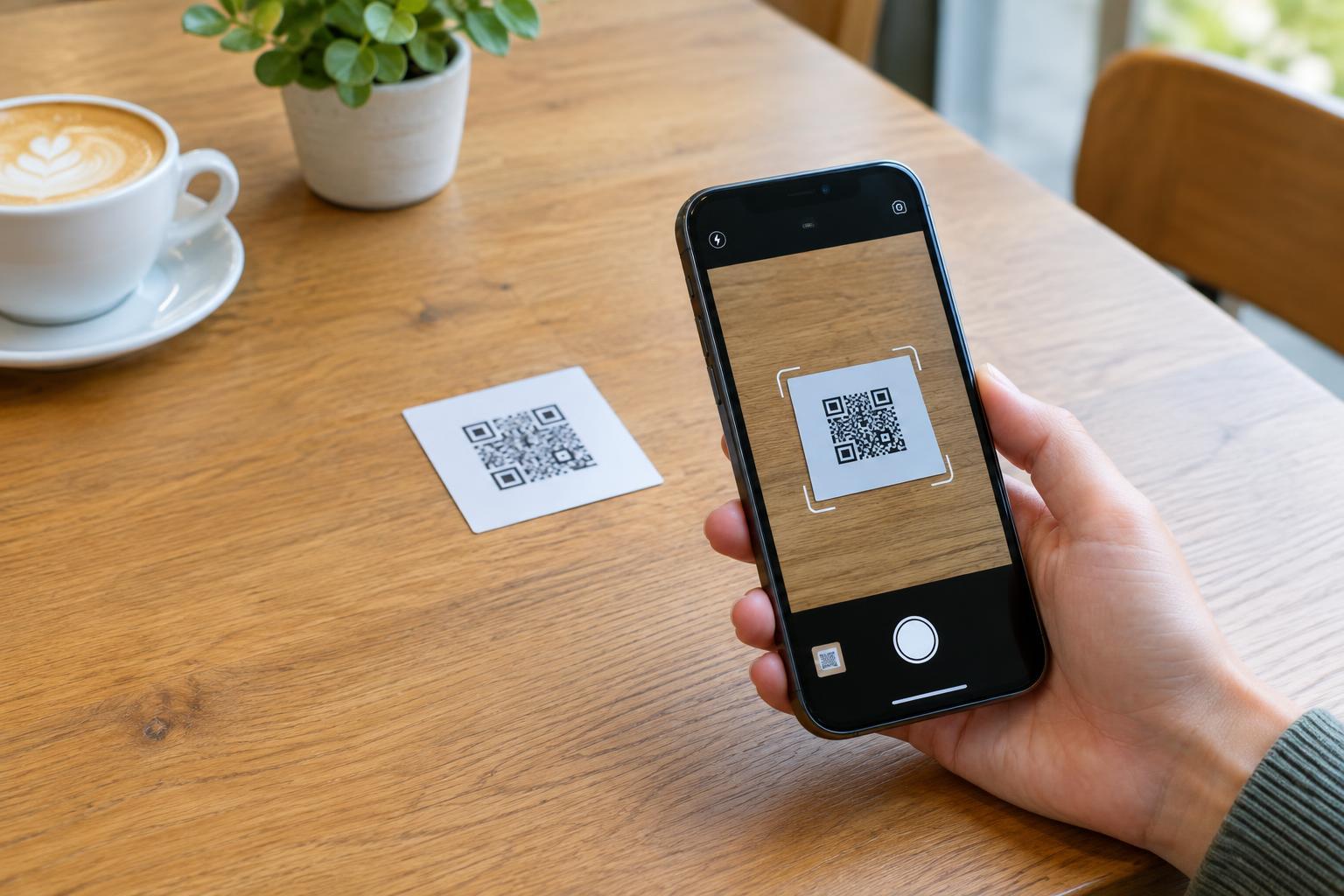
Open your phone’s Camera app and point the rear camera at the entire QR code. You usually do not need to take a picture. Hold the phone steady and leave a little space around the code in the camera view. When the phone recognizes it, a banner, link or other prompt should appear. Tap that prompt to see or use the information. If you are scanning a code at a counter or on a poster, pause long enough to read the prompt rather than tapping it automatically.
Make the code easier to recognize
If nothing appears, try moving the phone a little closer or farther away. A code that is too small in the camera view can be difficult to read, while a camera held too close may not focus. Keep all four corners visible and avoid tilting the phone sharply. Tapping the code on the screen may help the camera focus.
Lighting also matters. Move into better light if you can, but watch for glare on glossy signs, menus or packaging. Changing your angle slightly can remove a bright reflection without cutting off part of the code. If the code is on another screen, increase that screen’s brightness or zoom in so the code is clear and fully visible. A damaged, blurry or heavily decorated code may remain unreadable even when your camera is working properly.
What to try when the camera does not respond
First, check that you are using the regular Camera app and that your camera lens is clean. Close and reopen the app, then try a different QR code if one is available. If your phone reads the second code, the first may be too small, poorly printed or incomplete. If it reads neither, look in your phone’s Camera settings for an option related to QR scanning; some devices let you turn this feature on or off.
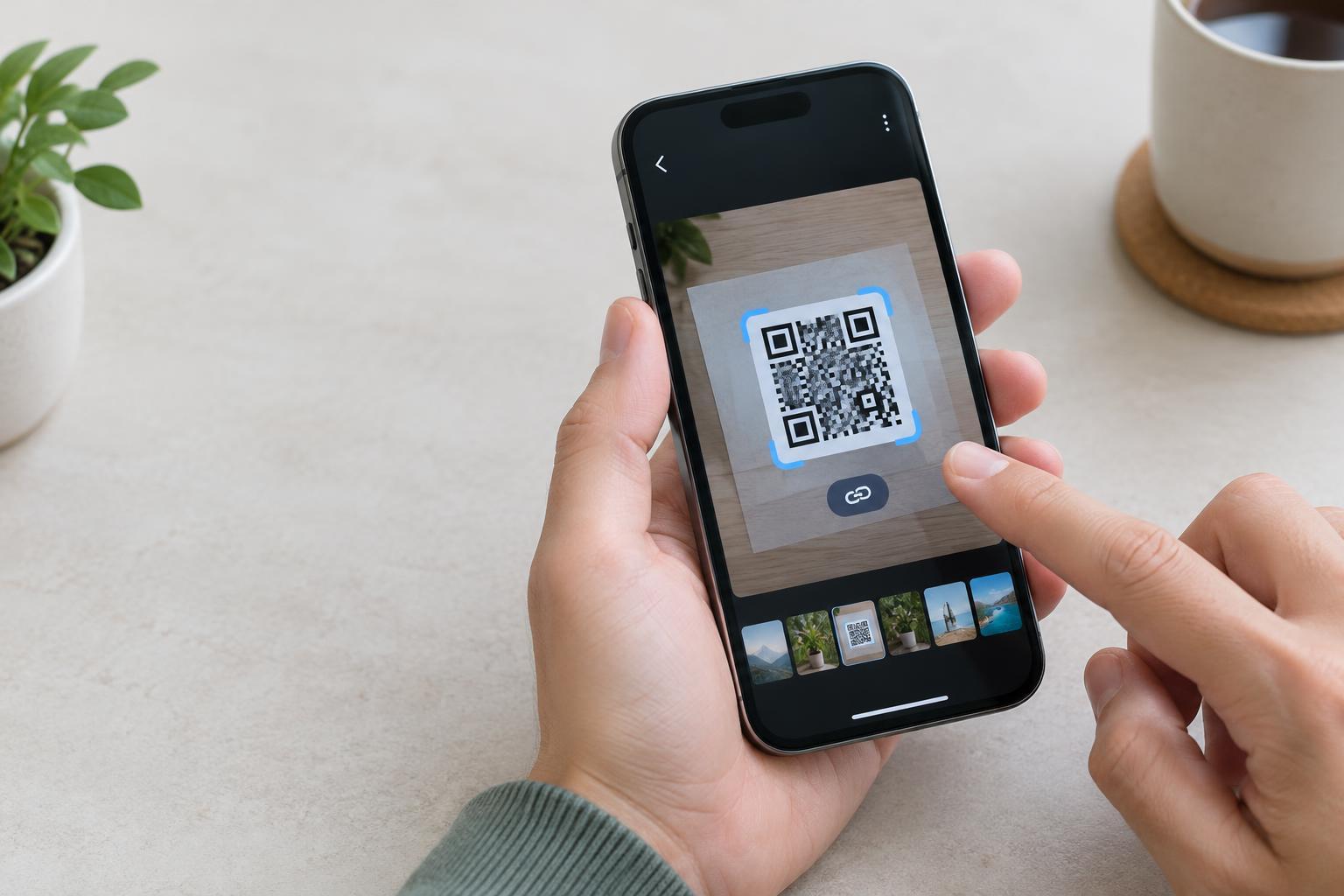
Your phone may also offer a built-in QR scanner in its quick settings or control center. Its name and location depend on the device. For a code shown on the same phone you are using, pointing the camera at it is not practical. Some phones can recognize codes in saved images through their photo viewer or another built-in feature. If yours cannot, you can display the code on a different screen and scan it with the camera.
Check what you are opening
A QR code is a convenient way to enter information, not a sign that the information is trustworthy. Before opening a website, read the address shown in the camera prompt if your phone displays it. Be especially cautious if a code on a public sign looks like a sticker placed over the original, or if the destination asks for a password, payment details or a download you did not expect. If you are unsure, use an address you already know or ask the organization for another way to access the information.
Scanning a code and tapping its prompt are separate steps. You can point your camera at a code to inspect the result and decide not to continue. If a prompt would connect you to Wi-Fi, add a contact or perform another action, read it before confirming.
Use an alternative when scanning is not possible
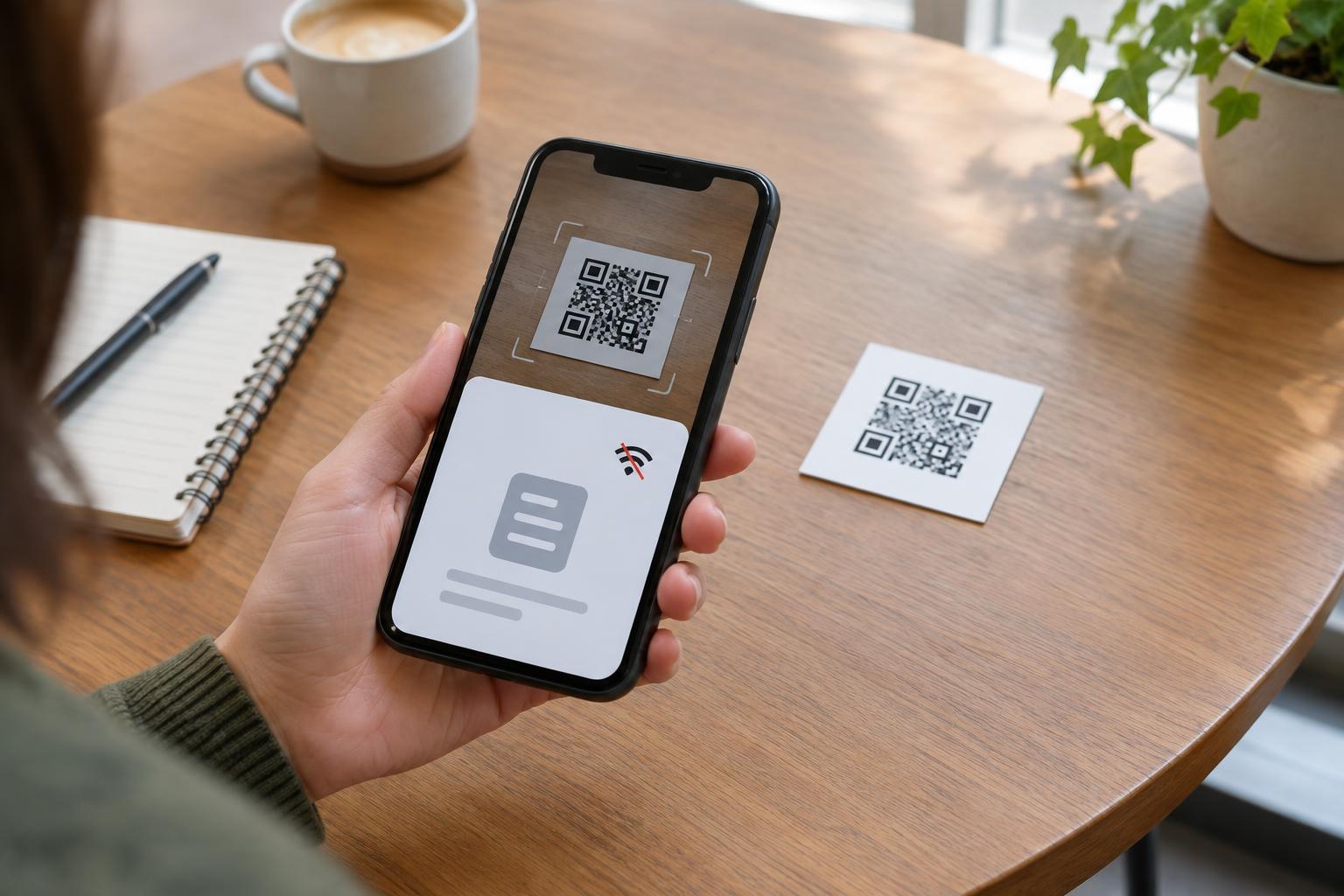
You should not have to scan a code to access essential information. A printed web address, readable instructions or help from a staff member may be more useful when your camera cannot focus, you have limited connectivity, or the code is out of reach. If you are sharing a QR code with others, providing a short description of its purpose and a non-QR alternative makes it easier for people to choose the method that works for them.