You may not need a second device
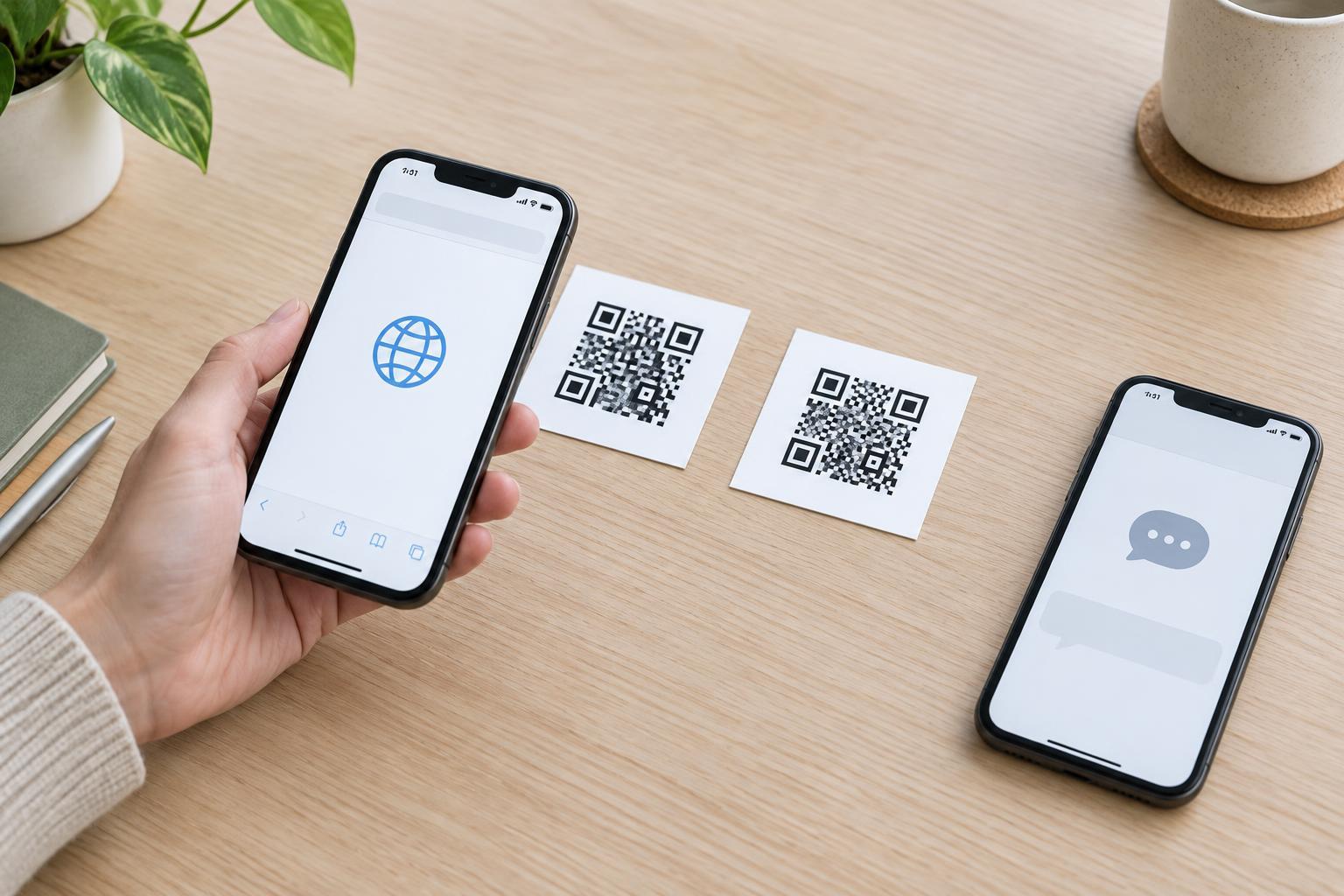
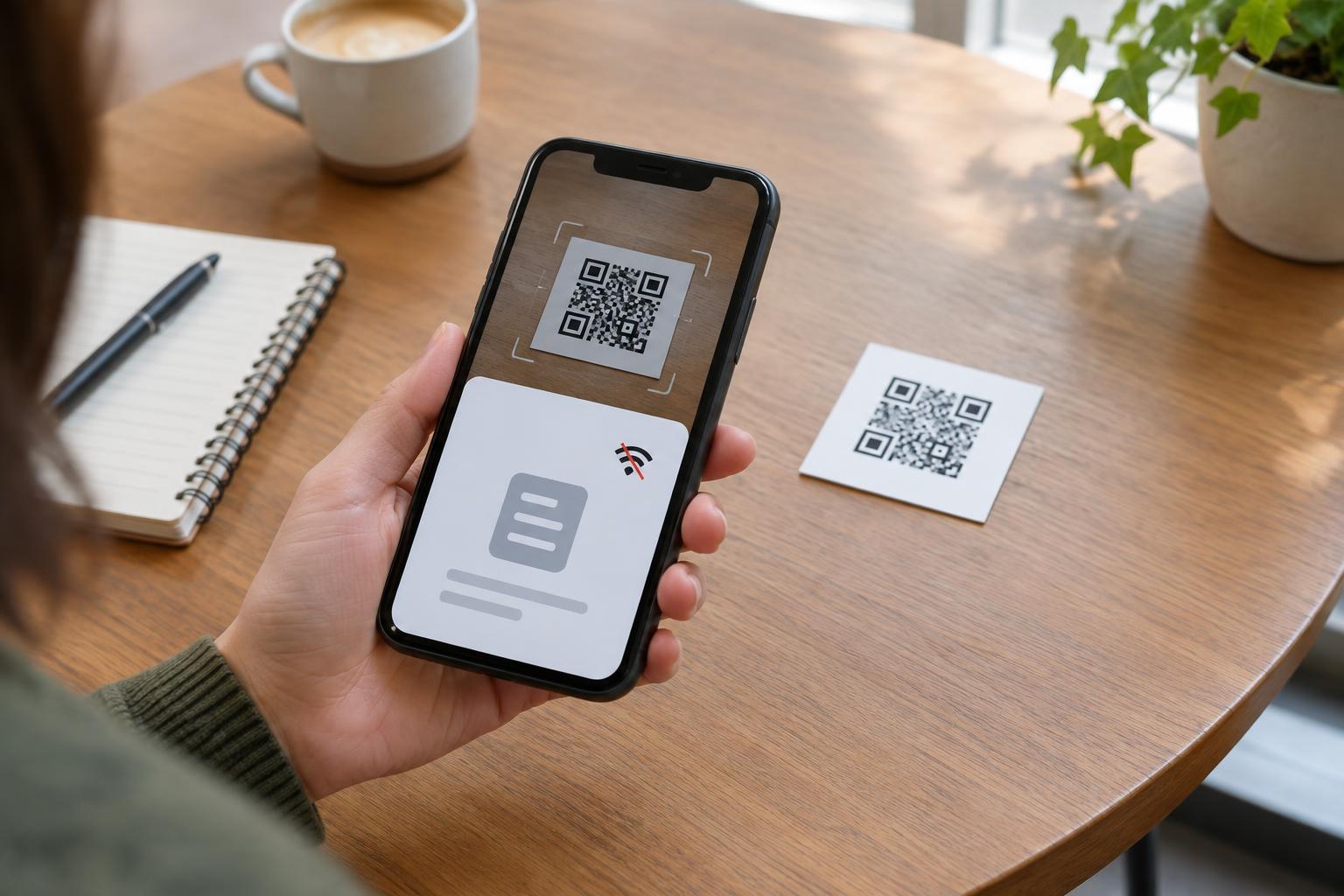
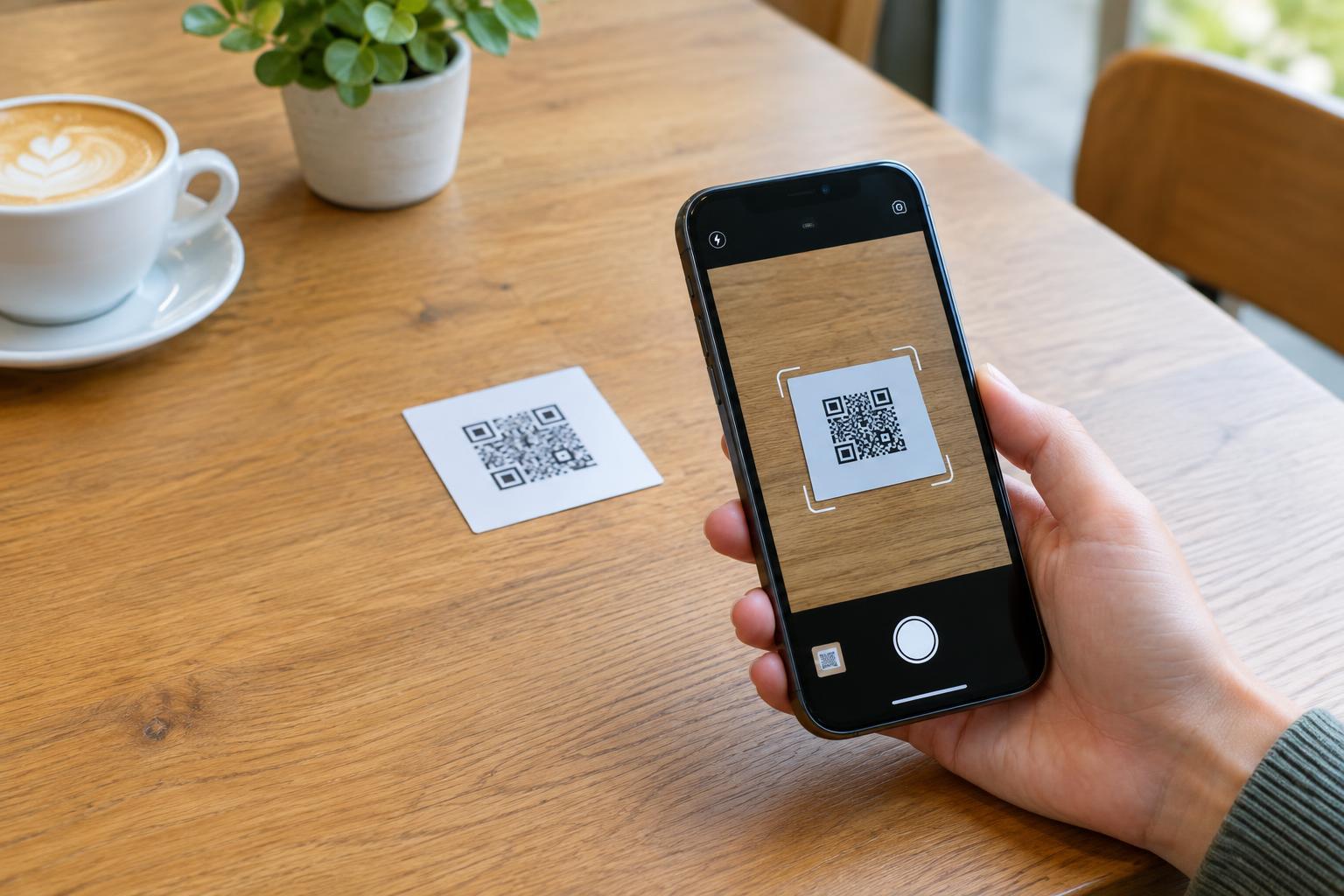
A phone camera can scan a QR code on a poster or another screen, but it cannot point at an image displayed on the same phone. If the code is in a message, document, social post, or screenshot, use an image-recognition feature that can read an existing picture instead. The exact buttons vary by phone model, software version, and app.
First, save the image or take a screenshot if you are allowed to. Make sure the whole code is visible, including the light-colored margin around its edges. If a message or document lets you open the image at full size, do that before saving it. A small preview may not contain enough detail for reliable detection.
Scan a saved QR code on iPhone
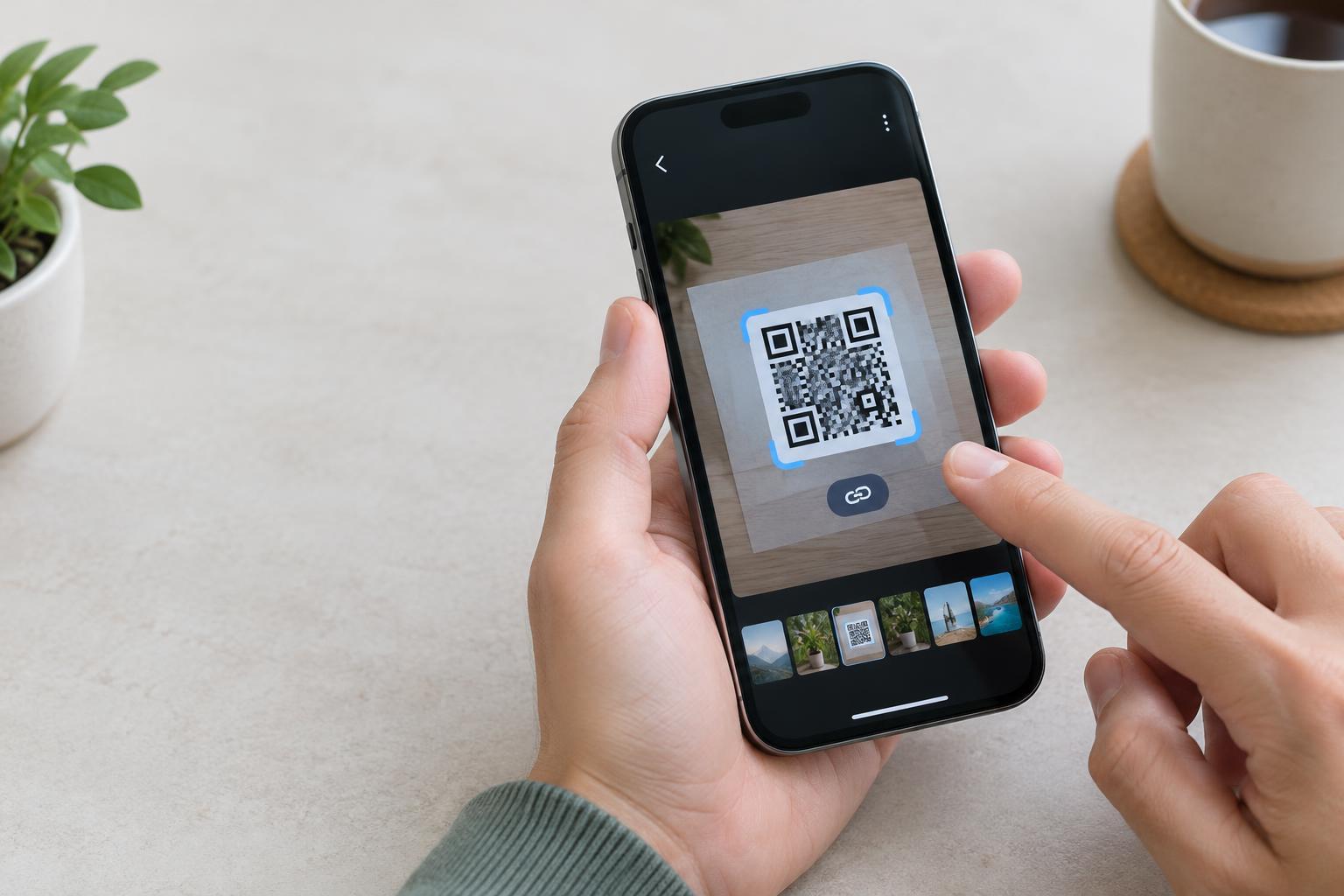
Open the image in Photos. On supported iPhones and software versions, Photos may recognize the QR code in the picture. Try pressing and holding the code, or look for a text-recognition control near the bottom of the screen. If a link or other action appears, read what it offers before tapping it. A code can contain text, contact details, or Wi-Fi information as well as a web address.
If nothing appears, zoom in enough to see the code clearly, then try again. You can also crop a copy of the image so the code is prominent, while leaving its full border intact. Recognition features and their controls differ across iOS versions, so check your phone’s Photos and text-recognition settings if the option you expect is missing. Avoid uploading a private screenshot to an unfamiliar scanning website just to read its code.
Scan a saved QR code on Android
Open the screenshot or photo in Google Photos or your phone’s gallery app. If you see a Lens button, tap it and select the QR code if necessary. Google Lens can inspect a saved image and offer an action for a code it recognizes. Some Android gallery apps have their own image-search or QR-reading option instead; its name and location will depend on the device.
If the image is still in a messaging or browser app, saving it and opening it from your photo library is often simpler than trying to use the camera. If your gallery does not offer image recognition, check whether Google Photos or a built-in search feature is available on your phone. You do not need to install a random QR scanner without first checking the tools already on your device.
What to try if the code is not detected
Check whether the image shows the complete square. Cropped corners, stickers, glare, or text placed over the code can prevent scanning. A screenshot taken from a compressed video or a tiny image may also be too blurry. When possible, return to the original message or document and save a clearer version.
Try viewing the image at its original size, then crop a copy to remove distracting surroundings without cutting into the code or its clear margin. Increasing contrast may help with a faint image, but heavy sharpening or repeated resizing can make its small squares harder to distinguish. If the code still will not scan, ask the sender for the destination in plain text or for a clearer image. There may be no usable information to recover from a damaged code.
Check the result before taking action
Treat a QR code in a screenshot like any other link someone sends you. Before opening a web address, examine the preview if your phone shows one. Look for unexpected spelling, a domain that does not match the organization you expected, or a request to sign in or pay that you were not expecting. A familiar-looking image around the code does not prove that its destination is trustworthy.
If the code appears to come from a bank, workplace, shop, or delivery service, you can instead open that organization’s app or type its known address yourself. Be especially careful with screenshots forwarded without context: you may not know who made the original code or whether it was changed. Scanning reads the code; it does not verify the sender or make the destination safe.