Why resizing can affect scanning
A QR code is a grid of light and dark square modules. A scanner needs to distinguish those modules and recognize the larger patterns that help it locate and orient the code. When layout software stretches the artwork horizontally or vertically, square modules become rectangles. A scanner may still read a mildly distorted code, but stretching removes an avoidable margin of reliability.
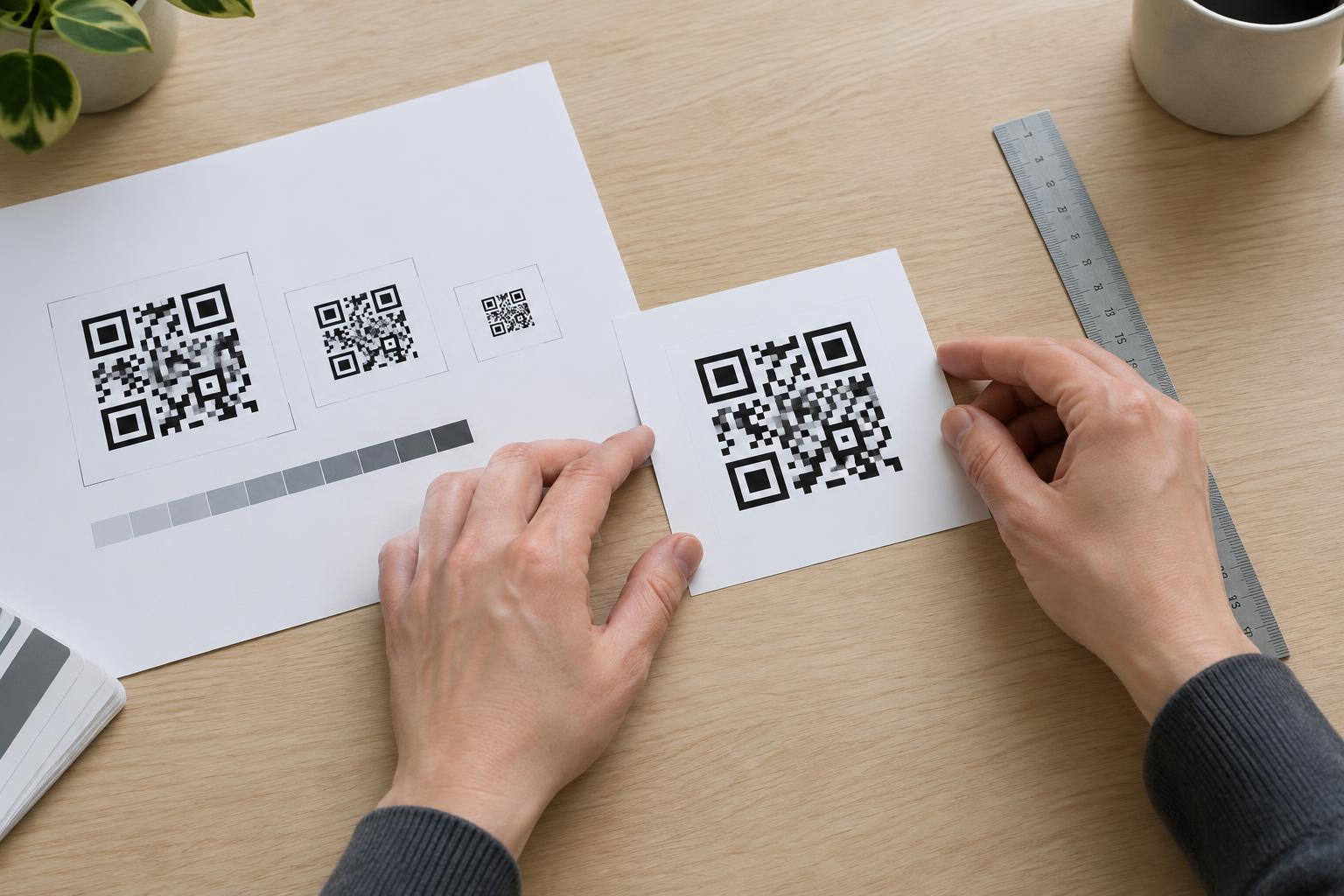
Resizing can cause trouble even when the proportions stay correct. Shrinking a code too far can make its modules difficult to reproduce cleanly in print. Enlarging a small raster image can leave edges soft or jagged. The goal is not just to make the code fit a box: it is to keep the grid crisp, square and surrounded by clear space at its final printed size.
Scale the code proportionally
Before placing a QR code, check that the artwork itself is square. In your layout software, use the control that locks an object’s aspect ratio, then change its width or height rather than setting both independently. If you drag a corner handle, confirm that the software is preserving proportions; different applications and settings handle corner dragging differently. Avoid pulling a side handle simply to fill a rectangular opening.
If the available space is not square, change the layout instead of stretching the pattern. Center the code in the space, adjust the surrounding text or choose a different placement. Be careful with image frames, too: a command such as “fill frame” may crop the artwork, while a fitting command may resize it without cropping. Inspect the visible edges after fitting rather than assuming the frame has protected the entire code.
Choose artwork that survives the size change
For designs that may need several sizes, vector artwork is often the easiest option. It describes shapes rather than relying on a fixed number of pixels, so its edges can stay sharp when scaled. If you use a raster image such as a PNG, start with enough pixels for its intended print size. Do not expect enlarging a tiny screenshot to restore detail that was never captured.
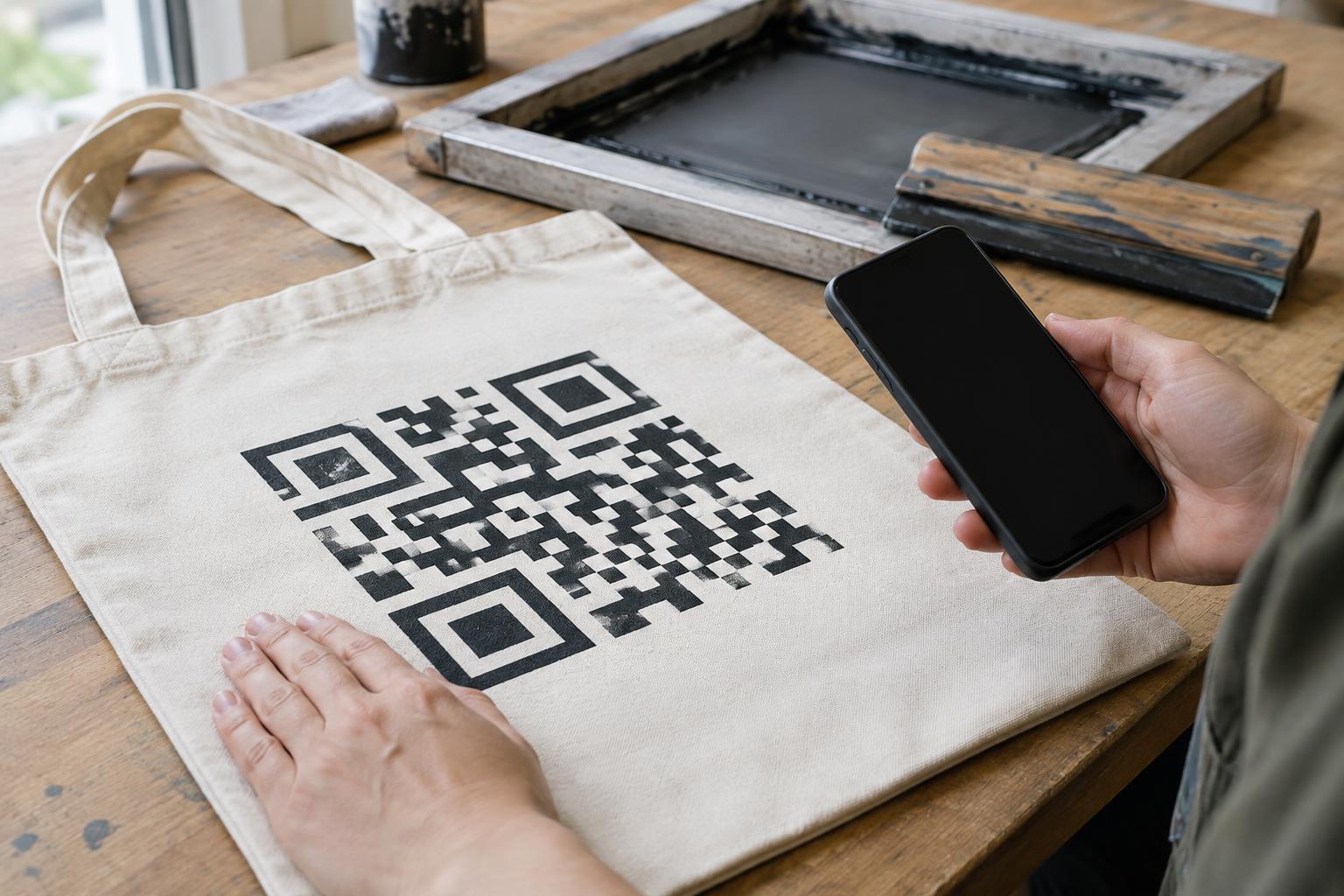
Watch what happens during export as well as in the layout window. Image compression, resampling or a low-resolution export can soften module boundaries. A screen preview may hide these problems, especially when the code appears small. Inspect the exported file at a useful magnification, and judge the code from a print at its intended size. Make sure any resizing workflow preserves distinct light and dark modules rather than adding blur between them.
Protect the quiet zone and contrast
The clear area around a QR code is called the quiet zone. It helps a scanner separate the code from nearby design elements. A common guideline is a clear border at least four modules wide on every side. Keep that border intact when cropping, fitting the image into a frame or placing the code beside text, rules, illustrations or the edge of a label. If the border is part of the supplied artwork, include it when checking how much room the code needs.
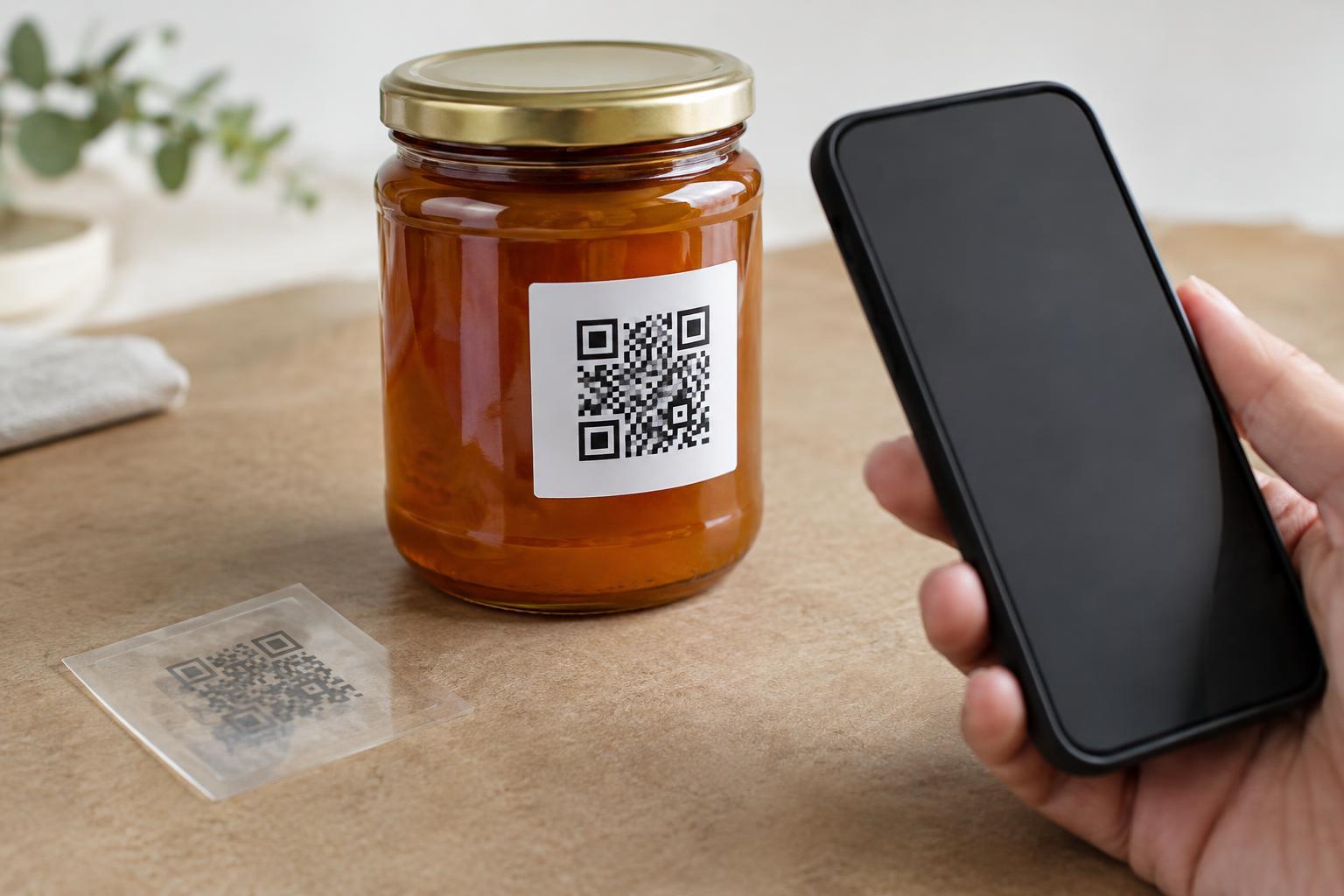
Use strong contrast between the modules and their background, and avoid placing the pattern over a photograph or busy texture. Scaling will not fix a code whose light areas blend into the page. If you add a colored panel behind the code, check the printed result: screen colors do not always predict how clearly small details will appear on paper.
Check the finished layout, not just the source file
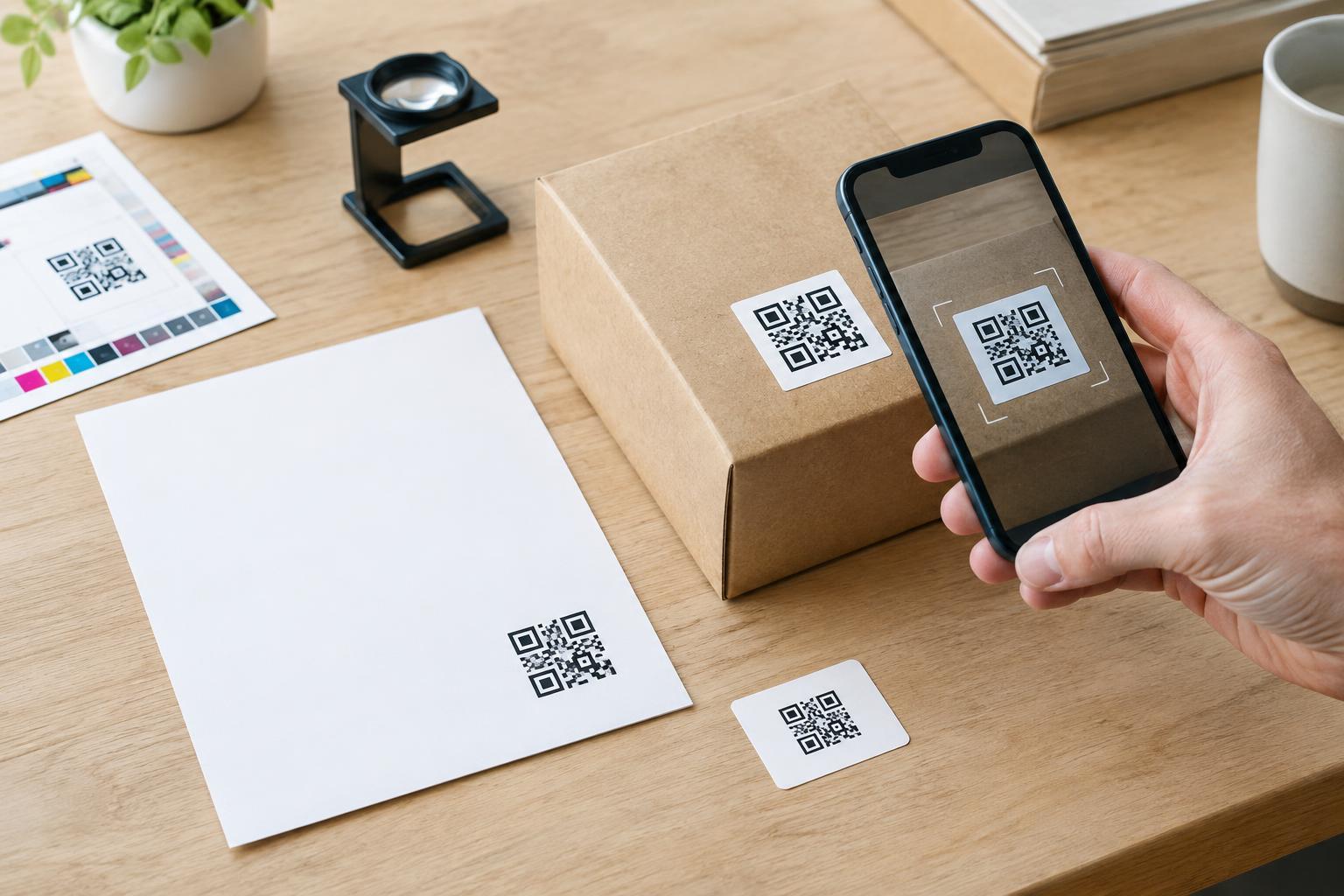
A QR code that scans before placement can fail after it has been resized, exported or printed. Test the version people will actually see. Print a proof at the intended size and scan it with more than one phone if practical. Try it under ordinary conditions, including a typical viewing distance and lighting. Confirm that the destination is the one you intended, not merely that the camera recognizes a code.
If scanning is inconsistent, work backward through the layout. Check for stretching, cropping, a missing quiet zone, soft raster edges or insufficient contrast. Increase the printed size or simplify the surrounding design where space allows, then test a new proof. A successful scan from a close-up screen preview is useful, but a reliable printed result is the better sign that resizing has preserved the pattern.