Start with the whole journey
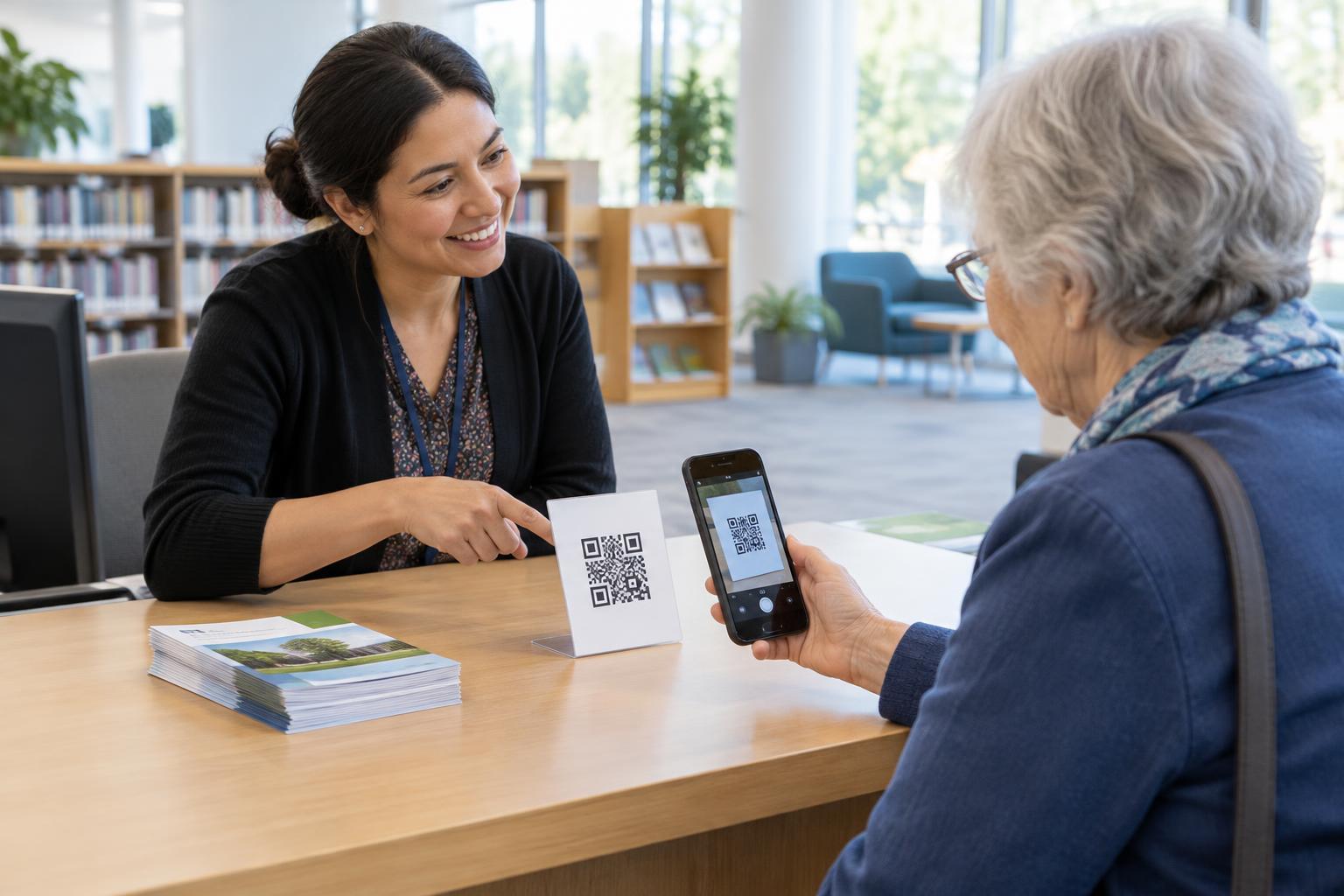
A QR code is only the entry point. Someone might scan a code on a poster to register for an event, open a feedback form from a receipt, or follow a code on a table sign to request assistance. To check whether that experience is accessible, follow the journey from the printed code to the confirmation message, rather than testing the form in isolation.
First, make the destination clear beside the code. A short line such as “Scan to open the event registration form” tells people what to expect. Include a readable web address or another way to reach the form when space permits. A person who cannot scan the code, or does not want to use a camera, should not have to guess how to complete the same task. Check that the code opens the intended page directly and that the page does not require an unexpected app.
Test on a phone with a screen reader
Use a phone to test the route a visitor is likely to take. Open the form from the QR code, turn on the phone’s screen reader, and move through the page using its usual gestures. Where possible, try more than one combination of phone, browser, and screen reader. Testing one combination is a useful start, but it will not reveal every issue.
Listen to what is announced when the page loads. Does the page title identify the form? Can you find its heading, instructions, fields, and submit button without relying on the visual layout? Move through the form in reading order, then use the screen reader’s controls to navigate by headings or form controls. If a prompt is visible but not announced, or controls are read in a confusing sequence, note where the problem occurs and what the screen reader says.
Also check ordinary phone behavior. Enlarge text, rotate the screen, and open the on-screen keyboard. The form should remain readable and usable without hiding instructions or covering the control currently in use.
Check every field and choice
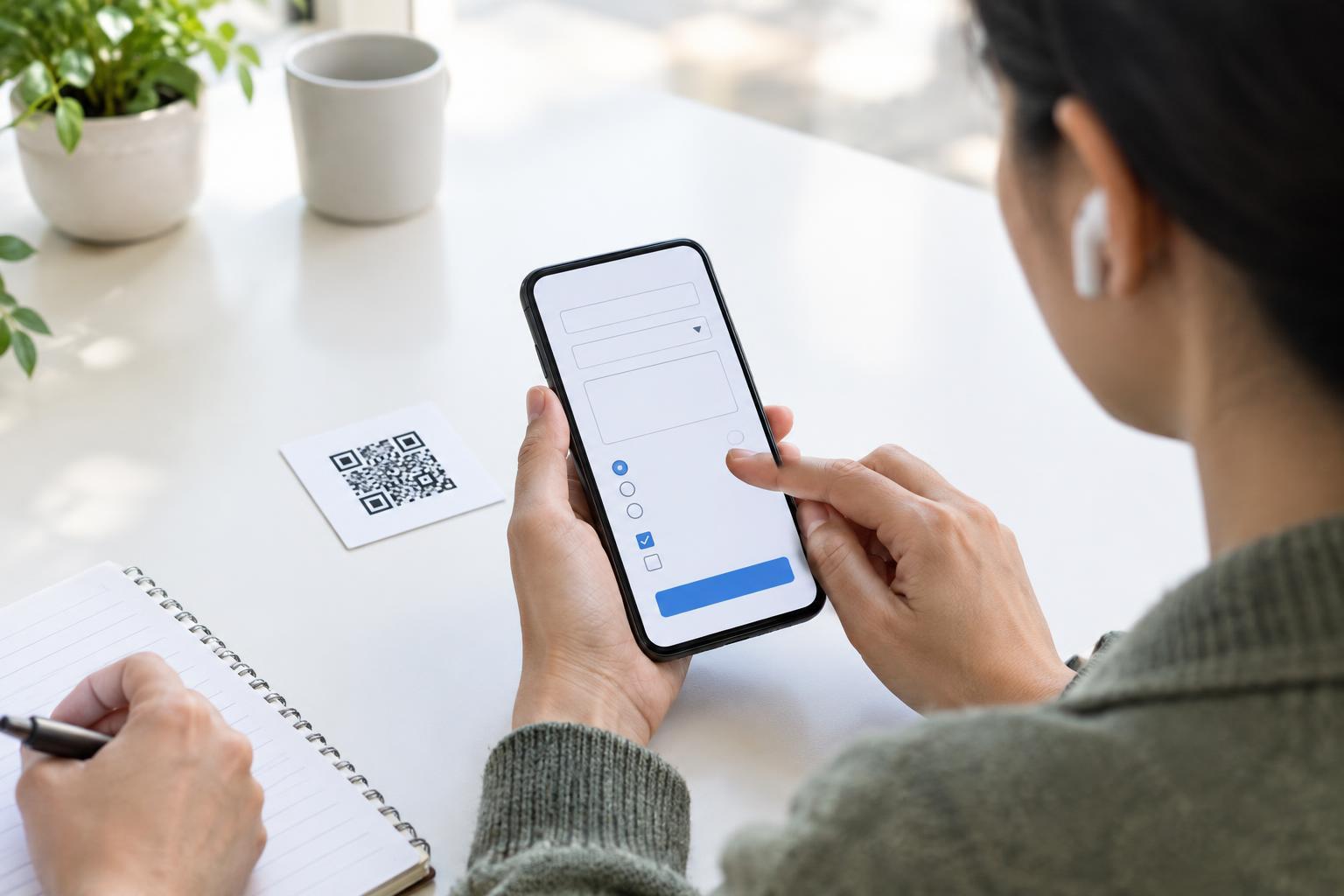
Each input should have a clear, persistent label that the screen reader announces with the control. Placeholder text alone is a poor substitute: it may disappear as someone types and may not explain what information is needed. A field labeled “Email address” is more useful than an unlabeled box beside a visual heading. If a format matters, put the instruction near the field and check that it is announced at the right time.
For groups of choices, listen for both the question and the available answers. Someone selecting a radio button for an event time, for example, should be able to tell which question the options belong to and which option is selected. Checkboxes should announce their names and checked state. Mark required fields in a way that is communicated through the form, not only through color or an asterisk with no explanation.
Try filling in the form without looking at the screen. Can you revisit an answer, change it, and tell where you are? Buttons need meaningful names: “Submit registration” gives more context than “Go.” Any calendar picker, menu, or other custom control deserves extra testing because it may be harder to operate than a standard form field.
Make errors and submission understandable
Submit the form with an empty required field and then with an invalid value, such as an incomplete email address. A visual warning is not enough if the screen reader never announces it. Check whether the message identifies the problem, points to the affected field, and gives a useful way to fix it. After an error, the person should be able to find the message and return to the field without searching the whole page.
Next, complete the form successfully. Listen for a confirmation that the submission went through. If the button remains on screen with no clear response, someone may submit twice or assume nothing happened. If the form has multiple steps, check that each new step announces its purpose and that answers are not lost when moving back.
If a time limit or verification challenge appears, test that part too. A form is not usable end to end if someone can fill in every field but cannot complete the final step.
Fix issues and keep another route available
Record problems in terms that help someone reproduce them: the device and browser used, the field or step, what you expected to hear, and what happened instead. Fix the issue, then repeat the task from the QR code through submission. It is worth retesting after changes to the form, its destination, or the service hosting it.
Even a well-tested form will not suit every visitor. Offer a practical alternative, such as a staffed contact point, phone number, or readable web address appropriate to the setting. The goal is not merely to make the QR code scannable; it is to let people understand the task, complete it, and know that it worked.