Design for the whole task, not just the scan
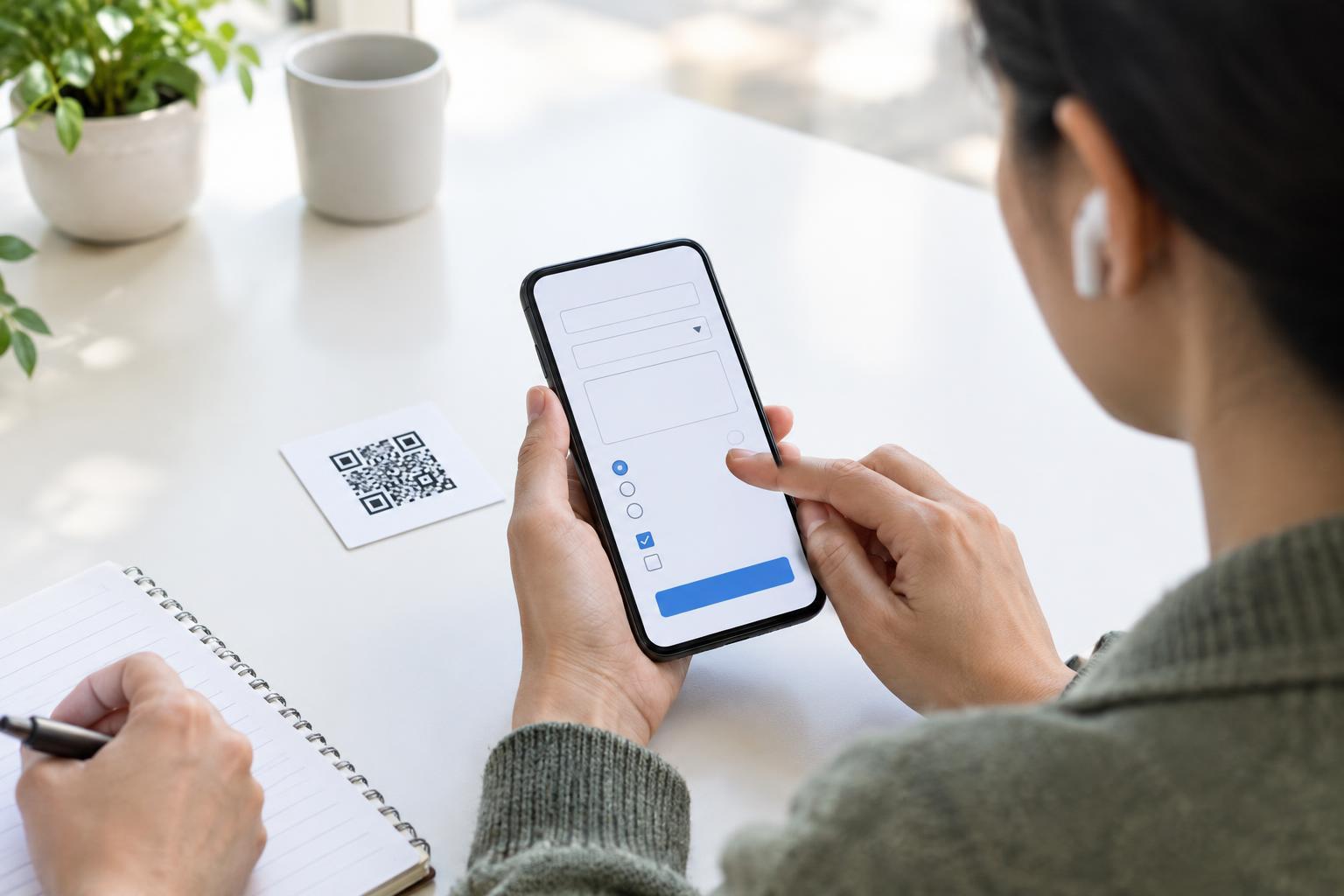
Scanning a QR code involves more than pointing a camera. A person may need to reach the code, hold a phone at a usable angle, keep both hands steady, open the camera, tap a notification and complete a task on the page that appears. Limited hand dexterity can make any of these steps tiring or difficult. Instructions should help without assuming that everyone holds or operates a phone in the same way.
Start by identifying the purpose of the code. Is it opening a menu, showing event details or starting a form? State that purpose next to the code so people can decide whether to scan. A label such as “Scan for the menu and prices” is more useful than “Scan me.” If scanning is required to access essential information, provide another way to get that information.
Place the code where people can scan comfortably
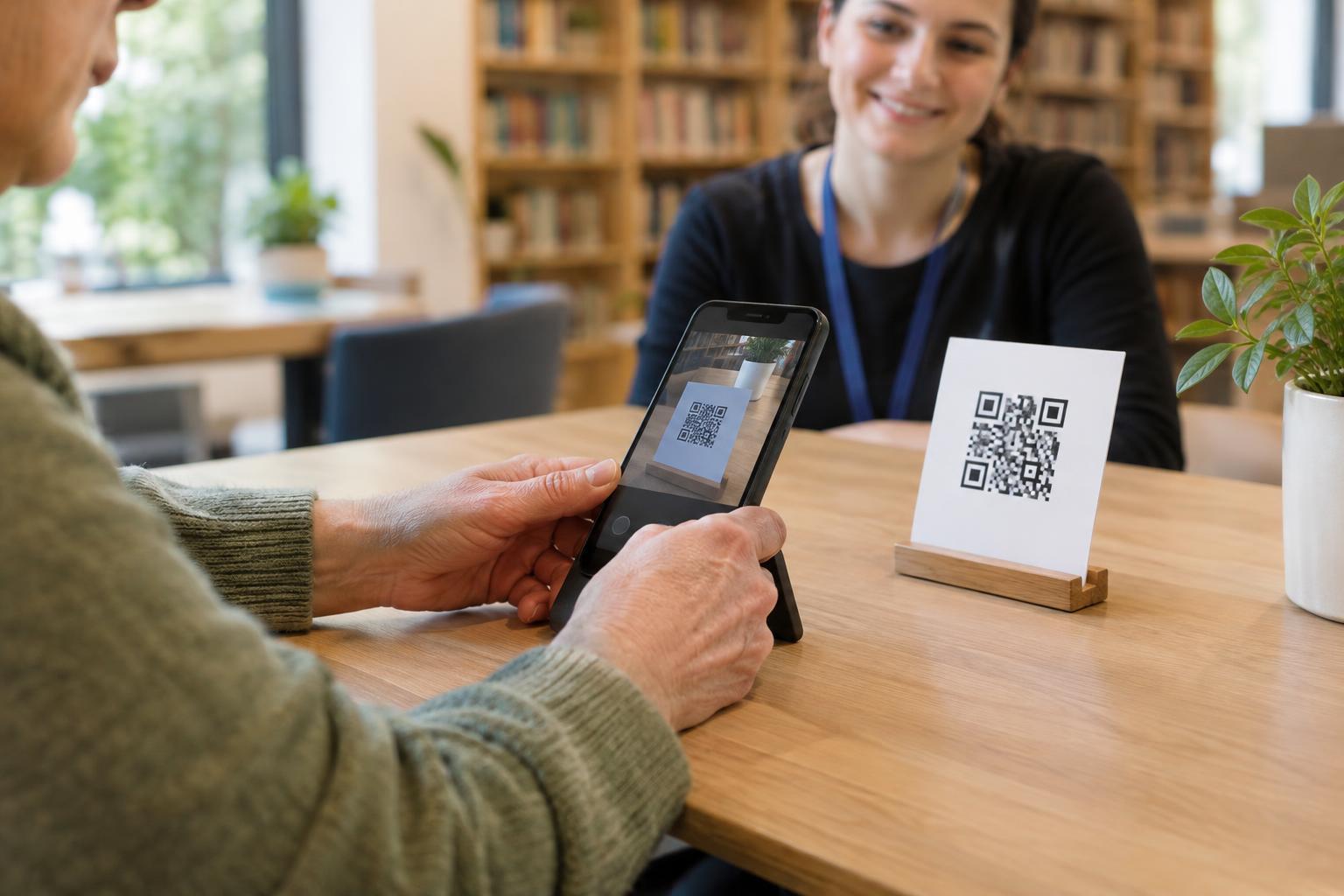
Put the code on a stable, reachable surface rather than on a swinging tag, a moving screen or an item someone must hold in place. Leave space around it so a person can position a phone without bumping nearby objects. Avoid locations that require an extended reach, bending to the floor or holding a phone overhead. Where people approach from different positions, consider repeating the code at more than one accessible location.
Use a clear, high-contrast code with an uncluttered border, and print it large enough to scan from a comfortable distance in its intended setting. Check it on the actual material and under the lighting people will encounter; glare and curved surfaces can make aiming harder. Test from seated as well as standing positions when both are relevant. A code that scans in a design file may be less usable once mounted behind reflective glass or placed at the edge of a crowded counter.
Write brief instructions that allow flexibility
Keep directions short and focused on the outcome. For example: “Open your phone’s camera and point it at this code. Tap the link that appears to read the menu.” People using a separate scanning app may take a different route, so avoid presenting one phone interface as the only valid method. Do not instruct people to grip, steady or reposition their phone in a particular way; a stand, adapted grip or another person’s assistance may work better for them.
Place instructions close enough to the code that the two are clearly connected. Use legible text and avoid putting essential directions only in a decorative image. If the next step involves a deadline, a long form or a sign-in, say so before the scan when possible. This lets people choose an alternative before spending effort opening a page they cannot easily use.
Make the destination forgiving to navigate
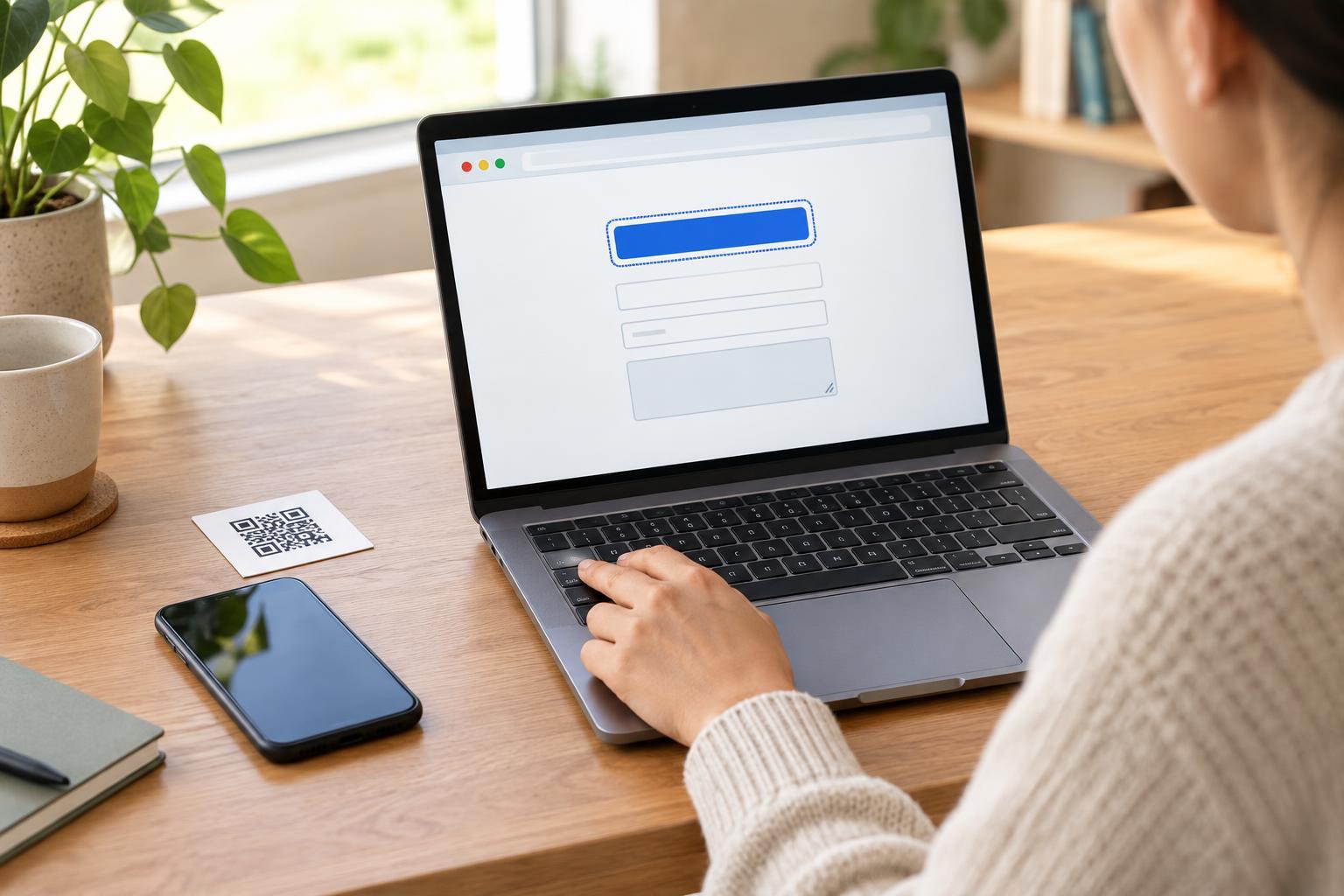
The scan is only an entry point. A mobile page with tiny controls or closely spaced links can make an otherwise usable code frustrating. Give buttons clear labels and enough room to tap without selecting a neighbor by mistake. Keep the main action easy to find, support screen zoom and avoid interactions that depend on swiping, dragging or completing a step within a short time.
If the code leads to a form, let people review and correct entries without starting over. Keep required fields clear and limit unnecessary steps. A menu or instruction page should be readable without repeated tapping to reveal each item. Testing the destination while using one hand, a phone resting on a surface or assistive input can reveal obstacles that a quick scan test will miss.
Offer a real alternative and test it
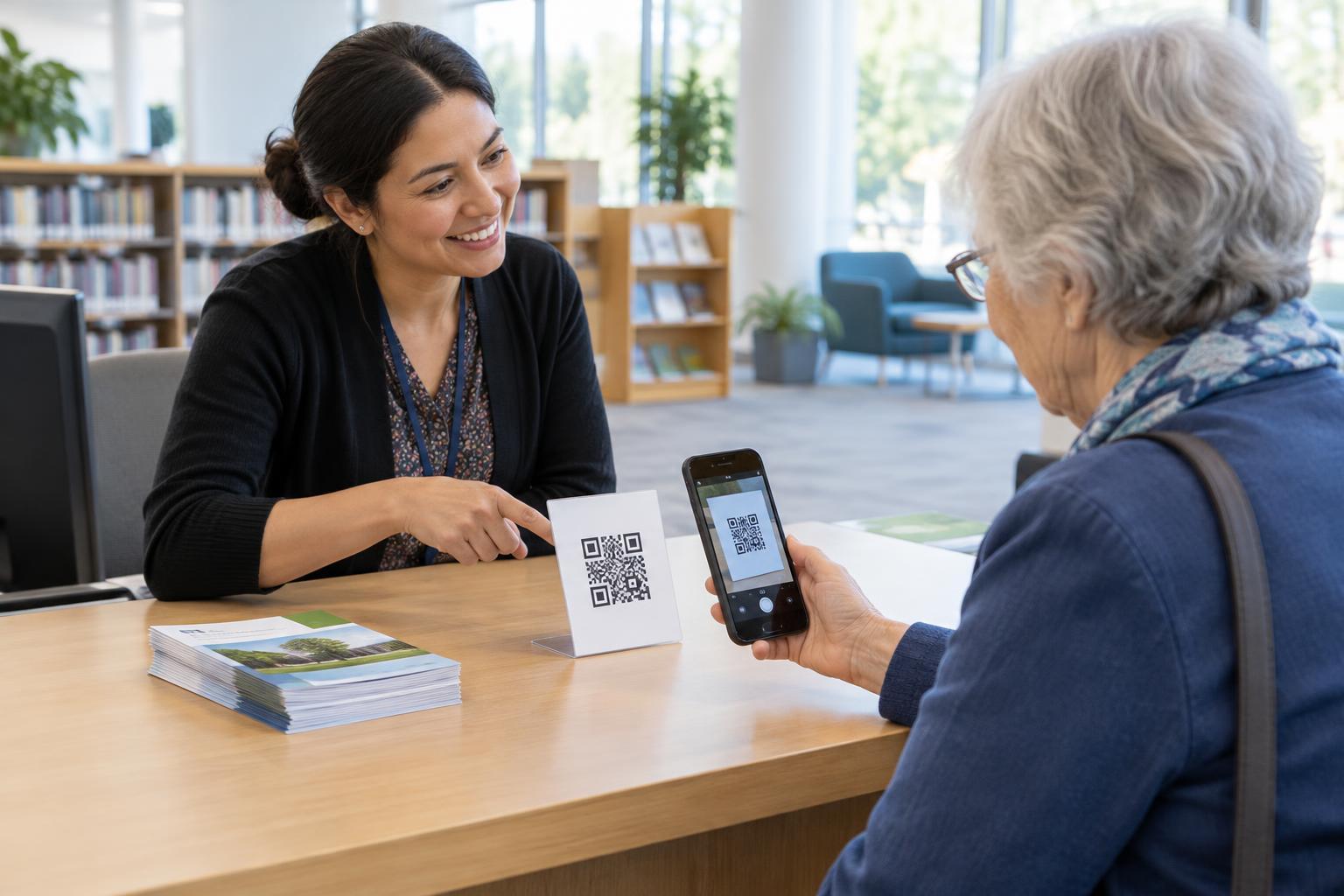
Print a short, readable web address alongside the code when practical, or provide a clear way to request the same information or service without a smartphone. For example, a café might keep a printed menu available; an event sign might direct visitors to a staffed desk. Make the alternative visible rather than hiding it behind “ask if needed.” It should lead to the same essential information, even if the format differs.
Before publishing, ask people to try the complete task in the setting where the code will be used. Watch for awkward reaches, repeated attempts to focus the camera and difficult taps after the page opens. Invite feedback without asking anyone to disclose a disability. Small changes to placement, wording or the destination page may remove barriers for many visitors.