Start with the scanner you already have
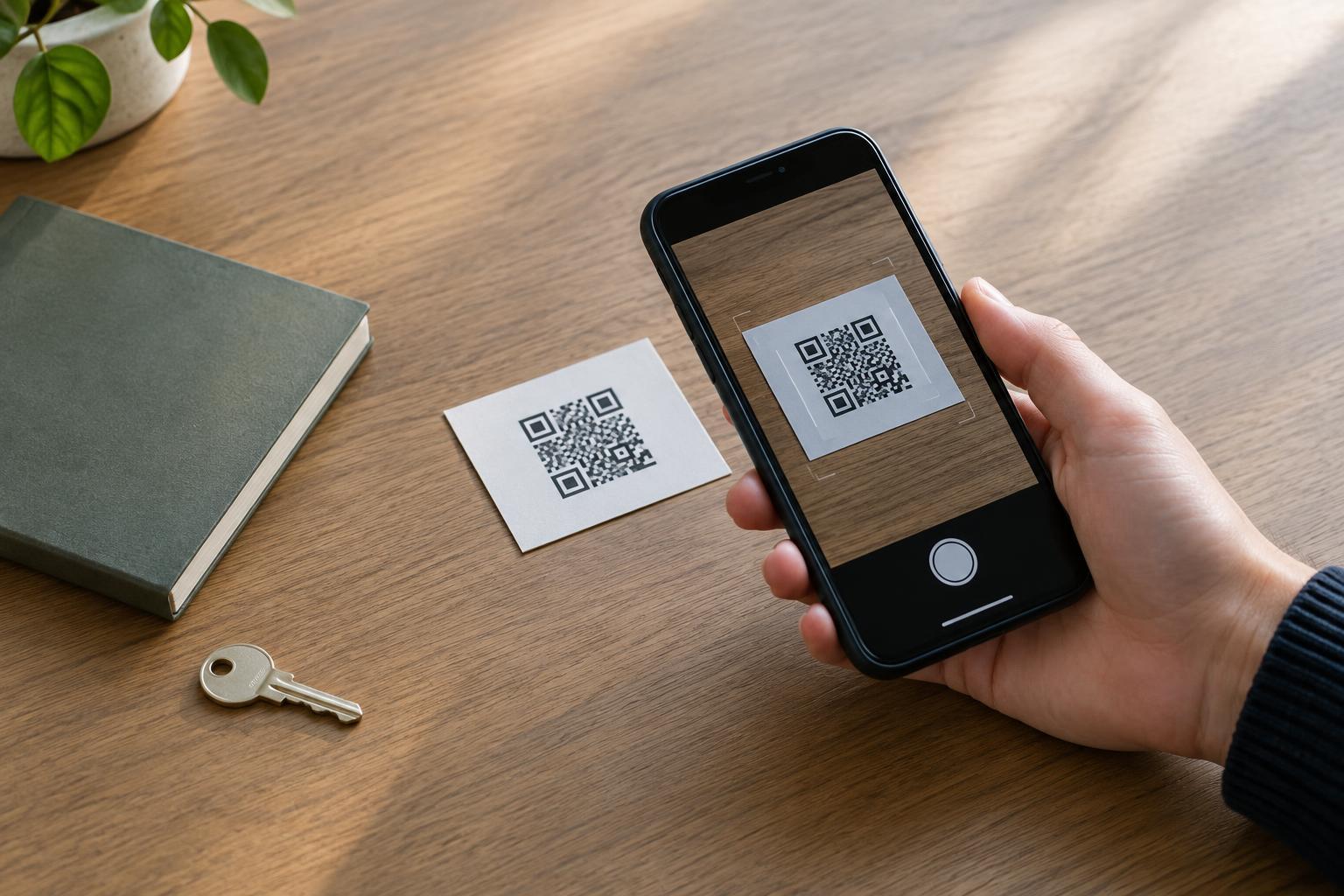
Before installing a dedicated QR scanner, check whether your phone’s camera can read codes. Many phones show a link or action when the camera is pointed at a QR code. A scanner built into a device may be enough for occasional use, although its behavior and privacy settings still depend on the device and software.
A QR code can contain a web address, contact details, Wi-Fi settings or other text. Reading those squares does not, by itself, tell you whether the content is trustworthy. A scanner app adds another question: what access does the app request, and what does it do with information about the codes you scan? Choose an app for a feature you need, rather than assuming a separate scanner is necessary.
Match permissions to the task
Camera access is a reasonable request for an app that scans codes through the camera. If the app can read a code from an image you select, it may also request access to photos. Where your device offers limited photo access, consider selecting only the image you want to scan. Permission names and choices vary by device, so read the explanation shown on your screen.
Other requests deserve a closer look. Location is usually not needed to decode a QR code, though an app might use it for a separate nearby-service feature. Contacts access may relate to saving contact details from a code, but it need not be granted just to read one. Notifications may be used for reminders or promotions. If a scanner asks for these permissions, check whether the feature is useful to you and whether the app works when you decline.
Also notice requests involving the clipboard, microphone or broad access to files. An app may have a specific reason for some of these, but that reason should be clear. Granting a permission does not prove an app will misuse it, and declining one does not guarantee privacy. Permissions are a practical starting point for asking what information the app could access.
Look beyond the permission screen
An app can collect information without requesting access to contacts or location. For example, if it sends scanned content to a server, the operator may receive the text or web address in the code along with technical information about the connection. Some apps may also record scan history, device identifiers or usage events. Whether that happens depends on the app; do not assume a scan stays on your phone simply because the camera permission is the only one you granted.
Before installing, read the app’s store description and privacy information, then look for answers in its privacy policy. Does it say whether scans are processed on the device or sent elsewhere? Does it explain what is stored, for how long, and whether information is shared with advertising or analytics providers? Can you clear scan history or request deletion? Vague language does not necessarily establish wrongdoing, but it makes an informed choice harder.
Consider the app’s business model, too. A free scanner supported by ads may involve additional data collection, while a paid app is not automatically private. Compare the stated practices with the permissions and features you actually see. If the explanation is unclear and you only need basic scanning, using your phone’s built-in option may be the simpler choice.
Check the result before you act
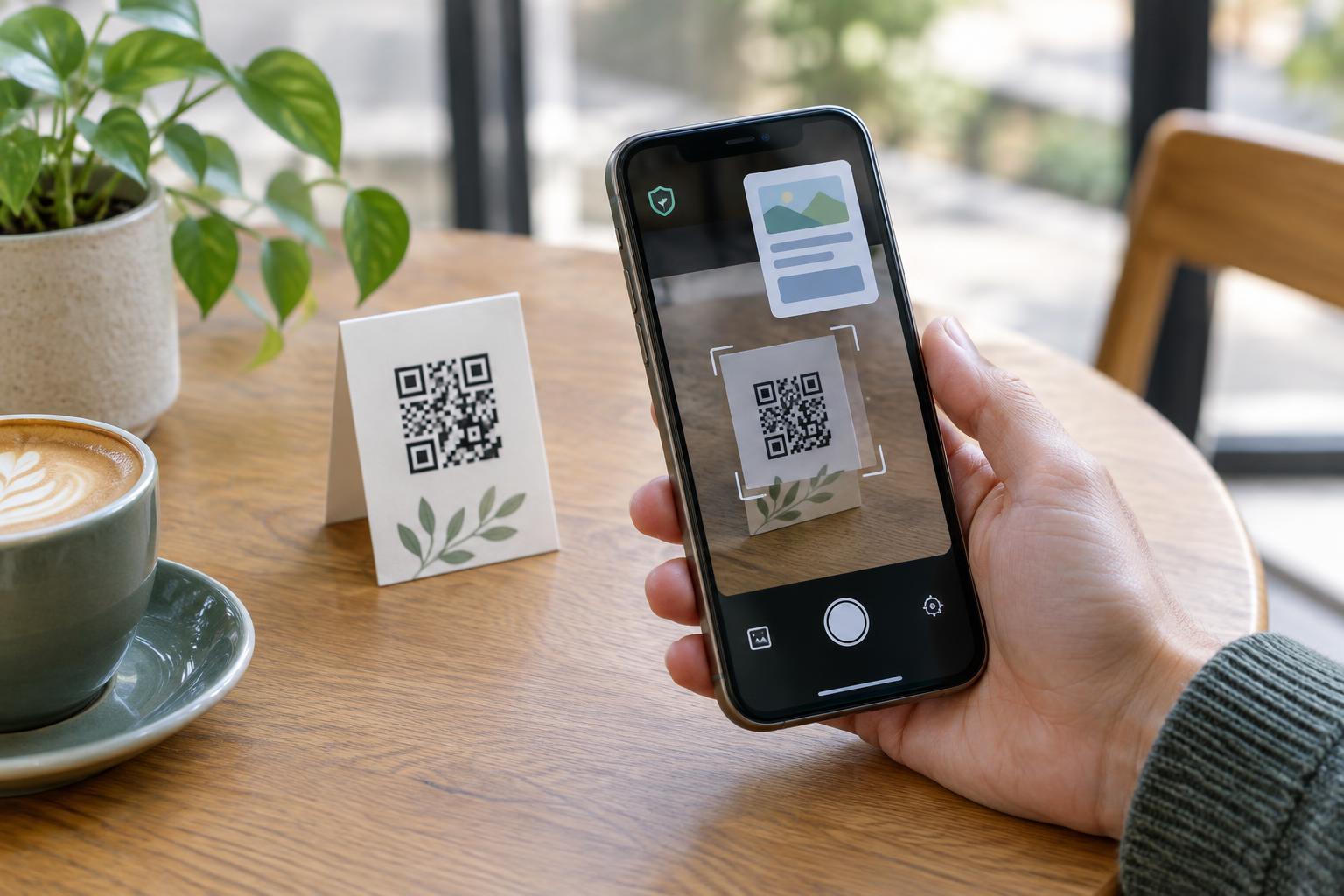
A trustworthy scanner cannot make every QR code safe. Prefer an option that lets you inspect the decoded text or destination before opening it. For a web link, look carefully at the domain and watch for misspellings or an unfamiliar name. A shortened link or a redirect may hide the final destination, so a familiar-looking preview is helpful but not a guarantee.
Treat requests for passwords, payment details or account verification with particular care, especially when a code appears on a sticker, an unexpected message or a sign that could have been altered. If a code claims to lead to a business account or payment page, you can navigate to the organization through a route you already trust instead. Avoid approving an action simply because the scanner presents a prominent button.
Review access after installation
If you install a scanner, test whether it works with only the permissions needed for your task. Device settings usually let you review and change app permissions later. Check whether the app keeps a scan history and whether you can delete it. Remove an app you no longer use; keeping unused scanners installed offers little benefit.
The practical goal is not to find an app that promises perfect safety. It is to use the fewest tools and permissions necessary, understand what may be collected, and pause before following the content of a code. Those habits remain useful whether you scan with a dedicated app or your phone’s camera.