Yes, a screen can display a scannable QR code
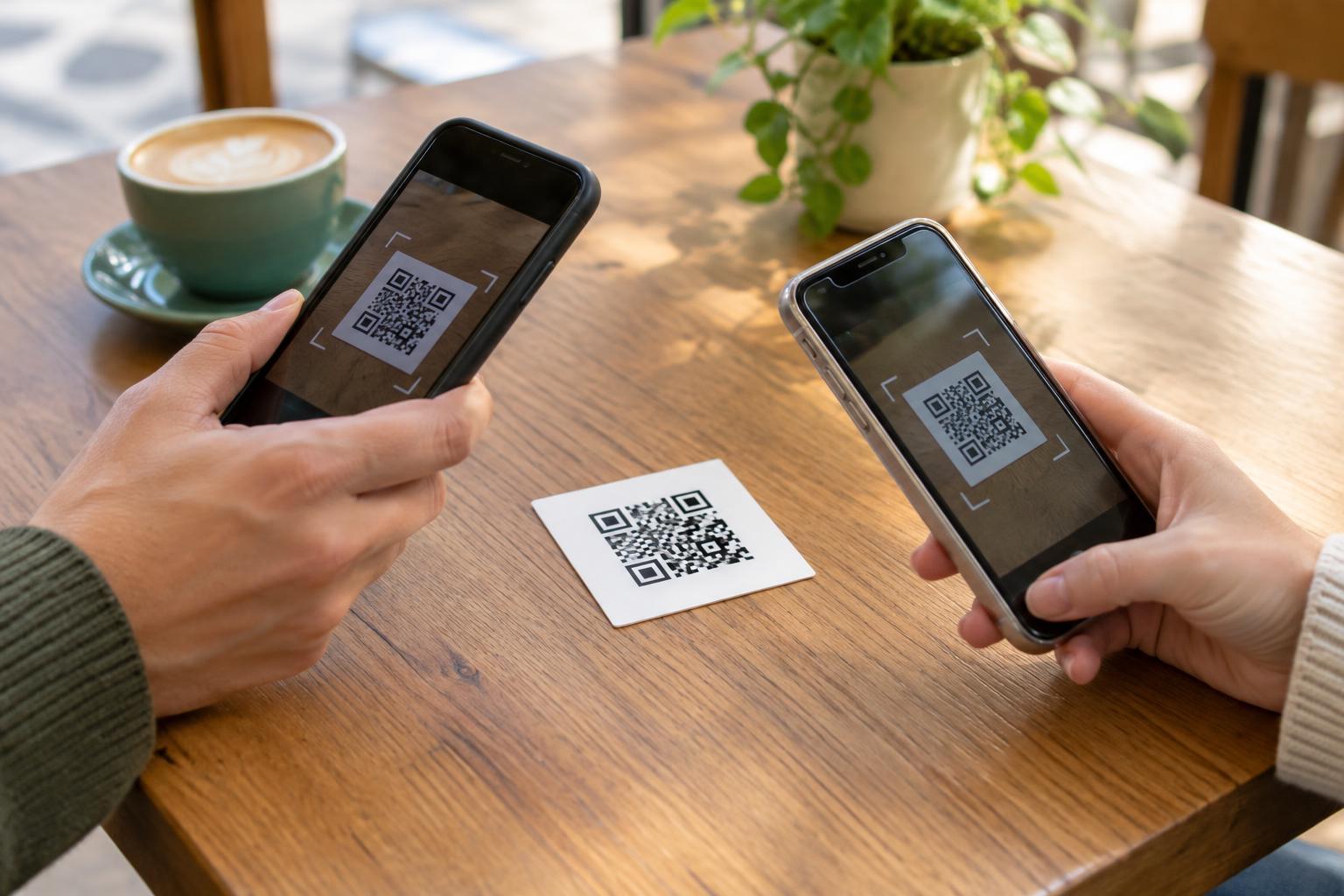
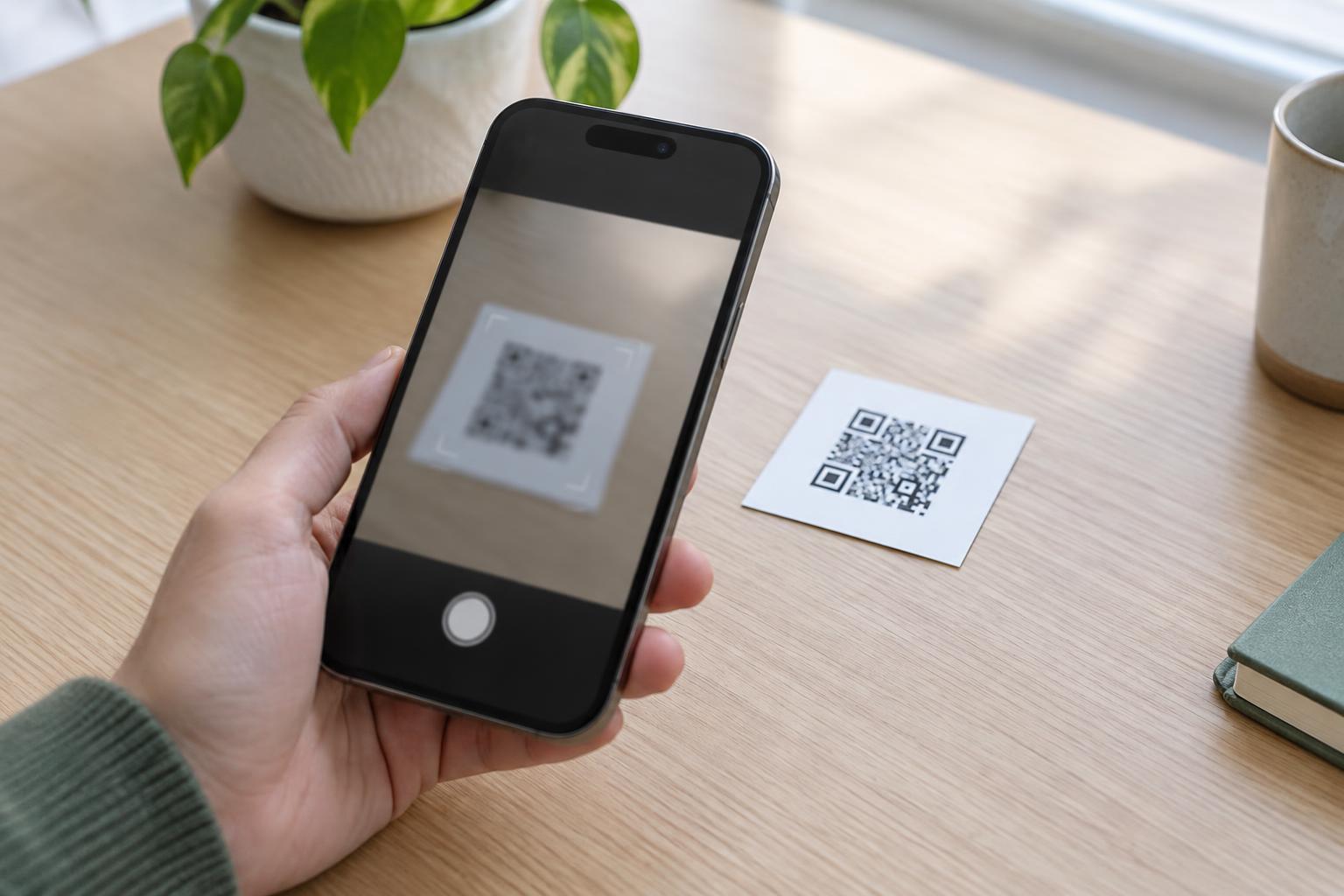
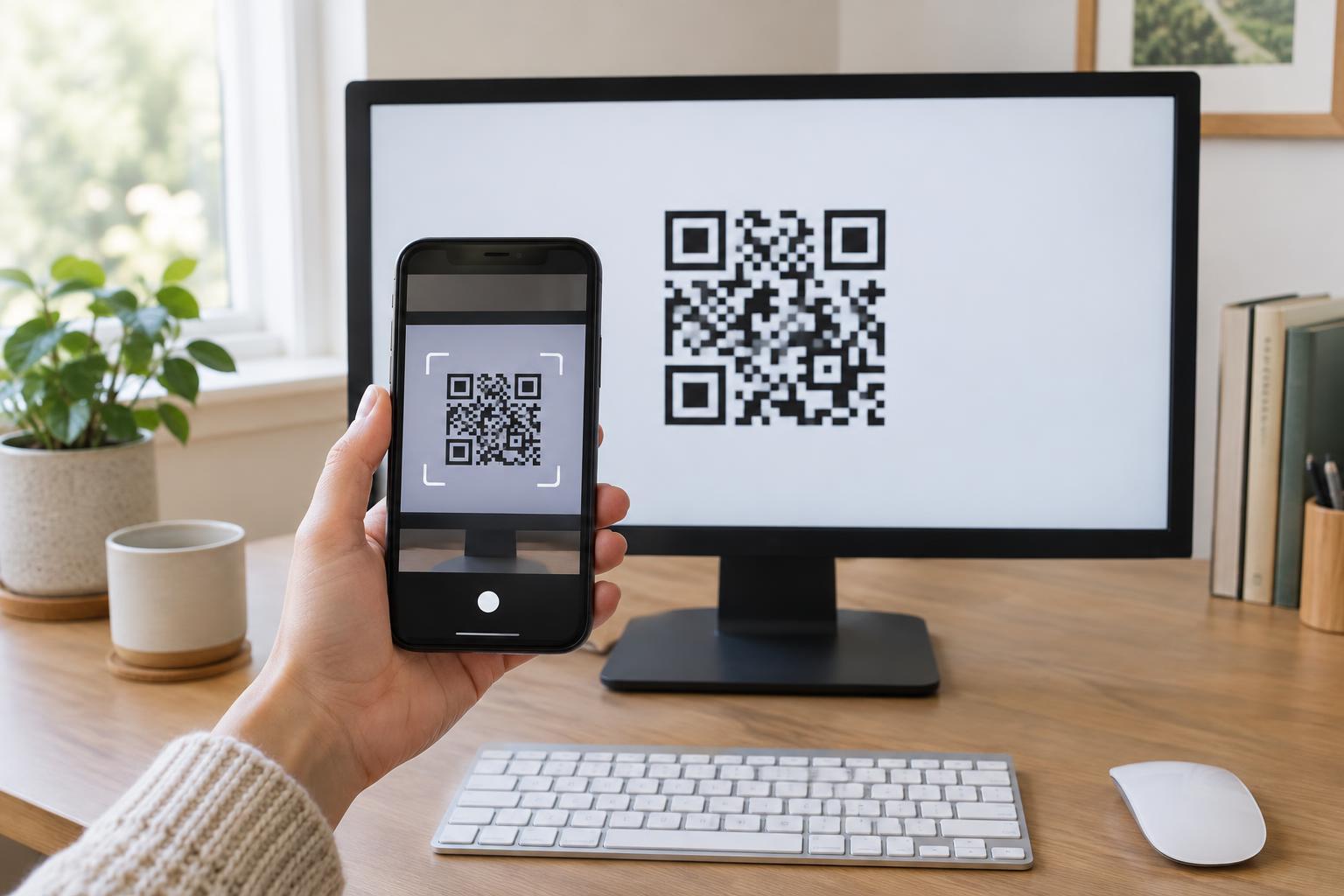
A QR code does not have to be printed. A phone or tablet camera can read one displayed on a computer monitor or TV, provided the pattern is clear enough in the camera view. Open your device’s camera or a QR-scanning feature, point it at the screen, and hold steady. When a link or other action appears, check what it says before opening it.
The code works the same way on a screen as it does on paper: its arrangement of light and dark squares represents information. That information might be a web address, text, or details for joining a service. Scanning reads the information; it does not, by itself, guarantee that the destination is trustworthy.
How to get a reliable scan from a monitor or TV
Start with the entire code visible, including the clear margin around its edges. Move your phone closer if the code is tiny, or farther away if part of it falls outside the camera frame. Tap the screen near the code to help the camera focus if your device allows it. Keep the phone reasonably level with the display rather than pointing at it from a sharp angle.
Screen glare is a common obstacle. Try changing your position so a lamp or window is not reflected over the code, or adjust the display angle if possible. If the screen is very bright or very dim, a modest brightness change may help. Avoid zooming into a blurry image of a code: enlarging it may make its edges look bigger without making the pattern clearer.
On a TV, pause the picture if the code appears only briefly. A larger code is easier to scan from a sofa than a small one in the corner of the screen. If it still does not scan, walk closer before trying your phone’s camera zoom. Some on-screen codes are tied to a sign-in or pairing step and may expire; if so, refresh that step and scan the new code.
What if the code is on the phone you want to use?
A phone camera cannot point at a QR code on its own display. One simple option is to show the code on another device, such as a laptop, and scan it with the phone. You can also take a screenshot and check whether your phone’s photo viewer offers a built-in way to recognize QR codes in images. The feature and its location vary by device, so it may not be available.
If the code sits beside a written web address or a button labeled for the same task, that may be a more direct route. Type an address only after checking it carefully, especially if it asks you to sign in or pay. Avoid sending screenshots of sign-in or pairing codes to other people: some codes can provide access to an account or session while they remain valid.
Why a code might not scan
A failed scan does not necessarily mean the code is broken. The image may be too small, cropped at the edges, low in contrast, or blurred by the display. Reflections, a moving video, and a camera that has not focused can also interfere. Try enlarging the page or image while keeping the whole code and its surrounding margin visible. If you control the content, display a sharp original image rather than a low-resolution copy.
Sometimes the scan succeeds but the result does not work. A link may no longer be available, or a temporary pairing code may have expired. In that case, repeatedly changing camera settings will not help. Return to the page or TV prompt that showed the code and look for an option to generate a fresh one or complete the task another way.
Make on-screen codes useful and safe for everyone
If you are putting a QR code on a website, presentation, or TV display, give it enough space and strong contrast against its background. Keep other graphics out of the clear area around it, and leave it on screen long enough for someone to take out a phone and focus. Pair it with a brief explanation of what scanning will do, such as opening a menu or connecting a device.
Offer an alternative for people who cannot scan or would rather not use a phone, such as a clearly labeled button on a web page or a readable address when appropriate. Finally, treat an unexpected code like any other unexpected link. Before entering personal information, inspect the destination shown by the scanner and make sure it matches the task you intended to complete.